
Following a Live MatchBeta
On this page
Overview
When a match is being scored live in CrickTeams, anyone can follow it ball by ball. Club members can watch in the CrickTeams app. Family, friends and teammates without an account can open a public web link in any browser, with no sign-in needed.
This guide is for viewers and players. If you’re scoring the match, see Live Scoring.
Finding a Live Match
In the app
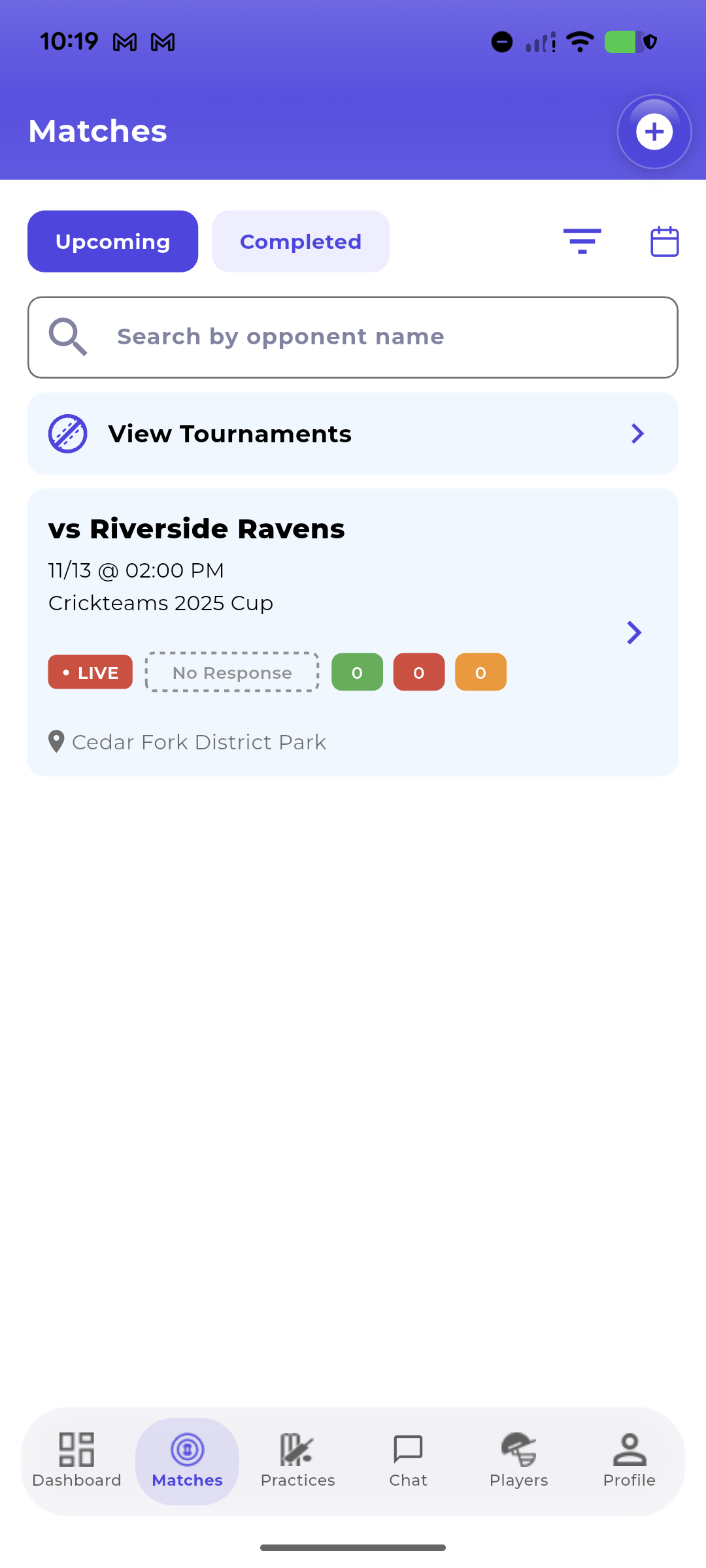
- LIVE badge. A match being scored shows a red LIVE badge on the match list. Tap the badge to go straight to the scoreboard.
- Match page. Open the match and tap View scoreboard. Once the match has finished, the button reads View scorecard.
- Notifications. Club members get a notification when a match goes live (”… is live — follow ball-by-ball”) and another when it finishes. Tap it to open the scoreboard.
On the web
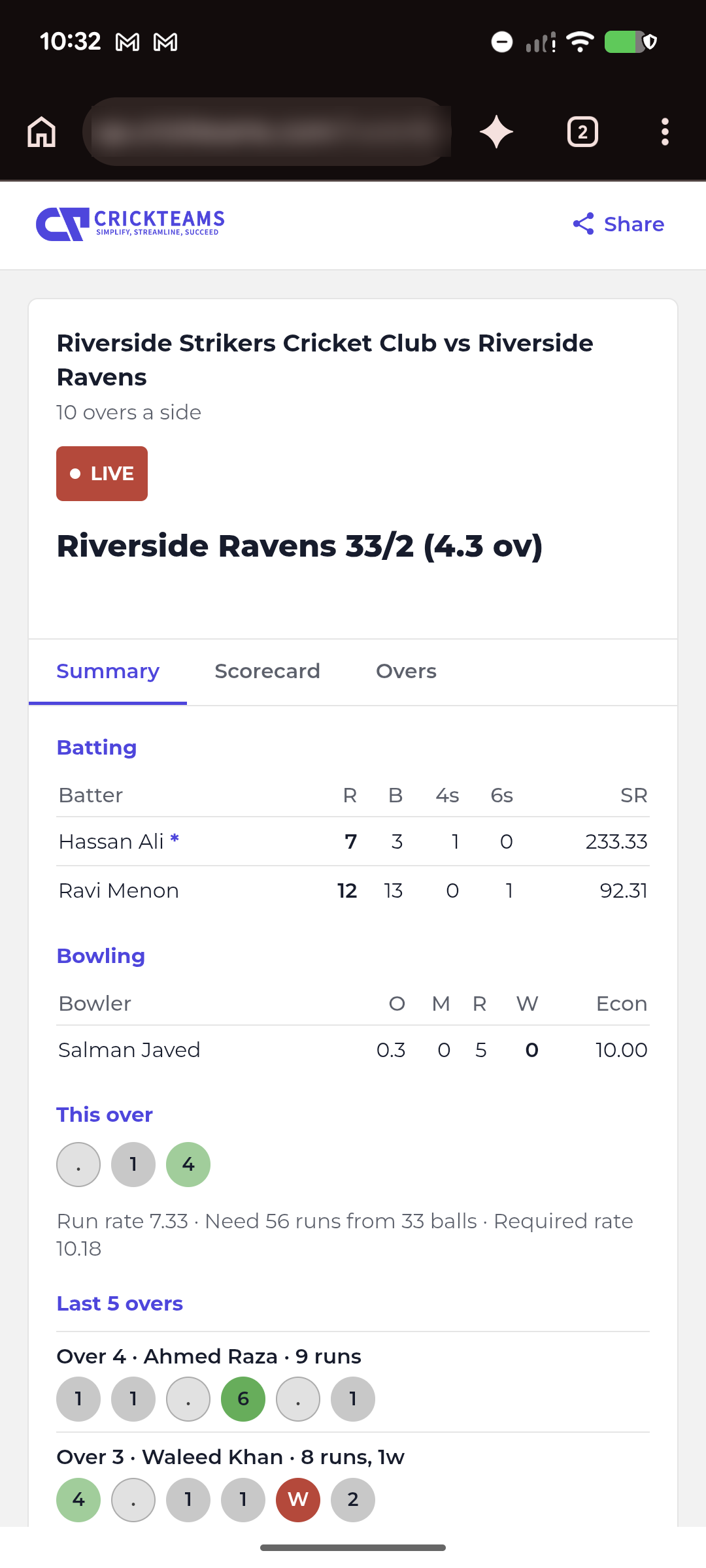
- The public link. Anyone with the link can open the scoreboard in a browser on a phone, tablet or computer. It works without a CrickTeams account and keeps updating if you refresh the page. Ask the scorer or a club member to share it (see Sharing the Scoreboard).
- The match list. Signed-in club members see the same LIVE badge on the Matches page on crickteams.com. Click it to open the live scoreboard.
The Scoreboard Tabs
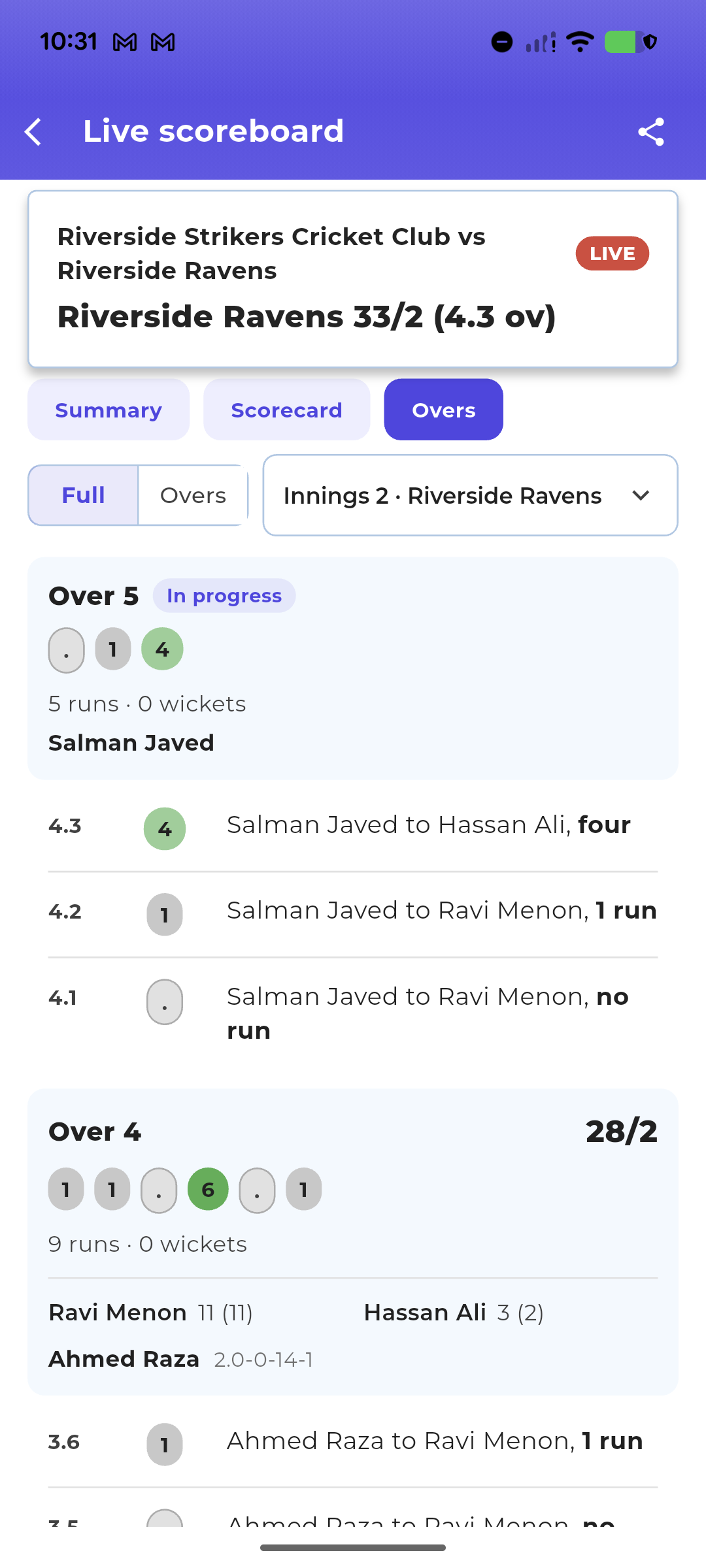
The scoreboard has three tabs: Summary, Scorecard and Overs. They’re the same in the app and on the web, and they update ball by ball while the match is live.
Summary
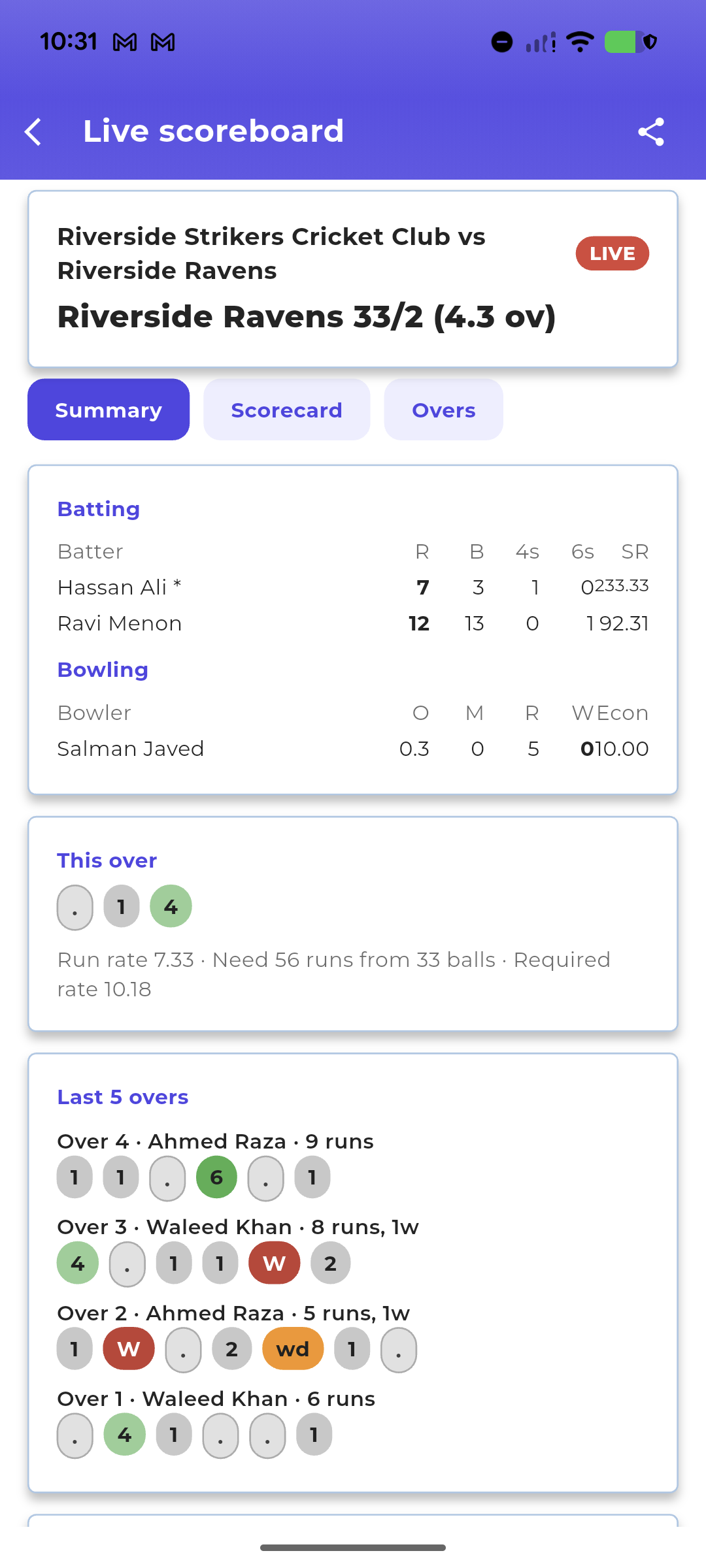
While the match is live, the Summary shows:
- the score and the overs bowled, with a LIVE badge
- the run rate and, in a chase, the target, the runs needed from the balls left, and the required rate
- This over, ball by ball, with a FREE HIT tag when the next ball is a free hit
- the last 5 overs
When the match has finished, the Summary changes to a results view:
- both teams’ scores and the result line, for example “Riverside Strikers Cricket Club won by 16 runs”, plus the toss
- the Player of the match card, if a manager has chosen one
- a card for each innings with its run rate, top batters and top bowlers
- a Full scorecard link that opens the Scorecard tab
If a match was abandoned, the reason shows under the score.
Scorecard
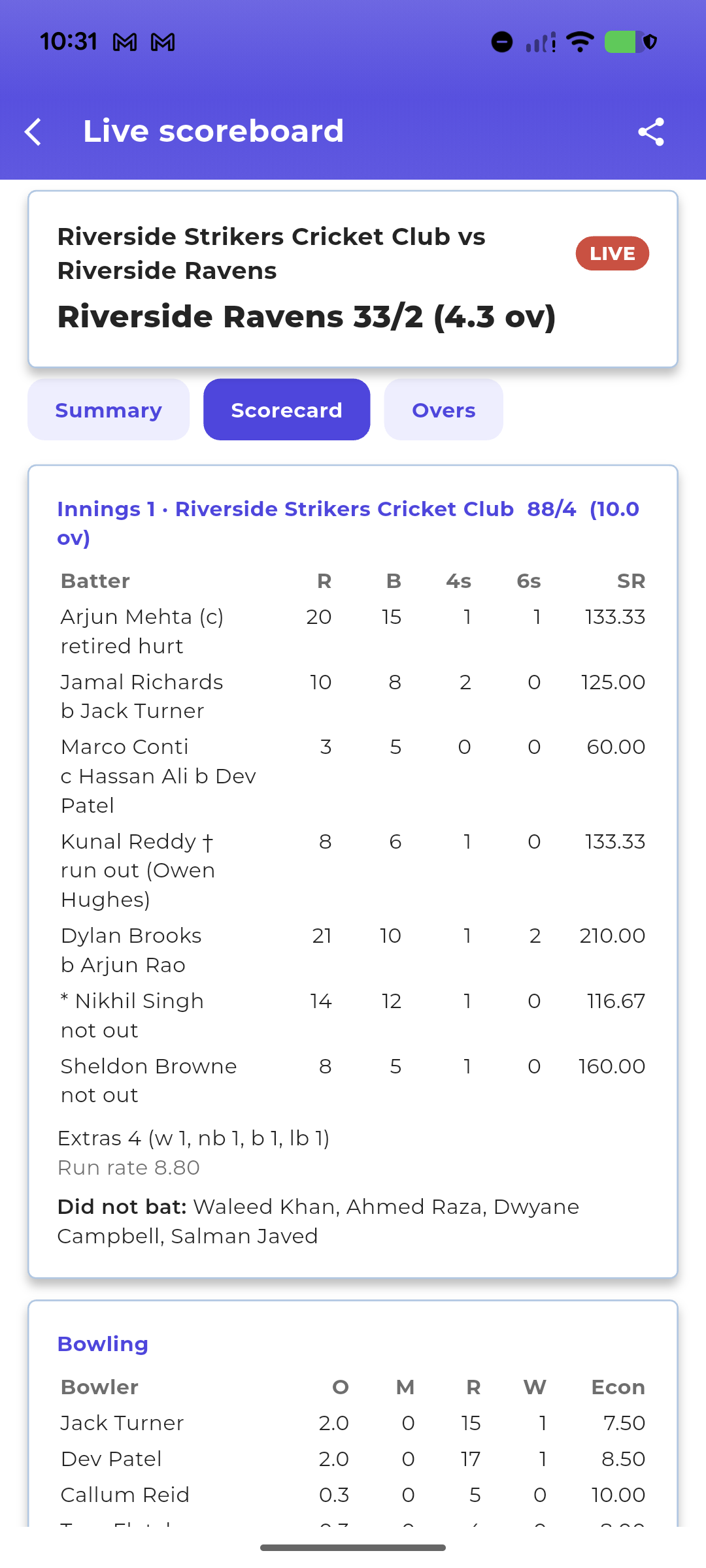
The full scorecard for each innings:
- Batting: every batter, how they were out, runs, balls, fours, sixes and strike rate
- Extras and Fall of wickets
- Did not bat (or Yet to bat while the innings is in progress)
- Bowling: overs, maidens, runs, wickets and economy (Econ) for every bowler
- Officials: the umpires, scorer and referee, if the club has added them
On the web, (c) marks the captain and † the wicket-keeper.
Overs
Every over of the innings, newest at the top.
- Choose Full to see every ball with a summary after each over, or Overs to see just the over summaries.
- In a two-innings match, use the innings picker to switch between innings.
- If you’ve scrolled down and new balls arrive, a “new balls” pill appears. Tap it to jump back to the top.
- When a bowler was replaced during an over, the over shows each bowler and the balls they bowled.
Sharing the Scoreboard
Tap Share at the top of the scoreboard, in the app or on the web.
- On a phone, your phone’s share sheet opens so you can send the link to a chat, a text or an email.
- On a computer where sharing isn’t available, the link is copied and you’ll see “Scoreboard link copied”. Paste it wherever you like. If copying doesn’t work either, copy the address from your browser’s address bar.
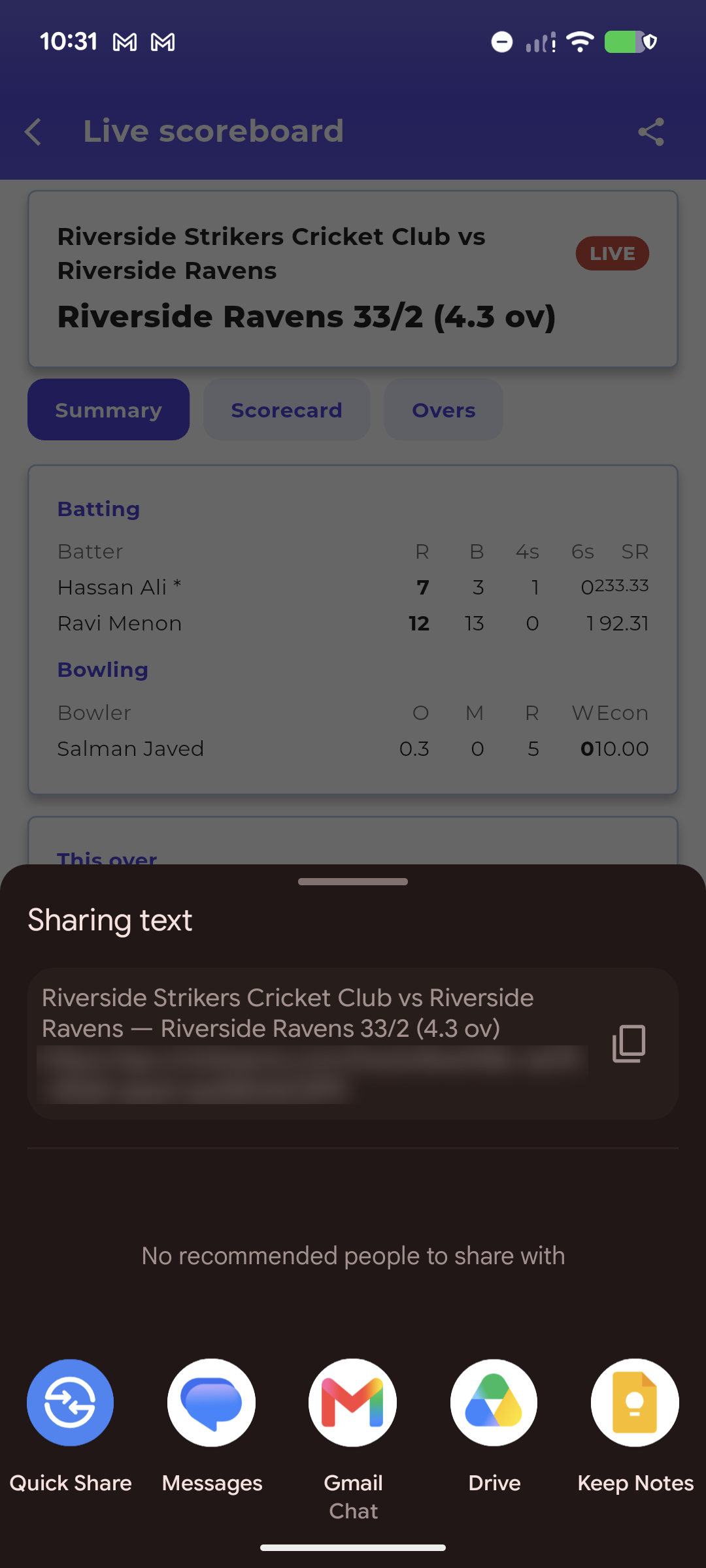
The message includes the teams and the score at the moment you shared, for example “Riverside Strikers Cricket Club vs Riverside Ravens — Riverside Ravens 33/2 (4.3 ov)”, followed by the link. After the match it includes the result instead. Whoever opens the link always sees the latest score, not the one in the message.
When the Score Doesn’t Update
”Updated 40s ago”
If live updates pause, the scoreboard keeps checking for a new score about every 15 seconds and shows how old the score on screen is. This often happens when the scorer’s phone has no signal at the ground. The scorer keeps scoring on the phone, and the scoreboard catches up as soon as the phone reconnects.
”Couldn’t refresh just now”
In the app, the banner “Couldn’t refresh just now — this is the last score this phone received.” means your phone couldn’t reach CrickTeams. The score underneath is still there, it’s just not the latest. Tap Try again or pull down to refresh. The banner clears by itself when your connection comes back. If the retry fails too, you’ll see “Still couldn’t refresh. Check your signal and try again.”
On the web, the same situation shows “Reconnecting… showing the last score received.” If the page couldn’t load a score at all, it shows Can’t reach the scoreboard and fills in by itself once the connection comes back.
”This scoreboard isn’t available”
In the app, This scoreboard isn’t available (on the web, Scoreboard not available) means the match can’t be shown. It may have been removed, or live scoring may not be switched on for this match. Check with the club that you have the right link.
Other messages
| Message | What it means |
|---|---|
| Live scoring hasn’t started (app) / “This match hasn’t started yet…” (web) | Scoring has started but no ball has been bowled yet. The score appears with the first ball |
| No ball-by-ball score was recorded for this match. | The result was entered by hand, not scored live |
| No balls were bowled before the match was abandoned. | The match was abandoned before play started |
| Update the app to view this live score. (app) / Update to view this scoreboard (web) | The match is being scored with a newer version of CrickTeams. Update the app, or refresh the web page |
Frequently Asked Questions
Do I need a CrickTeams account to follow a match?
No. Anyone with the public link can follow the match in a browser. Club members can also follow in the app.
How quickly does the score update?
Ball by ball, usually within seconds of the scorer tapping. If live updates drop, the scoreboard checks again about every 15 seconds and shows “Updated … ago”.
Why has the score stopped moving?
Most often the scorer’s phone has lost signal. The scorer keeps scoring and nothing is lost, and the scoreboard catches up when their phone reconnects. If you see “Couldn’t refresh just now”, the problem is your own connection.
Can I see the scorecard after the match?
Yes. Open the match and tap View scorecard, or open the same link again. Completed matches can’t be deleted, so the scorecard stays available.
Where do my own stats show?
Club players’ Career Stats on their player page in the app update from every match scored live: batting and bowling figures, plus a match-by-match view.
Can I score from the scoreboard?
No. The scoreboard is view-only for everyone. Scoring happens on the scorer’s phone. See Live Scoring.
Related articles
- Live Scoring — Score a match ball by ball in the app
- Matches — Find and manage your club’s matches
- Player Guide — Getting started as a player