
My Account
On this page
- Overview
- About You
- Fields
- Validations — About You
- Cricket Profile
- Fields
- Notification
- Reminder Types
- Notification Options
- Validations — Notification
- Emergency Contacts
- Adding an Emergency Contact
- Fields
- Validations — Emergency Contacts
- Where did Fees & Payments go?
- Validations Summary
- Frequently Asked Questions
- Related articles
Overview
My Account is a personal settings panel available to every CrickTeams user — both managers and players. It is opened as a modal dialog from anywhere in the app and contains four tabs: About You, Cricket Profile, Notification, and Emergency Contacts.
Changes made in My Account apply only to the signed-in user’s own profile. Managers cannot edit another player’s My Account on their behalf.
To open My Account:
- Click your avatar or initials in the top-right corner of any page
- Select My Account from the dropdown
- The My Account modal opens on the About You tab by default
- Navigate between tabs using the left-hand menu inside the modal
| Tab | What it contains |
|---|---|
| About You | Personal details — name, gender, date of birth, mobile number, profile photo |
| Cricket Profile | Playing role, batting style, bowling style, wicket keeper flag |
| Notification | Reminder preferences for Practice, Match and Roster Selected events |
| Emergency Contacts | Emergency contact details that can be shared with the club if needed |
About You
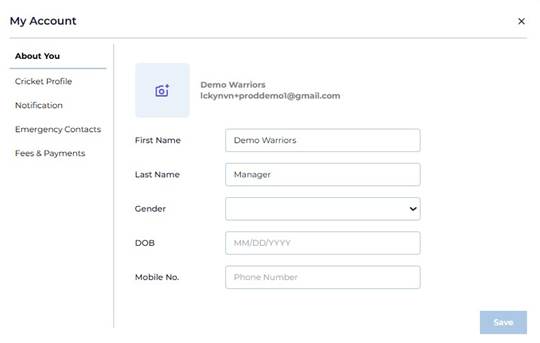
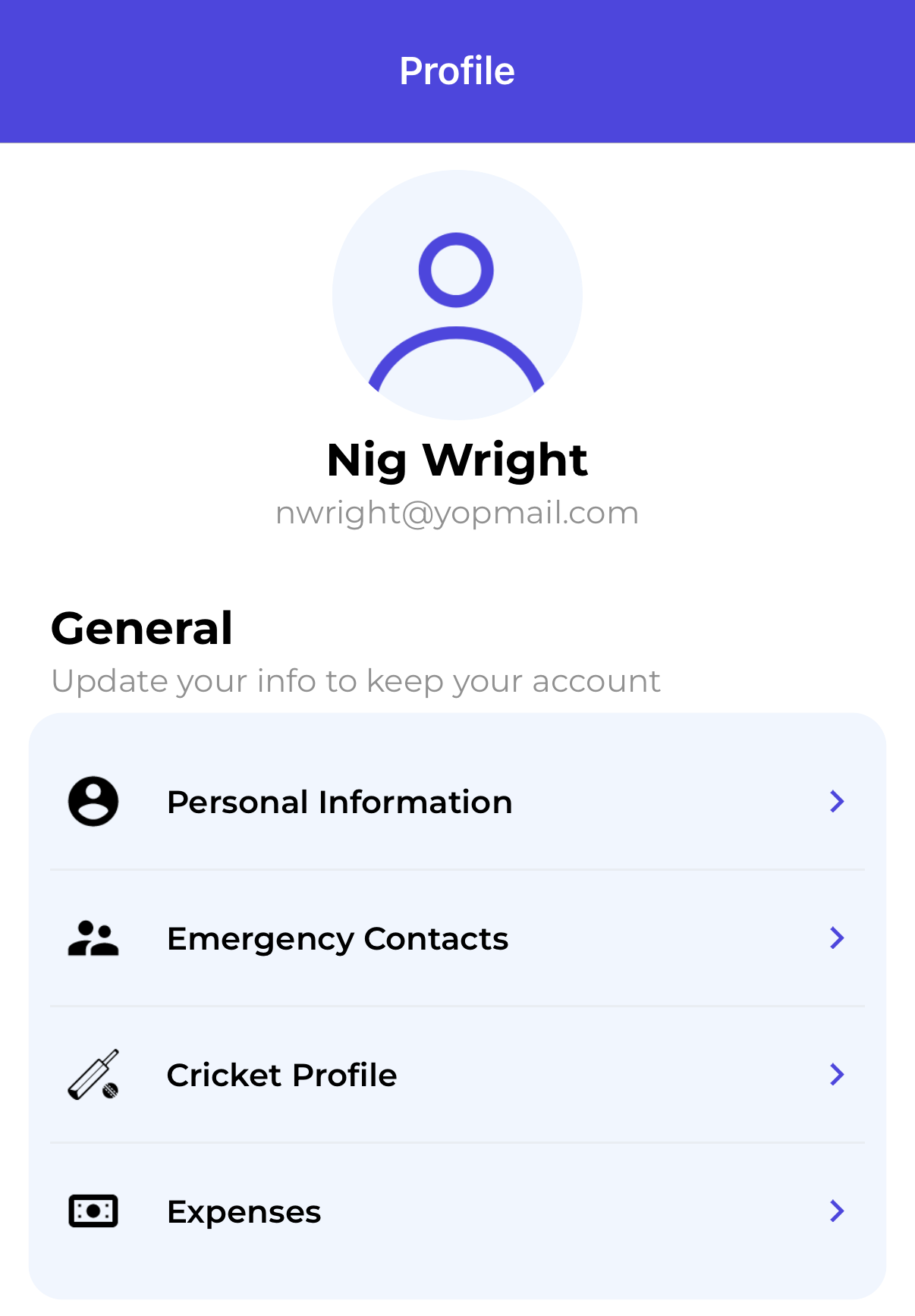
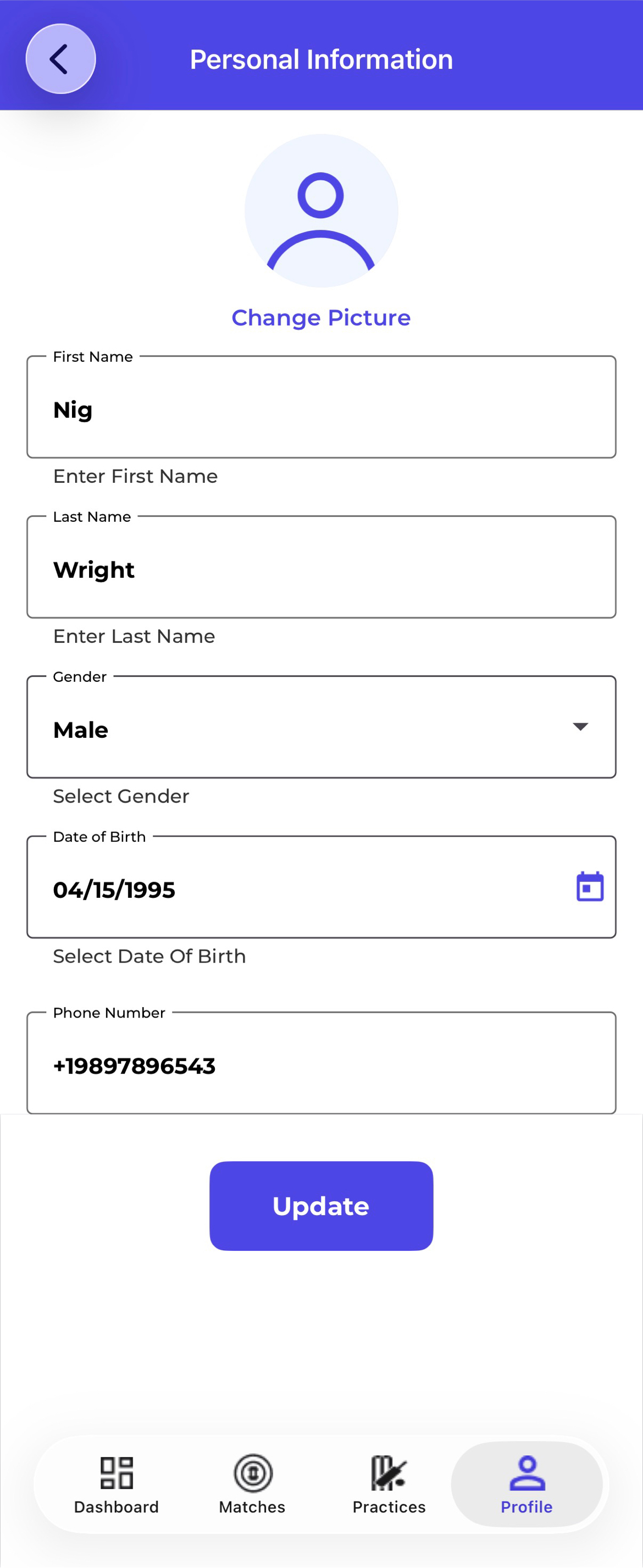
The About You tab lets every user update their personal profile information. The tab also shows the user’s profile photo, display name and email address at the top.
Fields
| Field | Required | Details |
|---|---|---|
| Profile Photo | Optional | Click the camera icon to upload a new photo. Accepted formats: JPEG, PNG. Max size: 5 MB. |
| First Name | Required | The user’s first name. Cannot be blank. Max 50 characters. |
| Last Name | Required | The user’s last name. Cannot be blank. Max 50 characters. |
| Gender | Required | Dropdown — select Male, Female |
| DOB | Required | Date of birth in MM/DD/YYYY format. Must be a valid date. |
| Mobile No. | Required | Phone number field. Accepts digits, spaces, dashes and the + prefix for international numbers. |
Validations — About You
- First Name or Last Name cannot be left blank when saving
- DOB cannot be set to a future date
- DOB must be in MM/DD/YYYY format — invalid formats trigger an error
- Profile photo must be JPEG or PNG and under 5 MB
- Email address is displayed but cannot be edited from this tab — it is the login email and is managed separately
Cricket Profile
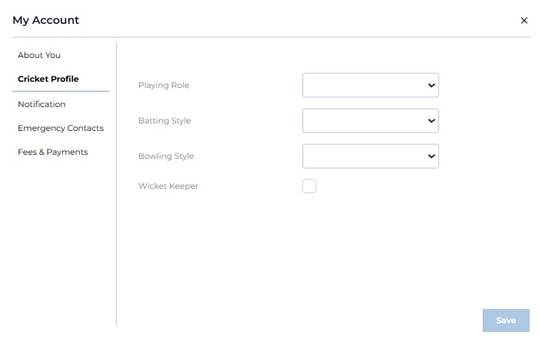
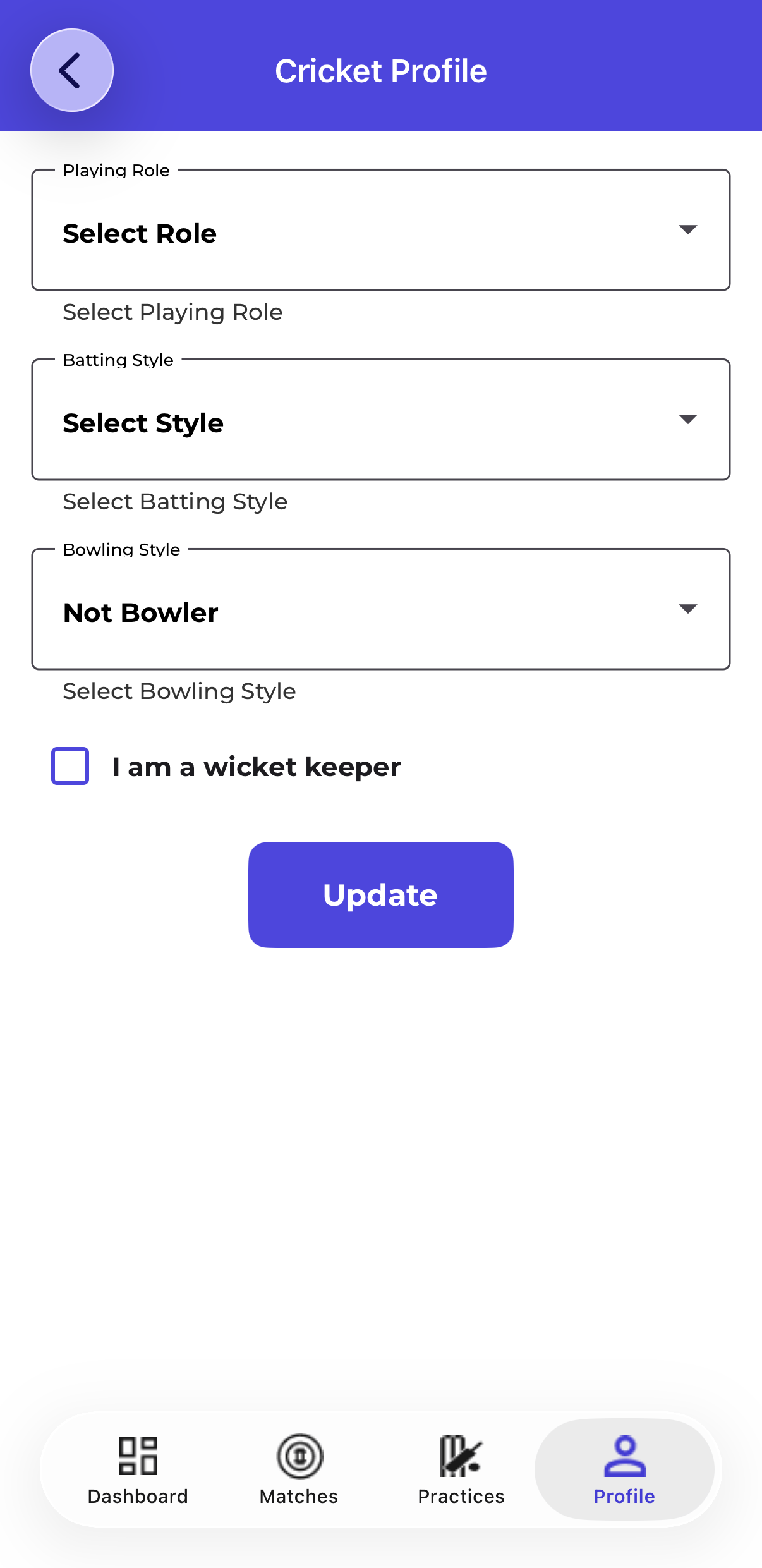
The Cricket Profile tab lets users set their playing attributes. This information is visible to club managers when reviewing player profiles and can be used for team selection.
Fields
| Field | Required | Details |
|---|---|---|
| Playing Role | Optional | Dropdown — options include Batsman, Bowler, All-Rounder |
| Batting Style | Optional | Dropdown — options include Right-Hand Batsman, Left-Hand Batsman. |
| Bowling Style | Optional | Dropdown — options include Right Arm Fast, Right Arm Medium, Right Arm Off Spin, Right Arm Leg Spin, Left Arm Fast, Left Arm Medium, Left Arm Off Spin, Left Arm Leg Spin |
| Wicket Keeper | Optional | Checkbox — tick if the player is a wicket keeper. Can be selected alongside any Playing Role. |
Validations — Cricket Profile
- All Cricket Profile fields are optional. The tab can be saved with all dropdowns blank.
- Wicket Keeper can be checked independently of the Playing Role selection.
Notification
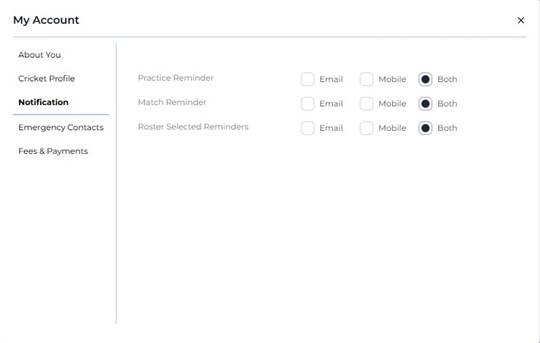
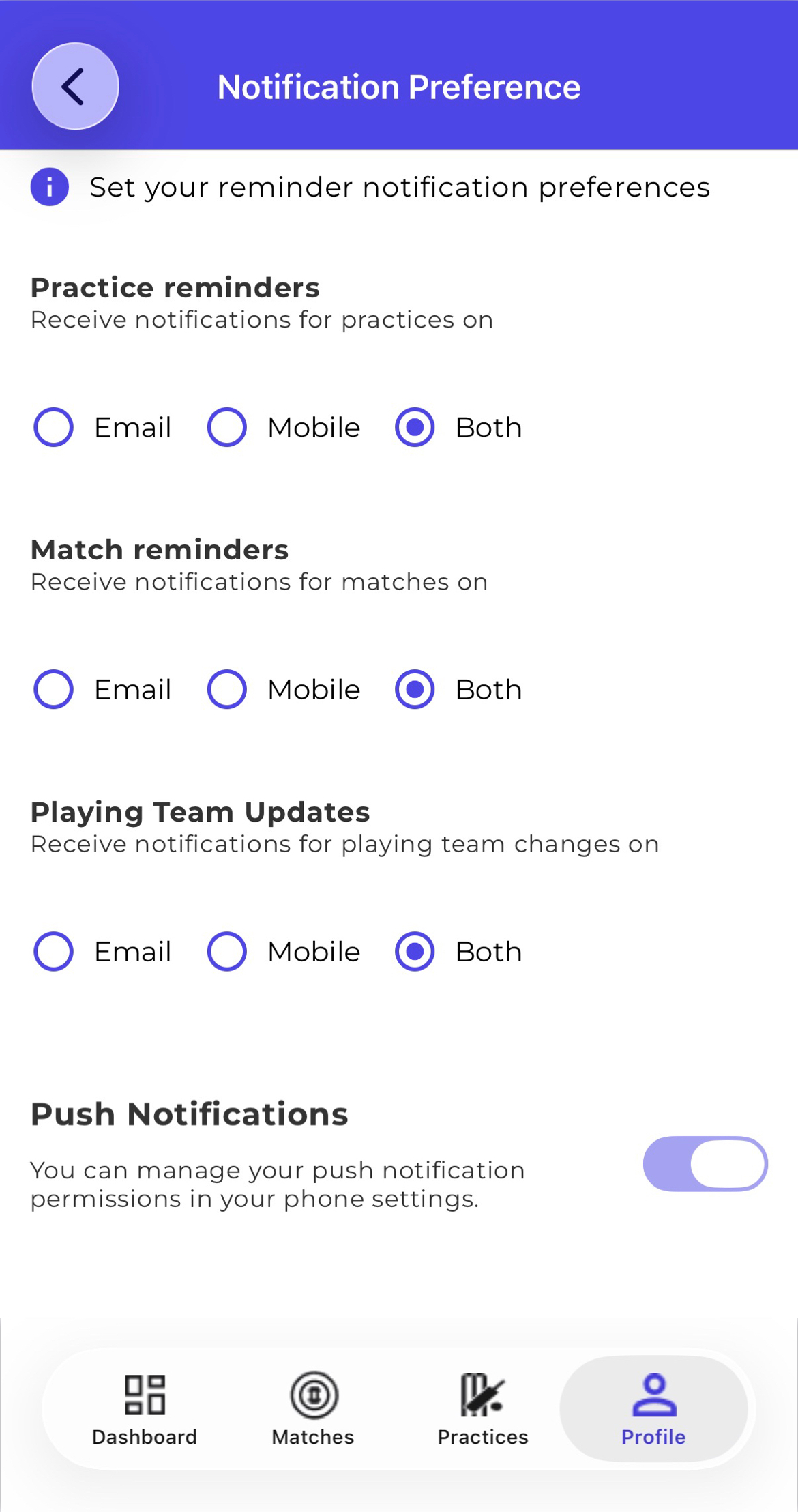
The Notification tab lets users choose how they want to receive reminders for club events. Each reminder type can be set to Email only, Mobile only, or Both. The default is Both for all three reminder types.
Reminder Types
| Reminder | When it is sent | Default |
|---|---|---|
| Practice Reminder | Sent before a scheduled practice session | Both (Email + Mobile) |
| Match Reminder | Sent before a scheduled match | Both (Email + Mobile) |
| Roster Selected Reminders | Sent when the user is added to a tournament roster | Both (Email + Mobile) |
Notification Options
| Option | What it does |
|---|---|
| Sends the reminder to the user’s registered email address only | |
| Mobile | Sends the reminder as a push notification to the user’s mobile device only |
| Both | Sends both an email and a mobile push notification (default) |
Validations — Notification
- Each reminder type must have exactly one option selected (Email, Mobile or Both). The field cannot be left blank.
- Notification preferences are saved per user and apply immediately.
Emergency Contacts
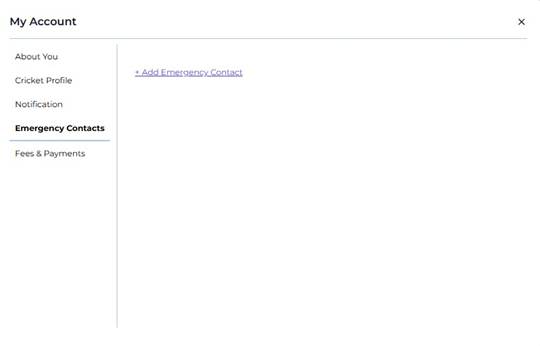
The Emergency Contacts tab allows users to add one or more emergency contacts to their profile. This information can be accessed by club managers in the event of an emergency during club activities.
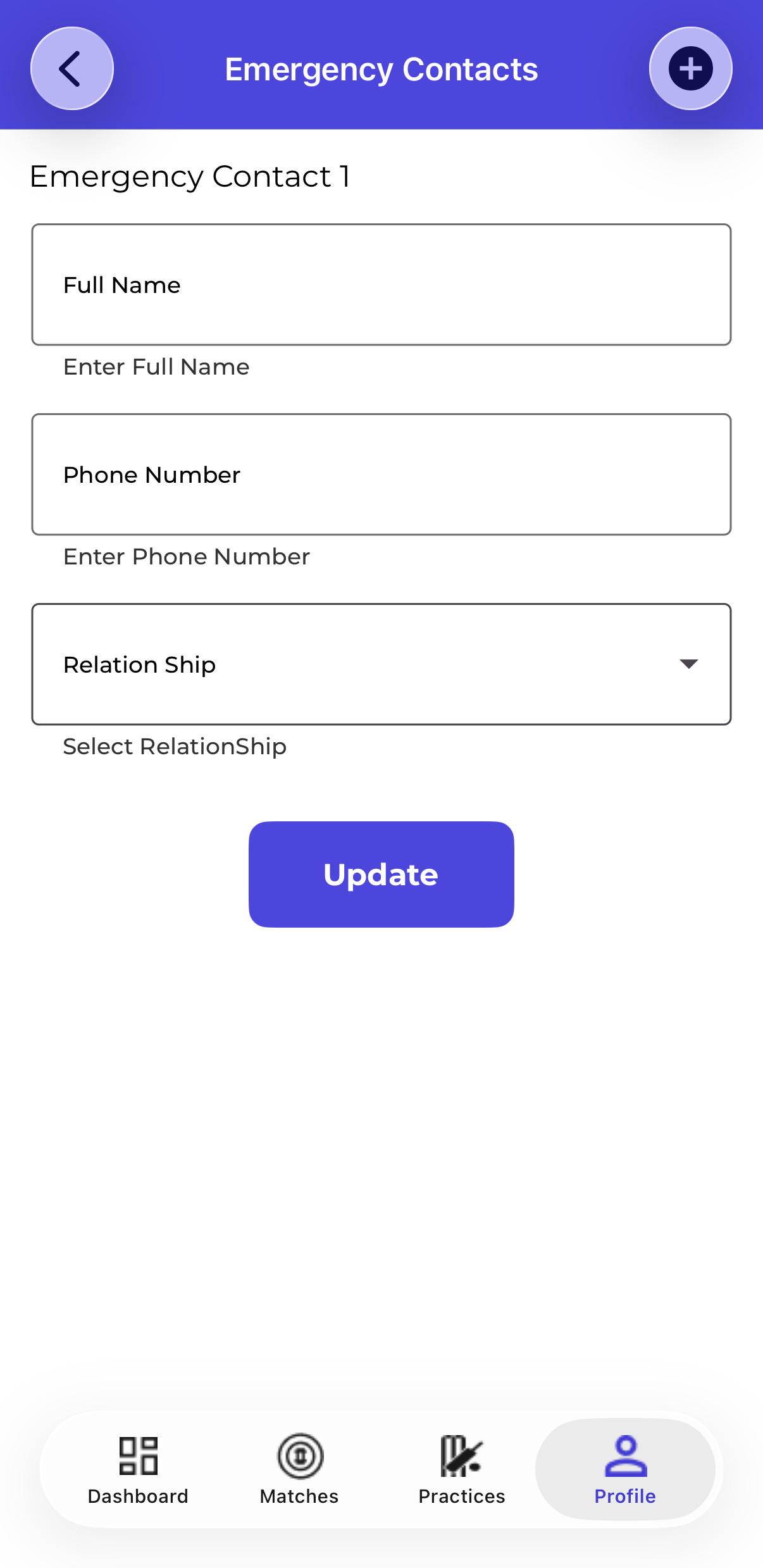
Adding an Emergency Contact
- Click + Add Emergency Contact
- A form expands with fields for the contact’s details
- Fill in the required fields and click Save
Fields
| Field | Required | Details |
|---|---|---|
| Contact Name | Required | Full name of the emergency contact. Cannot be blank. |
| Relationship | Optional | Relationship to the user (e.g. Spouse, Parent, Sibling, Friend). Select from dropdown or enter free text. |
| Phone Number | Required | Primary contact number. Must be a valid phone number format. |
| Optional | Email address of the emergency contact. Must be a valid email format if provided. |
Validations — Emergency Contacts
- Contact Name cannot be blank
- Relationship cannot be blank
- Phone Number cannot be blank and must be a valid phone number
- Email, if provided, must be a valid email format
- Multiple emergency contacts can be added to a single profile
- Each contact can be edited or deleted individually after saving
Where did Fees & Payments go?
Earlier versions of CrickTeams showed your dues inside a Fees & Payments tab in My Account. That tab has moved: your outstanding dues and payment history now live on the Finances → Fees & Payments page in the left navigation. Open it to see your own fees, what you have paid so far, and your remaining balance — you only ever see your own dues, never other players’.
Validations Summary
The table below consolidates all validation rules across My Account tabs.
| Tab | Rule | Type |
|---|---|---|
| About You | First Name and Last Name are required | Error on save |
| About You | DOB must be a valid past date in MM/DD/YYYY format | Error on save |
| About You | Profile photo must be JPEG or PNG, max 10 MB | Error on upload |
| About You | Email address is display-only and cannot be edited | UI restriction |
| Cricket Profile | All fields are optional — tab can be saved blank | No restriction |
| Notification | Each reminder must have one option selected (Email/Mobile/Both) | Required selection |
| Emergency Contacts | Contact Name, Relationship and Phone Number are required | Error on save |
| Emergency Contacts | Email, if entered, must be valid email format | Error on save |
Frequently Asked Questions
Can a manager update a player’s My Account for them?
No. My Account is a personal settings panel that each user manages themselves. Managers cannot access or edit another user’s My Account. However, managers can view player details such as cricket profile information from the Players section.
How do I change my email address?
Your email address is your login credential and is displayed in My Account — About You but cannot be changed from there. To change your email, contact CrickTeams support or use the account settings available at the login/registration level.
Why is my Total Outstanding Dues different from what my manager says I owe?
The Finances → Fees & Payments page only shows fees that are currently active and assigned to you. If a fee has been deactivated by the manager it will not appear in your list and will not contribute to your total. Contact your club manager to review your assigned fees.
Can I record my own payment in Fees & Payments?
No. The Finances → Fees & Payments page is read-only for players. Payments can only be recorded by your club’s Treasurer from the Finances → Fees & Payments page.
I selected Mobile for notifications but I am not receiving push notifications. Why?
Push notifications require the CrickTeams mobile app to be installed on your device and notifications to be enabled at the operating system level (iOS Settings or Android Settings). Check that both conditions are met. If notifications are still not arriving, try logging out and back in to the app.
Can I add more than one emergency contact?
Yes. You can add multiple emergency contacts. Each contact is saved individually and can be edited or deleted at any time from the Emergency Contacts tab.
Who can see my Emergency Contact information?
Emergency contact details are visible to club managers only. Other players and members cannot access this information. It is intended for use in emergencies during club activities.
Related articles
- Expenses — Submit and manage club expenses
- Fees — Create and manage club fees
- Permissions — Manage club managers and captain roles
- Subscription — View and manage your plan and billing