
Permissions
On this page
- Overview
- Club Managers
- Viewing Club Managers
- Adding a Club Manager
- Removing a Club Manager
- Club Treasurer
- What the treasurer controls
- Assigning the treasurer
- If you are not the owner
- Club Owner
- Transferring club ownership
- What changes after a transfer
- If you are not the owner
- Captains & Vice Captains
- Reading the Table
- Removing a Captain or Vice Captain
- Validations
- Adding a Club Manager
- Club Treasurer
- Club Owner
- Captains & Vice Captains
- Manager Limit by Plan
- Frequently Asked Questions
- Related articles
Overview
The Permission page under Settings gives managers control over four key areas of club access: Club Managers, the Club Treasurer, the Club Owner, and tournament Captains & Vice Captains. Managers can add or remove club managers and see a consolidated list of all captain and vice captain assignments across tournaments. The club owner can additionally assign which manager holds the treasurer role, and transfer ownership of the club itself.
This guide covers how to view and manage club managers, how to assign players as managers using the Select Player modal, how the Club Treasurer is assigned and what that role controls, how club ownership works and how to transfer it, how captains and vice captains are displayed, and the validations enforced by the system.
To access Settings — Permission:
- Log in to CrickTeams as a Manager
- Click Settings from the left navigation menu
- Click Permission from the Settings sub-menu
Club Managers
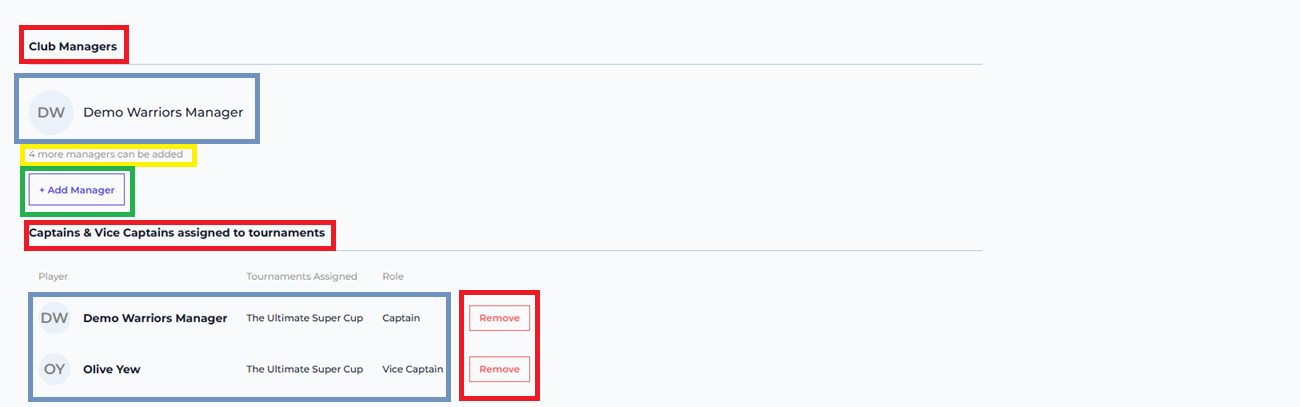
The Club Managers section shows all users who have manager-level access to the club. Managers can perform administrative actions such as creating fees, managing players, and configuring settings.
Viewing Club Managers
Each manager is displayed as a tile showing their initials avatar and full name. Below the list, a capacity label shows how many more managers can be added (e.g. ‘4 more managers can be added’).
| What you see | What it means |
|---|---|
| Manager tile with initials + name | A user who currently has manager access to the club |
| Owner badge next to a manager | The club owner — by default the person who registered the club, or whoever ownership was later transferred to. Every club has exactly one, and only they can change the Club Treasurer or transfer ownership |
| 4 more managers can be added | The club plan allows up to 5 managers total; 4 slots remain |
| + Add Manager button | Opens the Select Player modal to promote a player to manager |
Adding a Club Manager
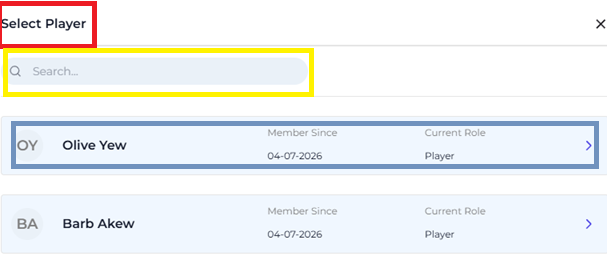
Any active player in the club can be promoted to a club manager. Clicking + Add Manager opens the Select Player modal, which lists all eligible active players.
- Go to Settings → Permission
- Click + Add Manager
- The Select Player modal opens — all active players are listed with their Member Since date and Current Role
- Use the Search bar to find a specific player by name
- Click a player row (or the › arrow) to promote them to Club Manager
Removing a Club Manager
To remove a manager, navigate to their profile or use the manager tile actions. The primary manager account (club owner) cannot be removed.
Club Treasurer
The Club Treasurer is the person who handles the money side of the club. Every club has exactly one treasurer at a time, and the treasurer must be an active club manager — players, captains and vice captains cannot hold the role.
Treasurer is not a separate role that replaces being a manager. It is a designation layered on top of a manager’s existing access, and it is set per club — the same person can be treasurer of one club and an ordinary manager of another.
When a club is first registered, the person who registered it becomes both the owner and the treasurer automatically.
What the treasurer controls
Holding the treasurer role unlocks the money-handling parts of the club. Most visibly, two Settings pages only appear in the sidebar for the treasurer:
| Area | Club Treasurer | Club Manager (not treasurer) |
|---|---|---|
| Settings → Fees (create and edit club fees) | Visible | Not shown in the sidebar |
| Settings → Expenses (custom types and scopes) | Visible on Pro and Premium | Not shown in the sidebar |
| Record a fee payment, reimburse a player, waive dues | Yes | No |
| Choose how an approved expense is settled | Yes | No |
| Void or edit an approved expense | Yes | No |
| Approve or reject another member’s expense | Yes | Yes |
| Finances → Fees & Payments, treasury and payment history | View | View |
Assigning the treasurer
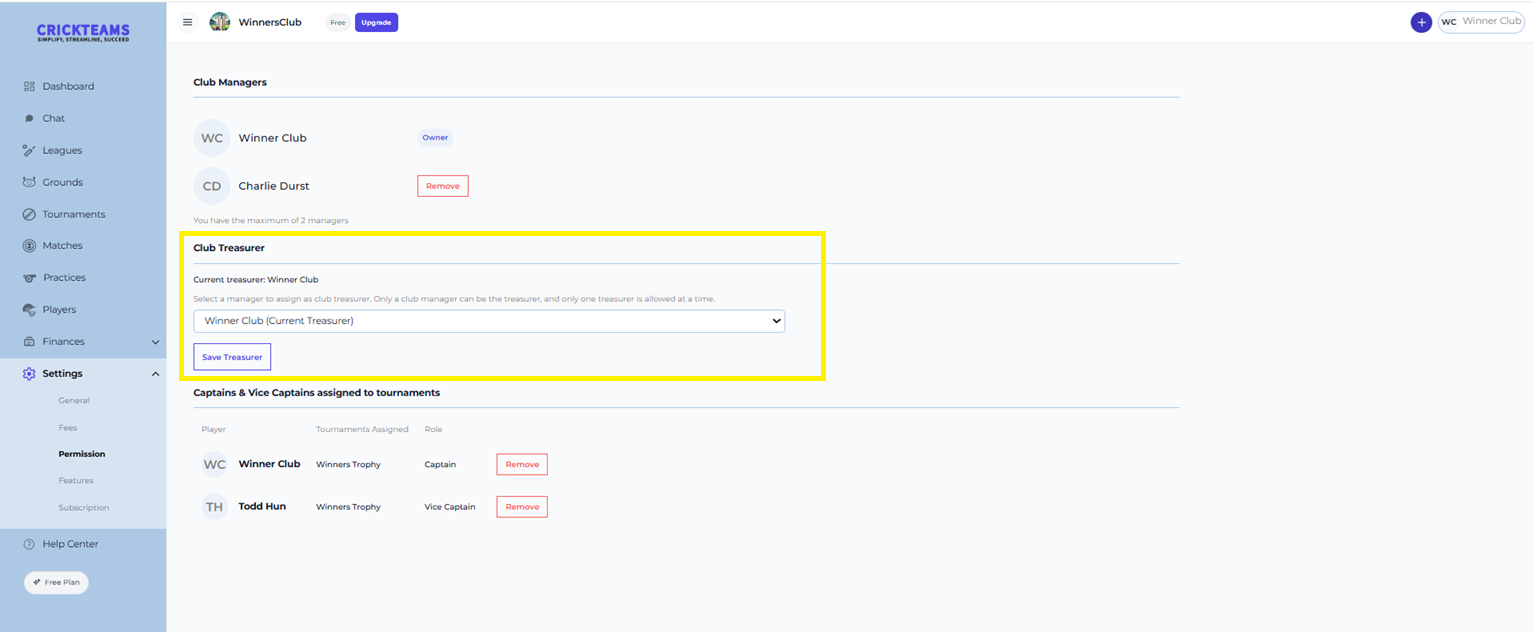
Only the club owner can assign or change the treasurer.
- Log in as the club owner
- Go to Settings → Permission
- Under Club Treasurer, select an active club manager from the dropdown
- Click Save Treasurer
The current treasurer is named above the dropdown. Assigning a new treasurer automatically removes the role from the previous holder — you never need to clear it first.
If you are not the owner
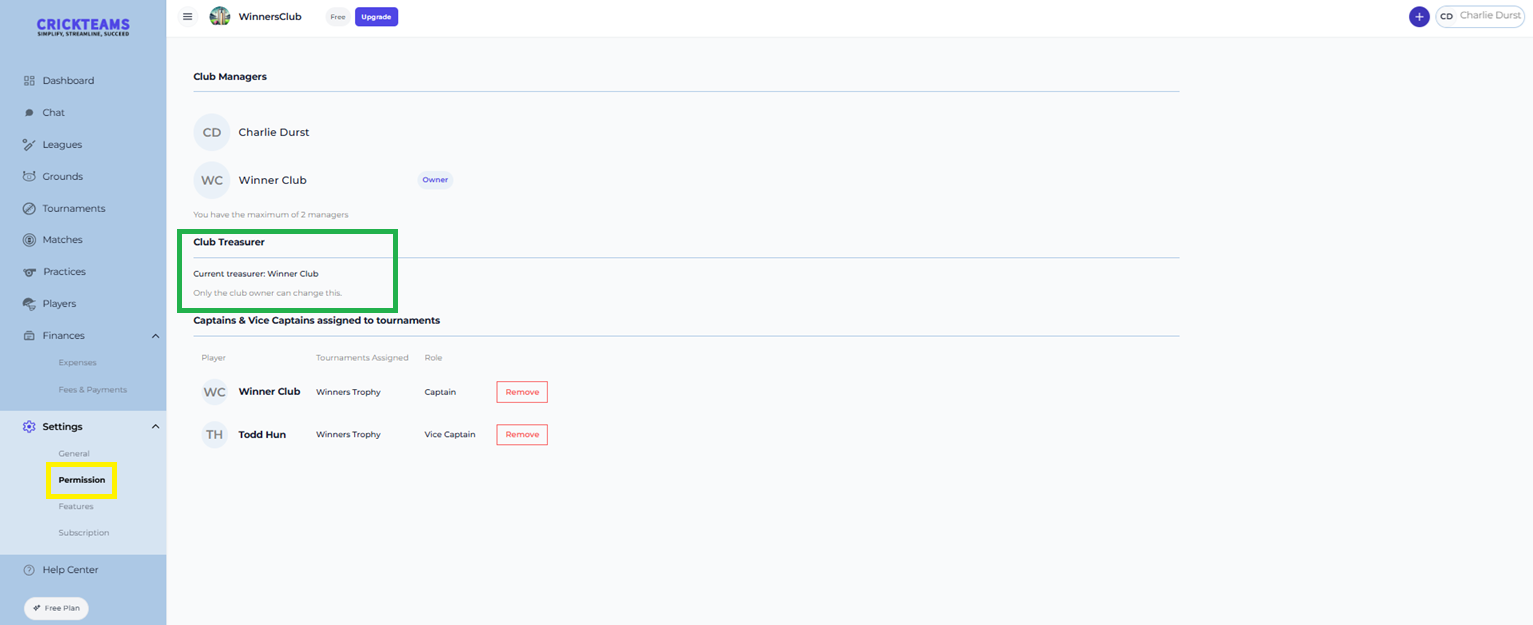
Everyone else — including other managers and the current treasurer — sees the Club Treasurer section as read-only text naming the current treasurer, with the note ‘Only the club owner can change this.’
Club Owner
Every club has exactly one Club Owner. The owner is the club’s top authority: they are the only person who can assign the Club Treasurer, and the only person who can hand the owner role to someone else.
When a club is registered, the person who registered it becomes the owner automatically. For clubs that existed before this was introduced, the oldest active manager was set as the owner.
Owner is a seat, not a permanent label. It starts with the founder, but it can be transferred — so a club is never stranded if the person who set it up leaves. Whoever holds the seat at any given moment is “the owner” for every permission check, so the founder keeps full control right up until they deliberately hand it over.
Transferring club ownership
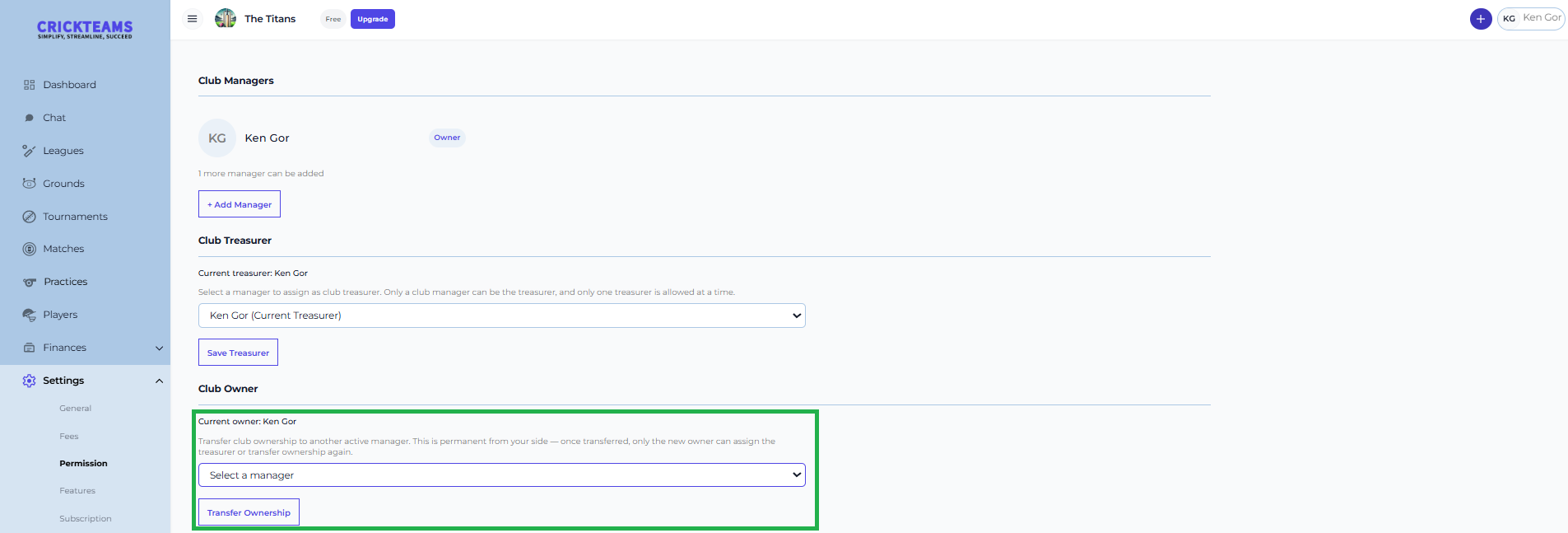
Only the current owner can transfer ownership, and only to an active club manager.
- Log in as the club owner
- Go to Settings → Permission
- Under Club Owner, select an active manager from the dropdown
- Click Transfer Ownership
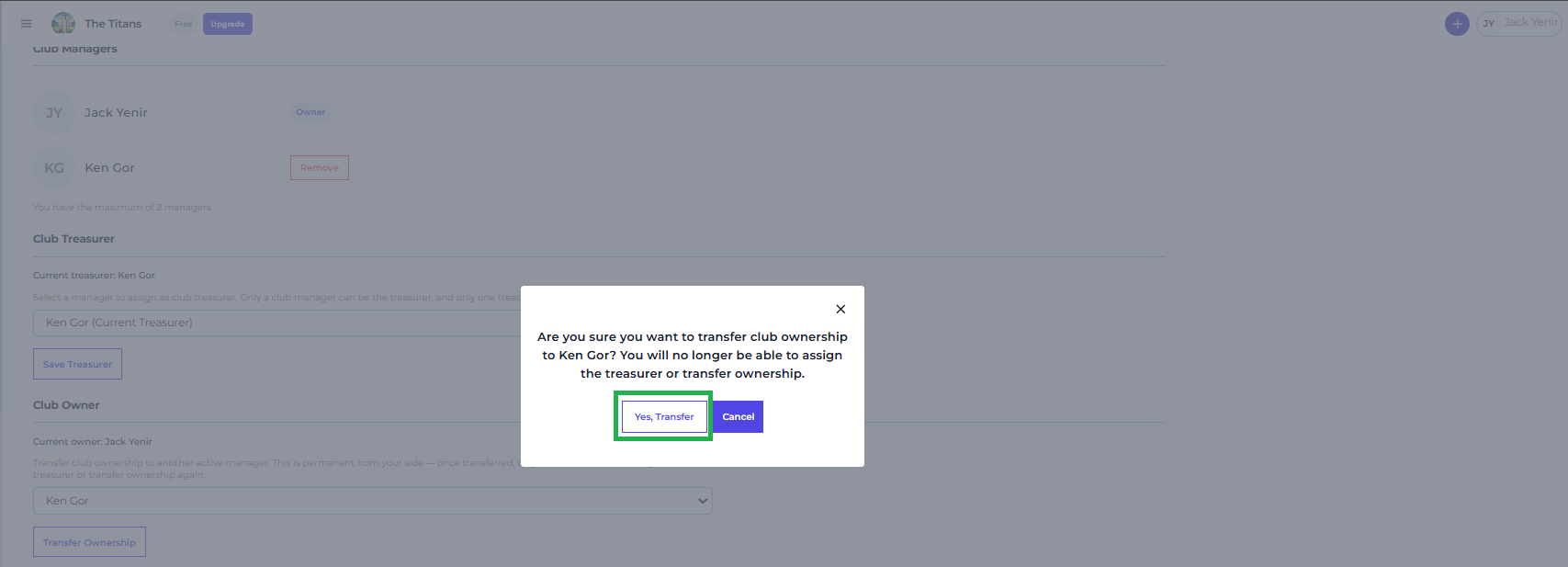
- Confirm on the prompt — it names the person you picked and warns that you will no longer be able to assign the treasurer or transfer ownership. Click Yes, Transfer to proceed, or Cancel to back out
What changes after a transfer
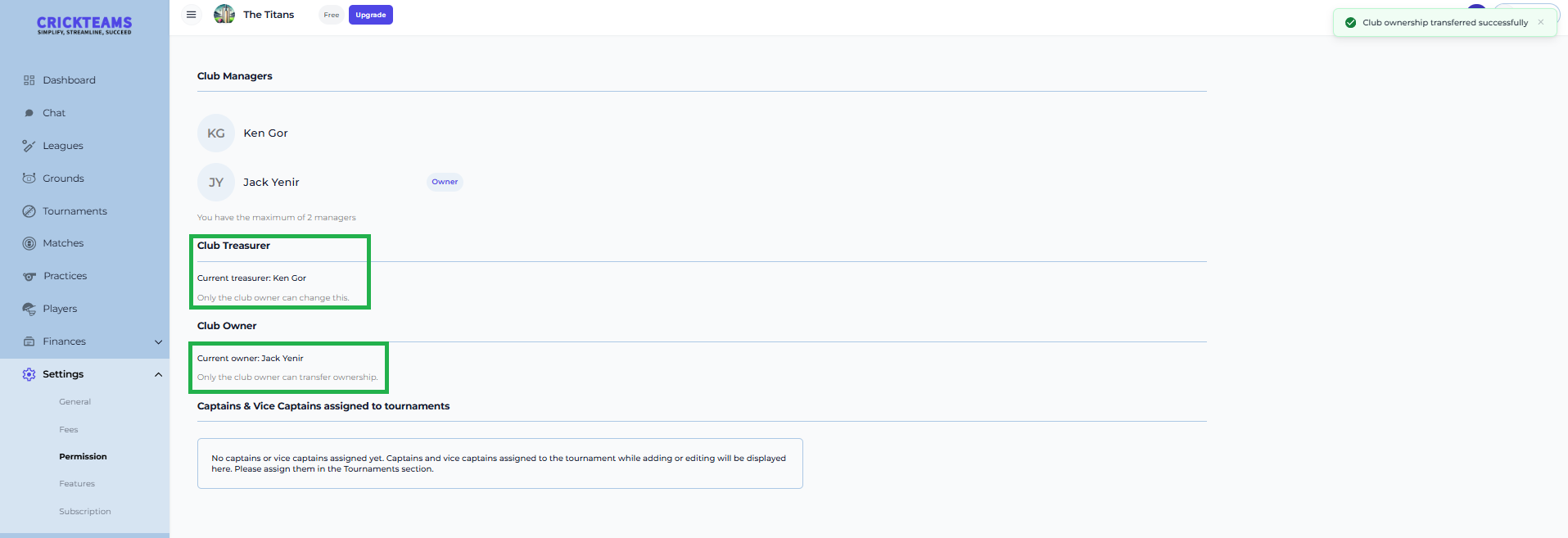
The owner seat moves; the treasurer seat is untouched. If you were also the treasurer, you stay the treasurer — but you can no longer reassign that role, because the new owner now controls it.
| Previous owner | New owner | |
|---|---|---|
| Club Owner section | Becomes read-only — ‘Only the club owner can transfer ownership.‘ | Gains the dropdown and Transfer Ownership button |
| Club Treasurer section | Becomes read-only — ‘Only the club owner can change this.‘ | Gains the dropdown and Save Treasurer button |
| Treasurer role itself | Unchanged — whoever held it still holds it | Unchanged |
| Manager access | Unchanged — the previous owner remains a club manager | Unchanged |
If you are not the owner
Every other manager sees the Club Owner section as read-only text naming the current owner, with the note ‘Only the club owner can transfer ownership.’ Players do not see the Club Owner or Club Treasurer sections at all.
Captains & Vice Captains
The Captains & Vice Captains section displays a consolidated table of all players who have been assigned a Captain or Vice Captain role across any tournament. This is a read-only view on the Permission page — assignments are made from the individual tournament settings.
Reading the Table
Each row in the table shows one role assignment:
| Column | Description |
|---|---|
| Player | The player’s avatar initials and full name |
| Tournaments Assigned | The tournament the role applies to |
| Role | Captain or Vice Captain |
| Remove | Removes the captain/vice captain role from this player for that tournament |
Removing a Captain or Vice Captain
Click the Remove button on any row to revoke that player’s captain or vice captain role for that specific tournament. This does not remove the player from the tournament roster.
Validations
CrickTeams enforces the following rules on the Permission page.
Adding a Club Manager
Errors
- Attempting to add a manager when the plan’s manager limit has been reached (e.g. 5/5 on Pro)
- Selecting a player who is already a club manager
- Selecting a player who is not an active club member
The system allows:
- Any active player to be promoted to manager
- Up to the plan’s maximum number of managers (Free: 2, Pro: 5, Premium: unlimited)
Club Treasurer
Errors
- Anyone other than the club owner attempting to change the treasurer — the Club Treasurer section is read-only for non-owners, and the change is rejected even if attempted directly
- Selecting someone who is not an active club manager — players, captains and vice captains are not eligible
- Selecting a manager whose invitation is still pending
The system allows:
- Any active club manager to be assigned as treasurer
- Exactly one treasurer per club at a time — assigning a new one automatically replaces the previous holder
Club Owner
Errors
- Anyone other than the current owner attempting to transfer ownership — the Club Owner section is read-only for everyone else, and the transfer is rejected even if attempted directly
- Selecting someone who is not an active club manager — players, captains and vice captains cannot take ownership
- Selecting a manager whose invitation is still pending
- If the person you selected stops being an active manager before you confirm, the transfer is refused and you are asked to refresh and try again
The system allows:
- Any active club manager to become the new owner
- Exactly one owner per club at a time — the seat moves, it is never held by two people or none
- Selecting yourself — this simply changes nothing
Captains & Vice Captains
Errors
- A tournament cannot have more than one Captain assigned at a time
- A tournament cannot have more than one Vice Captain assigned at a time
- The same player cannot hold both Captain and Vice Captain in the same tournament
Manager Limit by Plan
| Plan | Max Club Managers | Notes |
|---|---|---|
| CrickTeams Free | 2 | Including the original club manager who registered the club |
| CrickTeams Pro | 5 | Up to 4 additional managers can be added |
| CrickTeams Premium | Unlimited | No cap on the number of club managers |
Frequently Asked Questions
Who appears in the Select Player modal when adding a manager?
Only active club members who do not already have manager access are listed. Inactive players and existing managers are excluded from the list. You can search by name using the search bar at the top of the modal.
Can a manager also be a player?
Yes. Promoting a player to manager does not remove them from the player roster. They retain their player role and additionally gain access to all manager-level settings and functions.
What happens if I remove a manager?
Their manager access is revoked immediately. They lose access to Settings and other admin functions, and can no longer approve expenses. They remain as an active player on the roster unless separately removed. If the manager you remove is also the club treasurer, the treasurer role is automatically reassigned to the next eligible active manager, so the money controls stay with someone.
Why can’t I see Settings → Fees?
Settings → Fees is only shown to the club treasurer. If you are a manager but not the treasurer, the Fees option does not appear in your Settings sidebar. You can still see what the club is owed under Finances → Fees & Payments — you just cannot create fees or record payments. Ask your club owner to make you treasurer if you need that access.
Can we have two treasurers?
No. Every club has exactly one treasurer at a time, on every plan. Assigning a new treasurer automatically removes the role from the previous holder. This is not affected by your subscription — upgrading does not add treasurer slots.
I am the treasurer — why can’t I change the treasurer?
Only the club owner can assign or change the treasurer. The current treasurer sees the Club Treasurer section as read-only, the same as any other manager. This is deliberate: it means a treasurer cannot hand the club’s money controls to someone else without the owner’s involvement.
Can I undo a transfer of ownership?
Not by yourself. Once you transfer ownership, only the new owner can transfer it again — including transferring it back to you. Ownership is one-way from the previous owner’s side, which is why the app asks you to confirm before completing the transfer. If it was a mistake, ask the new owner to transfer it back.
What happens to the treasurer when ownership is transferred?
Nothing — the two roles are separate seats. Whoever was treasurer before the transfer is still the treasurer afterwards. What changes is who is allowed to reassign that role: the new owner now controls it. So if you were both owner and treasurer and you transfer ownership, you remain the treasurer but can no longer change who the treasurer is.
Our club founder has left. How do we regain control?
If the founder is still able to sign in, ask them to transfer ownership to an active manager before they go — that is exactly what the transfer feature is for. If they have already lost access, contact CrickTeams support, as the owner seat can only be moved by the current owner from within the app.
Why can’t I select a player when transferring ownership?
Only active club managers can take ownership. Players, captains and vice captains are not eligible and will not appear in the dropdown. Promote the person to club manager first under Club Managers, then they will be selectable.
What is the difference between the owner and the treasurer?
The owner is the club’s top authority — there is exactly one, marked with an Owner badge in the Club Managers list, and they are the only one who can change the treasurer or transfer ownership. The treasurer is the manager who handles money: fees, payments, reimbursements and expense settlement. When a club is created the registrant is both. From there the two seats move independently — the owner can hand the treasurer role to a different manager while remaining the owner, or transfer ownership and keep being the treasurer.
Why can’t I see a player in the Select Player modal?
The player may be inactive, or they may already be a club manager. Only active players who are not already managers appear in the list. Check the player’s status under the Players section.
Where do I assign Captains and Vice Captains?
Captain and Vice Captain roles are assigned from the individual tournament settings, not from the Permission page. The Permission page provides a consolidated view across all tournaments and allows you to remove roles, but assignment must be done within each tournament.
Can the same player be Captain in one tournament and Vice Captain in another?
Yes. A player can hold different roles in different tournaments simultaneously. Each assignment appears as a separate row in the Captains & Vice Captains table on the Permission page.
Related articles
- Expenses — What the treasurer can do with expenses, settlement and waiving dues
- Fees — Create club fees and record payments (treasurer only)
- Tournaments — Create and manage club tournaments
- Players — View player profiles and manage roster
- General — Update club profile and invite players
- Subscription — View and manage your plan and billing