
Expenses
On this page
- Overview
- Expense Categories
- Expense Types
- Expense Scope
- The Club Treasurer
- Who can do what
- Assigning the treasurer
- How an Approved Expense Is Settled
- Where you see the choice
- Why can’t I change the settlement on some expenses?
- Reconciliation — reading an approved expense
- Reimbursing a player
- Club Balance
- Waiving Dues
- How to waive a fee
- What waiving changes
- Finding waived fees
- Undoing a waiver
- When the Waive option is available
- Voiding an Expense
- When can an expense be voided?
- Voiding an expense that has already been reimbursed
- The Activity Trail
- Creating an Expense
- Step 1 — Open the New Expense form
- Step 2 — Fill in expense details
- Receipts and Attachments
- Expense Statuses
- Editing an Expense
- Who can edit an expense
- Editing that changes the scope
- Manager and Treasurer View — Approving Expenses
- Who gets auto-approved — treasurer only
- Expense Tabs
- How to Approve or Reject an Expense
- Expense Usage Limits
- Understanding the Two Counters
- Cross-Club Limit — Important Rule
- Searching and Filtering Expenses
- Search
- Filter by Type
- Filter by Scope
- Sort Expenses
- Validations
- Creating an Expense
- Expense Limits
- Approval
- Frequently Asked Questions
- Related articles
Overview
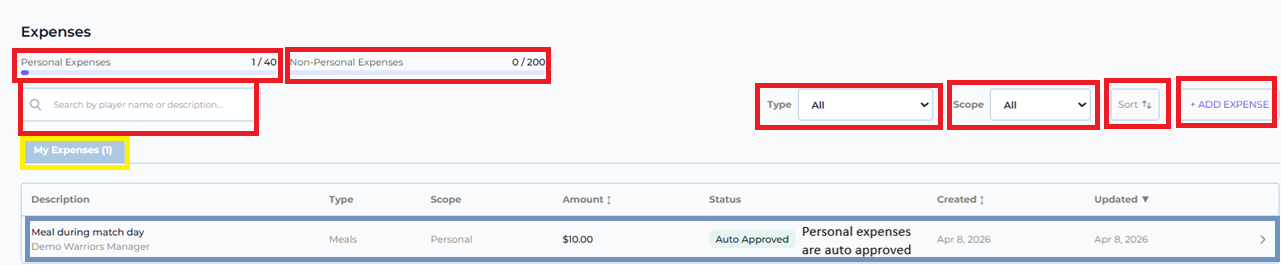
The Expenses feature in CrickTeams allows managers and players to submit, track and approve club-related expenses. Whether it is a meal during a match day, equipment purchased for the club or an umpiring fee, all expenses can be logged and managed in one place.
Every club also has one Club Treasurer — the single person who handles the money side. When an expense is approved, the treasurer decides how it gets settled: counted against the person’s dues, paid out of the club’s balance, or left as a reimbursement the club owes them. That one decision is what connects Expenses to Fees & Payments.
This guide covers submitting expenses, expense types and scopes, the approval process, the treasurer’s settlement choice, and how limits work across clubs.
To access the Expenses page:
- Log in to CrickTeams as a Manager or Player
- Click Expenses from the left navigation menu


Expense Categories
All expenses in CrickTeams are categorised into two main groups — Personal and Non-Personal. Understanding this distinction is important because it determines how the expense is approved and which limit it counts toward.
| Personal Expenses | Non-Personal Expenses |
|---|---|
| Submitted by an individual player or manager for themselves | Submitted for the club, tournament, match or practice as a whole |
| Automatically approved — no manager action required | Require manager approval before being finalised |
| Receipt/attachment is optional | Receipt/attachment is mandatory — except Tournament-scope expenses and any Umpiring Fee, which are optional |
| Count toward the Personal Expenses limit (e.g. 40/year) | Count toward the Non-Personal Expenses limit (e.g. 200/year) |
| Example: Meal during match day, travel to a match | Example: Equipment purchase, umpiring fee, venue fee |
| Scope is always Personal | Scope can be Club, Tournament, Match or Practice |
Expense Types
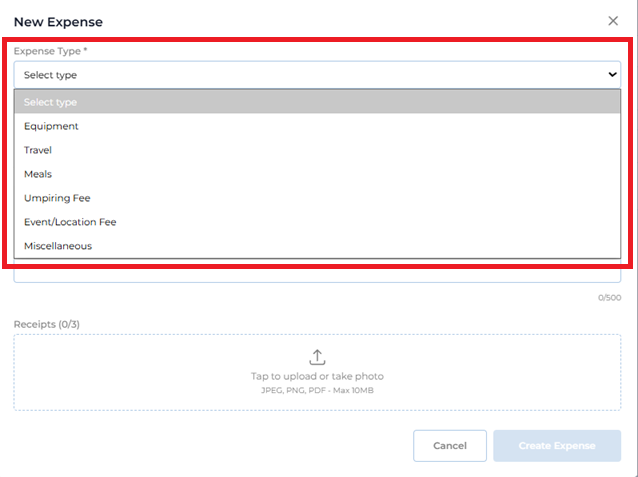
When creating an expense you must select an Expense Type that best describes what the expense is for. The following types are available:

| Expense Type | Category | Example Use |
|---|---|---|
| Equipment | Non-Personal | Bats, pads, balls, training cones purchased for the club |
| Travel | Personal or Non-Personal | Player’s travel cost to a match or club transport booking |
| Meals | Personal or Non-Personal | Player’s meal on match day or team lunch organised by the club |
| Umpiring Fee | Non-Personal | Fee paid to an umpire for officiating a match |
| Event/Location Fee | Non-Personal | Ground booking fee, venue hire cost |
| Miscellaneous | Personal or Non-Personal | Any other expense that does not fit the above categories |
Expense Scope
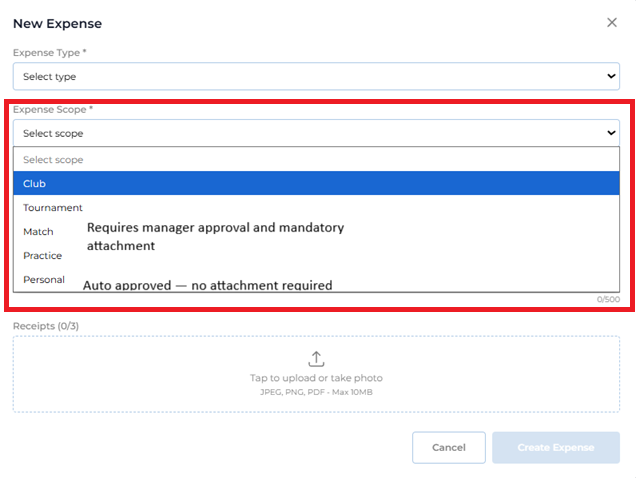
Expense Scope determines what the expense is related to. Selecting the right scope helps organise expenses for reporting and filtering.

| Scope | Category | When to Use |
|---|---|---|
| Club | Non-Personal | Expense is for the overall club — equipment, admin costs, etc. |
| Tournament | Non-Personal | Expense is related to a specific tournament — entry fees, etc. |
| Match | Non-Personal | Expense is for a specific match — umpiring, ground fee, etc. |
| Practice | Non-Personal | Expense is for a specific practice session — venue hire, etc. |
| Personal | Personal | Expense is personal to the submitter — meal, travel, etc. Auto approved. |
The Club Treasurer
Every club has exactly one Club Treasurer at a time. The treasurer is the person who handles the money side of the club — they are the only one who decides how an approved expense is settled, and the only one who can record payments, reimburse players, or waive dues.
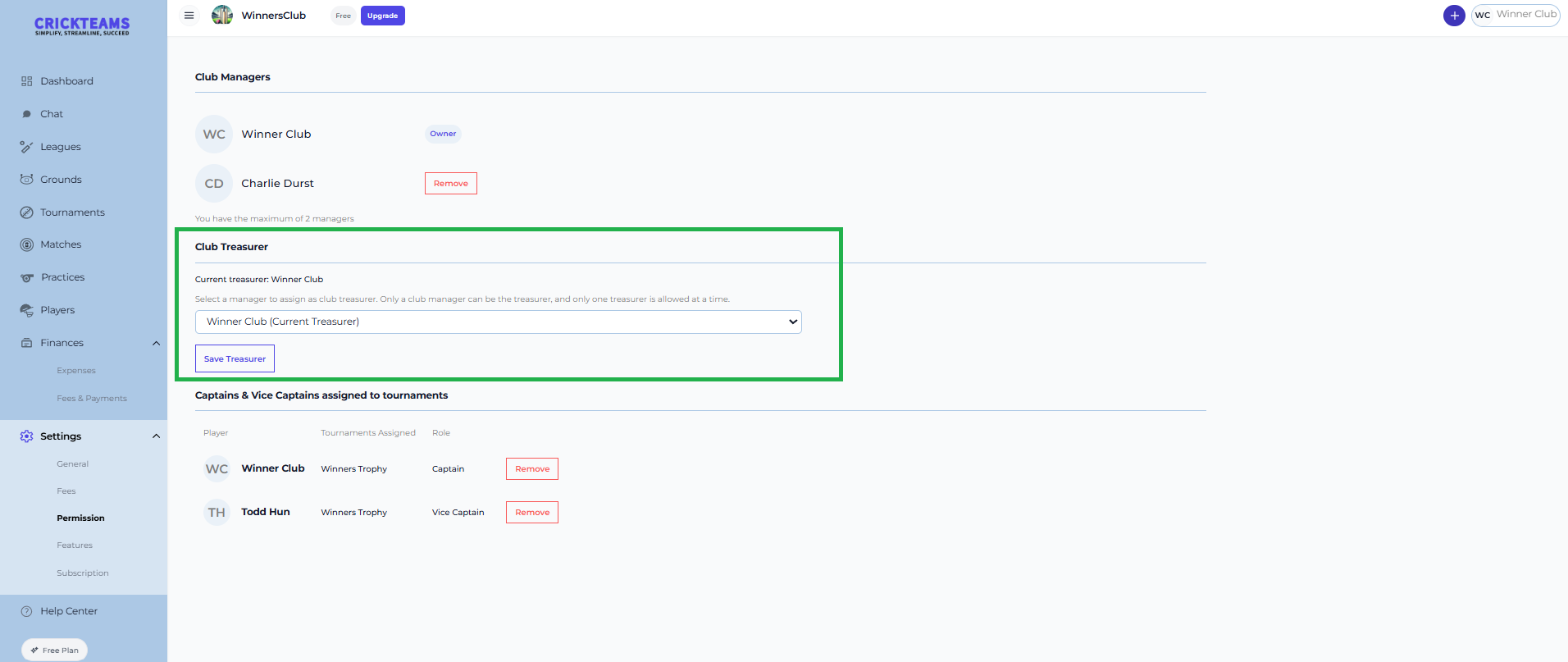
The treasurer must be an active club manager. Only the club owner can assign or change the treasurer.
Who can do what
| Action | Club Treasurer | Club Manager | Player |
|---|---|---|---|
| Submit an expense | Yes | Yes | Yes |
| Approve or reject a non-personal expense | Yes | Yes | No |
| Choose how an approved expense is settled | Yes | No | No |
| Void an approved expense | Yes | No | No |
| Record a payment, reimburse, or waive dues | Yes | No | No |
| See their own dues and what the club owes them | Yes | Yes | Yes |
Assigning the treasurer
- Log in as the club owner
- Go to Settings → Permission
- Under Club Treasurer, select an active club manager from the dropdown
- Click Save Treasurer
The current treasurer is shown above the dropdown. Only one person can hold the role at a time — assigning a new treasurer automatically removes the previous one.
How an Approved Expense Is Settled
This is the part that connects Expenses to Fees & Payments. When an expense is approved, it does not just sit there — the treasurer chooses one of three ways to settle it, and that choice decides where the money moves.

| Settlement choice | What it means | What it changes |
|---|---|---|
| Count as my dues | The expense amount is credited against what that person owes the club | Their dues go down. The payment shows as a Credit on their fee. |
| Pay from club balance | The club pays for it out of its own cash | The Club Balance goes down. Nobody’s dues change, and it is not reimbursable. |
| Leave as reimbursable | The club owes the person their money back | It shows as “Club owes you” until the treasurer records a reimbursement. |
Spending more than the club has
You are allowed to pay from the club balance even when the club does not have the cash. If you do, CrickTeams shows a heads-up on the form:
This is more than the club balance ($0.00). That’s fine — the club will owe you the difference until dues come in.
This is a note, not a blocker — the expense still goes through. The Club Balance simply goes negative, which means the club now owes that money back to whoever fronted it. It corrects itself as members pay their dues.
Where you see the choice
- When raising the expense — if you are the treasurer raising a club expense yourself, the “How is this paid?” control appears on the New Expense form.
- When approving someone else’s expense — the treasurer picks the settlement at the moment they approve it.
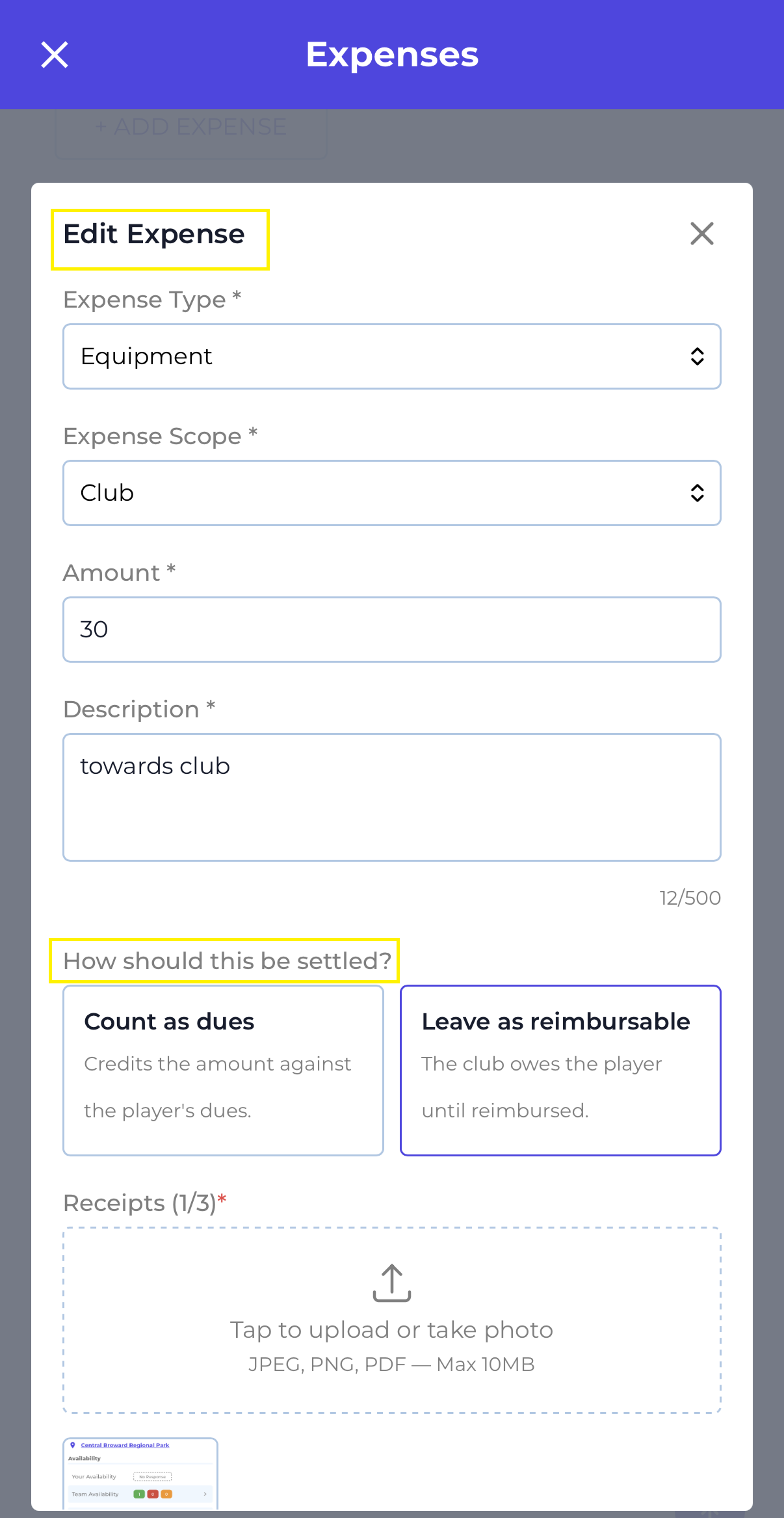
- After approving — the treasurer can still change it. Open the expense and click Edit Expense; the “How should this be settled?” control lets you switch between Count as dues and Leave as reimbursable. Every change is written to the expense’s activity trail.
Why can’t I change the settlement on some expenses?
The “How should this be settled?” control only appears when all of the following are true:
- You are the treasurer
- The expense is Approved
- It is a club expense — not a personal one
- It was not paid from the club balance
This is why you may open Edit Expense on one approved expense and see the settlement control, but not on another — it depends on how the expense is currently funded, not on who submitted it.
Reconciliation — reading an approved expense
Open any approved expense and you will see a Reconciliation panel that shows exactly where the money went:
- Applied to fees — how much was credited against the person’s dues
- Reimbursed — how much the club has actually paid back
- Residue (club owes player) — how much the club still owes them
Underneath, Credit applied to names the exact fee the credit landed on, so you can trace it.
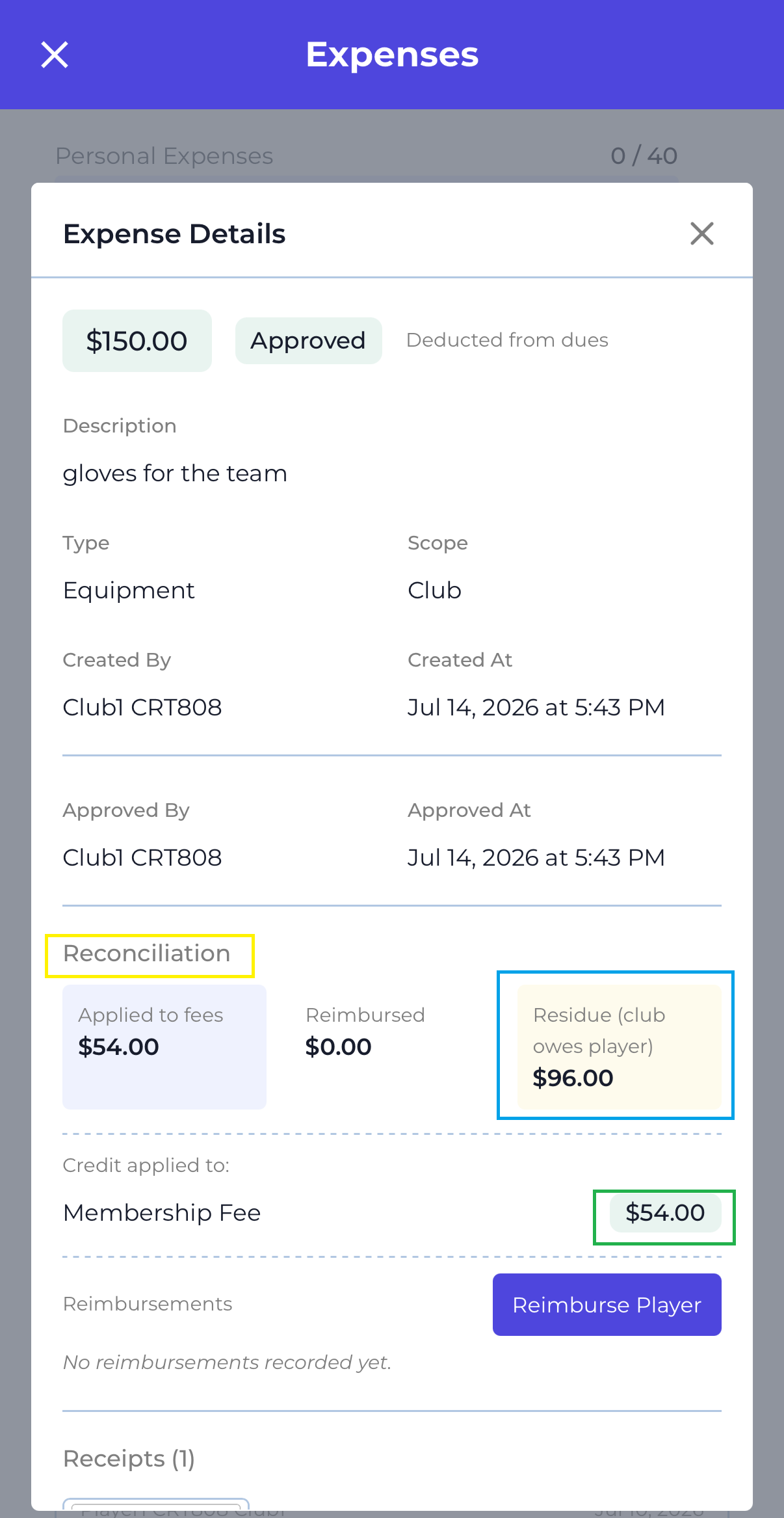
Worked example. A player raises a $150 expense and the treasurer settles it as Count as dues, but the player only owes $54 at the time:
| Applied to fees | Reimbursed | Residue (club owes player) |
|---|---|---|
| $54.00 | $0.00 | $96.00 |
The $54 clears their dues; the remaining $96 stays as money the club owes them.
Reimbursing a player
When an expense has a residue, the club owes that person money. To pay them back:
- Open the expense (as the treasurer)
- Click Reimburse Player
- Enter the amount and record the reimbursement
The Reimbursed figure goes up, the Residue comes down, and the Club Balance falls by the amount you paid out — because real cash has left the club.
Club Balance
The Club Balance is the club’s cash on hand. It is not typed in — it is worked out for you:
Club Balance = cash collected − expenses paid from the club balance − reimbursements paid out
Waivers and expense credits are not cash, so they are excluded. If the treasurer spends from the club balance before any cash has come in, the balance can go negative — meaning the club owes that money back to the treasurer. It corrects itself as cash arrives.
Waiving Dues
Sometimes the club decides a member should not have to pay a fee — a hardship case, a scholarship, or a goodwill gesture. The treasurer can waive part or all of what a member owes on a fee. Waiving forgives the dues: no cash changes hands, and the member no longer owes the waived amount.
Waiving is done from the Fees & Payments page (not the Expenses page), and only the treasurer can do it.
How to waive a fee
- Go to Fees & Payments as the treasurer
- Find the member’s fee row and click Waive
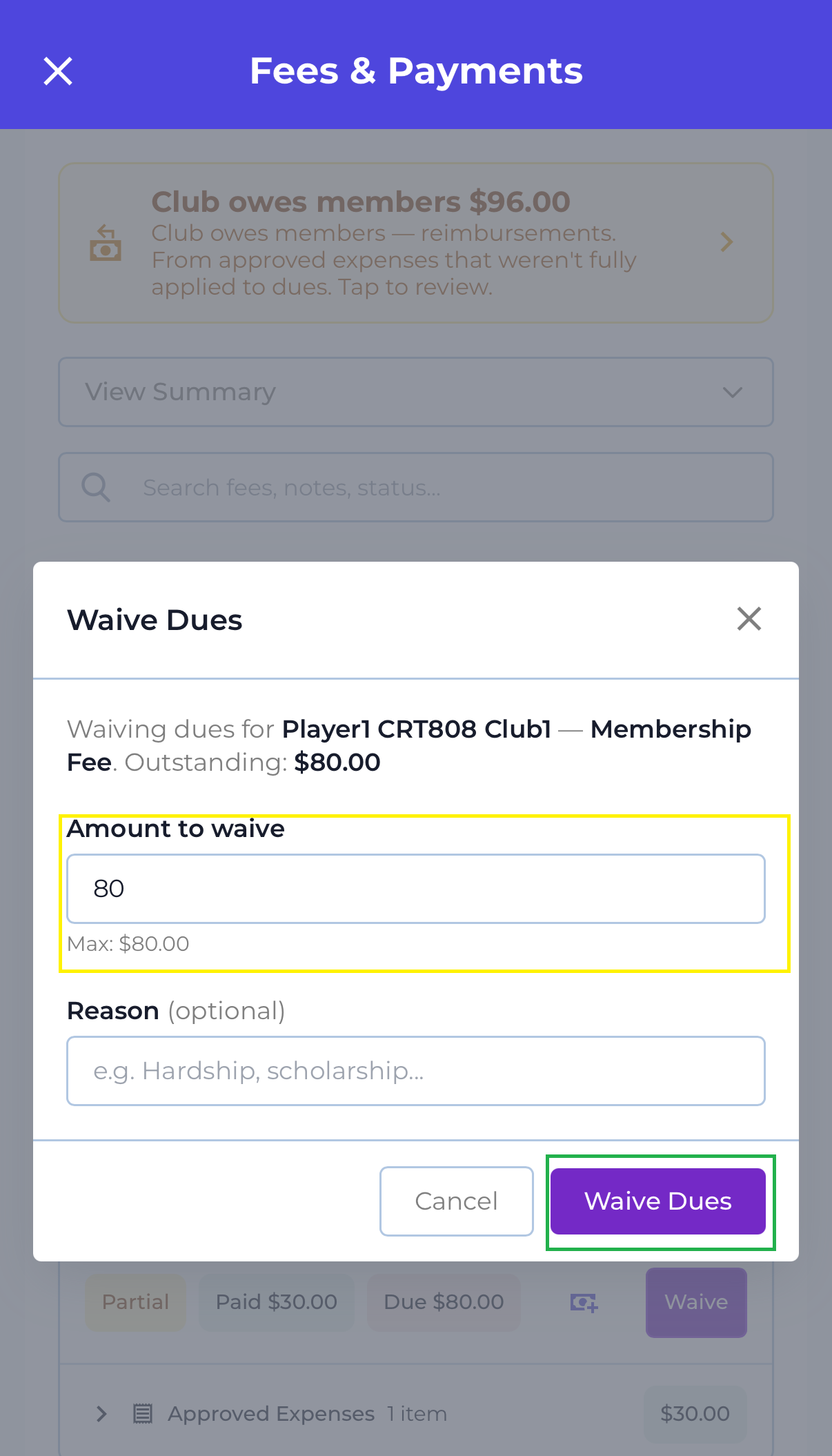
- In the Waive Dues dialog, enter the Amount to waive — this can be the full outstanding amount or a smaller partial amount (the maximum is what is still outstanding on that fee)
- Optionally add a Reason — for example, Hardship or Scholarship
- Click Waive Dues
What waiving changes
- The member’s Due goes down by the amount you waived. Waive the full outstanding amount and the fee is fully settled.
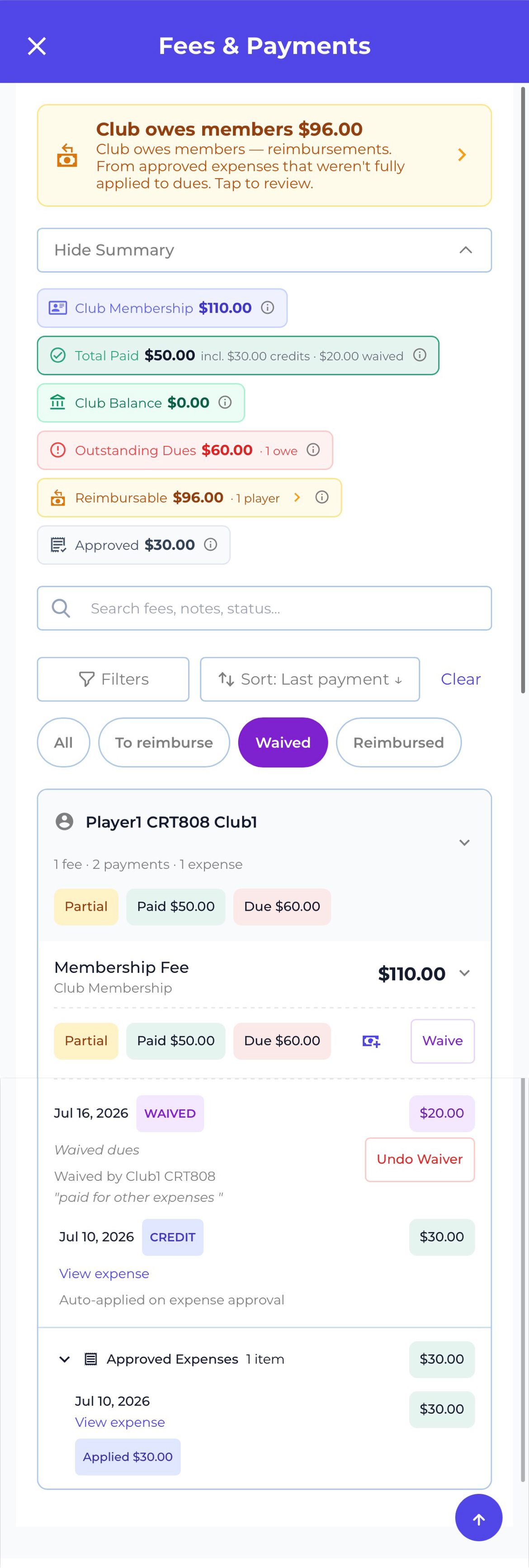
- The waived amount is added to Total Paid. The Total Paid tile shows a breakdown such as incl. $30 waived, so you can see how much of the total was settled by waivers rather than cash.
- The Club Balance does not change. A waiver is not money the club received — it is dues forgiven — so it is deliberately excluded from the club’s cash balance.
Finding waived fees
Use the Waived filter chip above the fee list (All · To reimburse · Waived · Reimbursed) to show only fees that have a waiver on them.
Undoing a waiver
If a waiver was a mistake, the treasurer can undo it. Undoing a waiver reverses it — the waived amount comes back off Total Paid and the member owes the dues again.
When the Waive option is available
The Waive action only appears when all of these are true:
- You are the treasurer
- The fee is active — you cannot waive dues on a deactivated fee
- There are outstanding dues to waive — you cannot waive a fee that is already fully paid or fully waived
Voiding an Expense
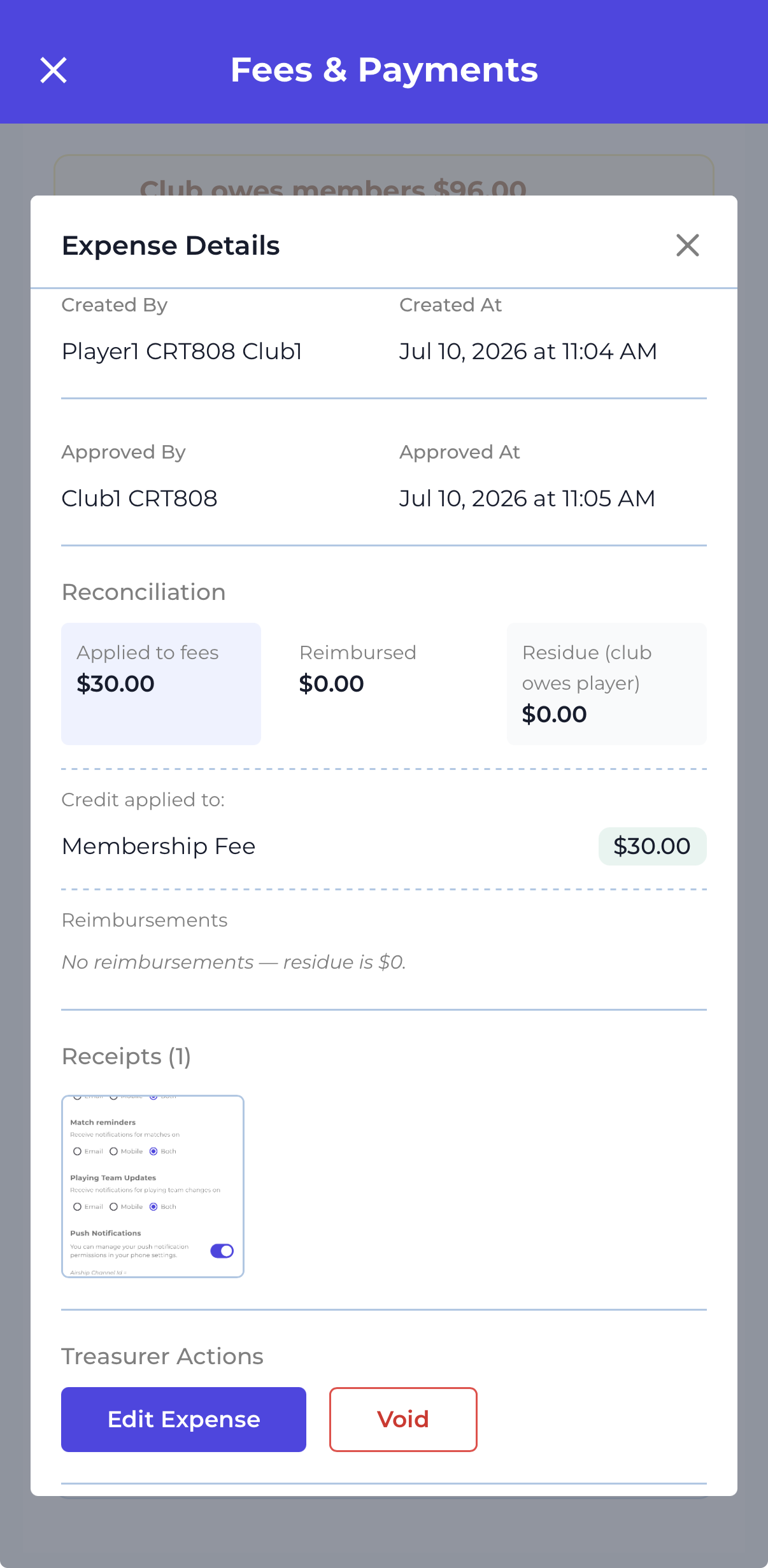
If an approved expense was a mistake, the treasurer can Void it. Open the expense and click Void under Treasurer Actions.
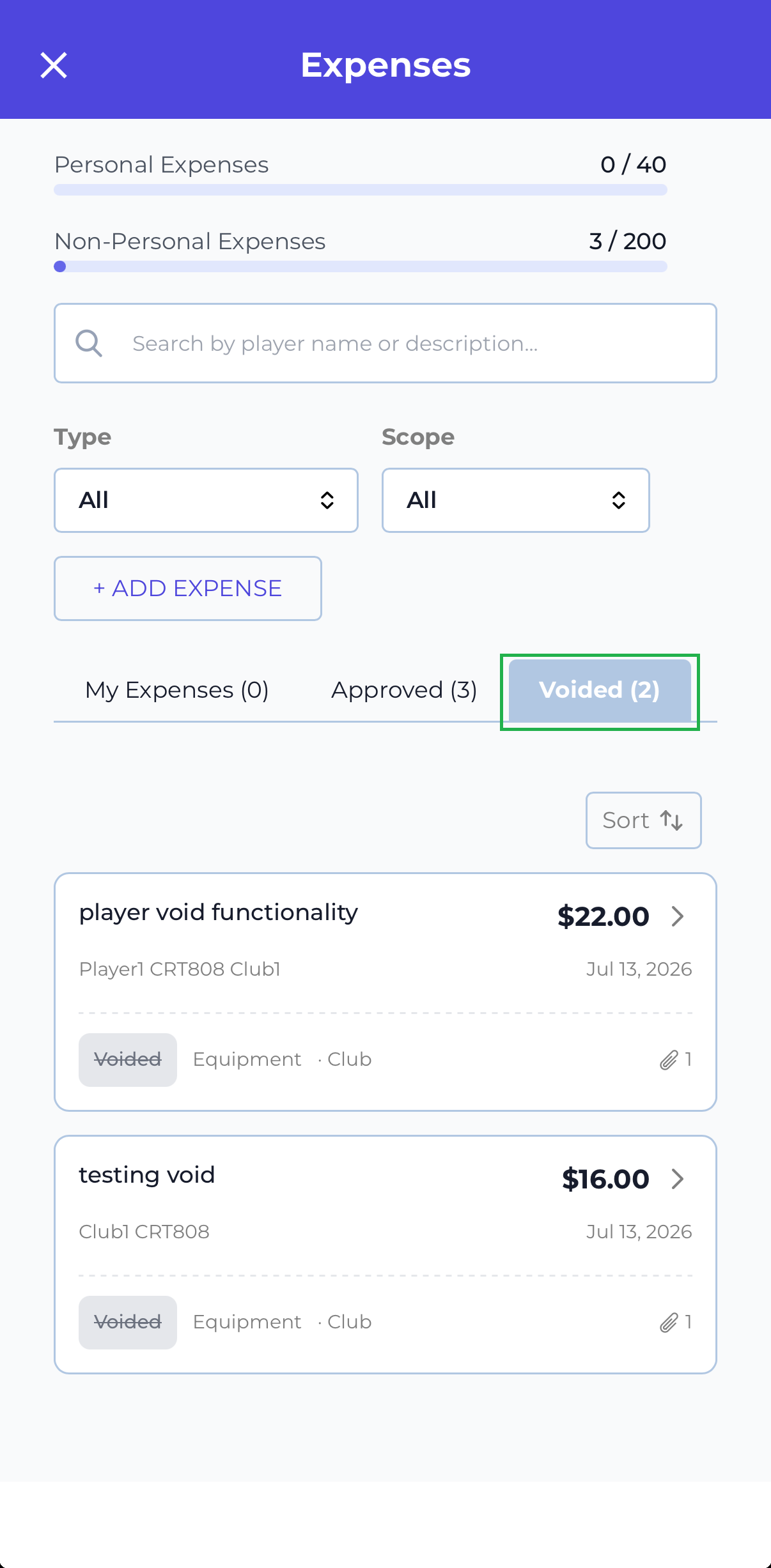
A voided expense is not deleted — it is kept on record with a Voided status and its full activity trail, and it moves to the Voided tab on the Expenses page. Any credit it had applied is reversed.
When can an expense be voided?
The Void button only appears when all of these are true:
- You are the treasurer
- The expense is Approved
- Nothing has been reimbursed on it — the Reimbursed figure in the Reconciliation panel is $0.00
Voiding an expense that has already been reimbursed
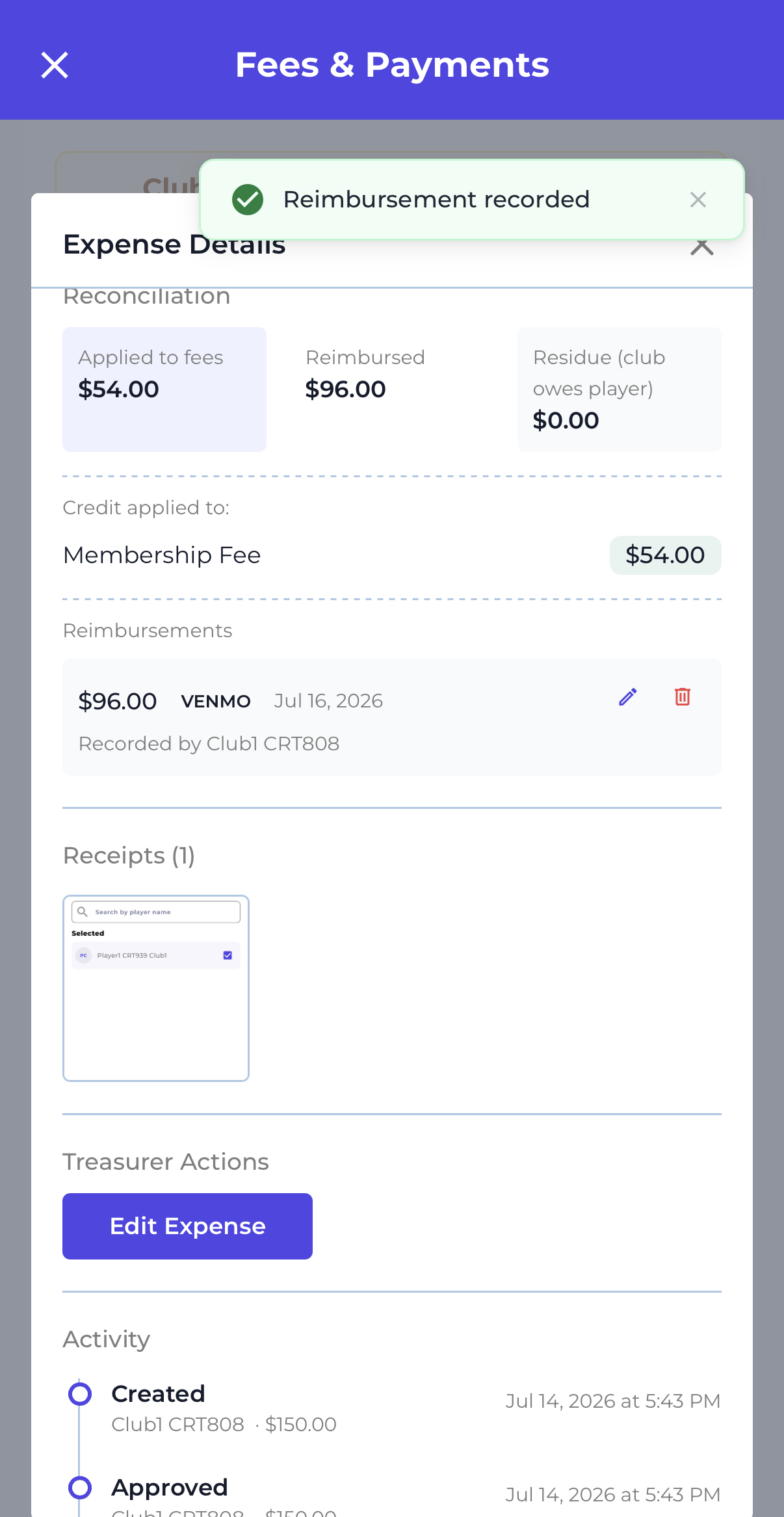
If you genuinely need to void an expense that has a reimbursement on it, remove the reimbursement first:
- Open the expense as the treasurer
- Under Reimbursements, click the bin icon on the reimbursement record to delete it
- The Reimbursed figure returns to $0.00 — and Void reappears under Treasurer Actions
The Activity Trail
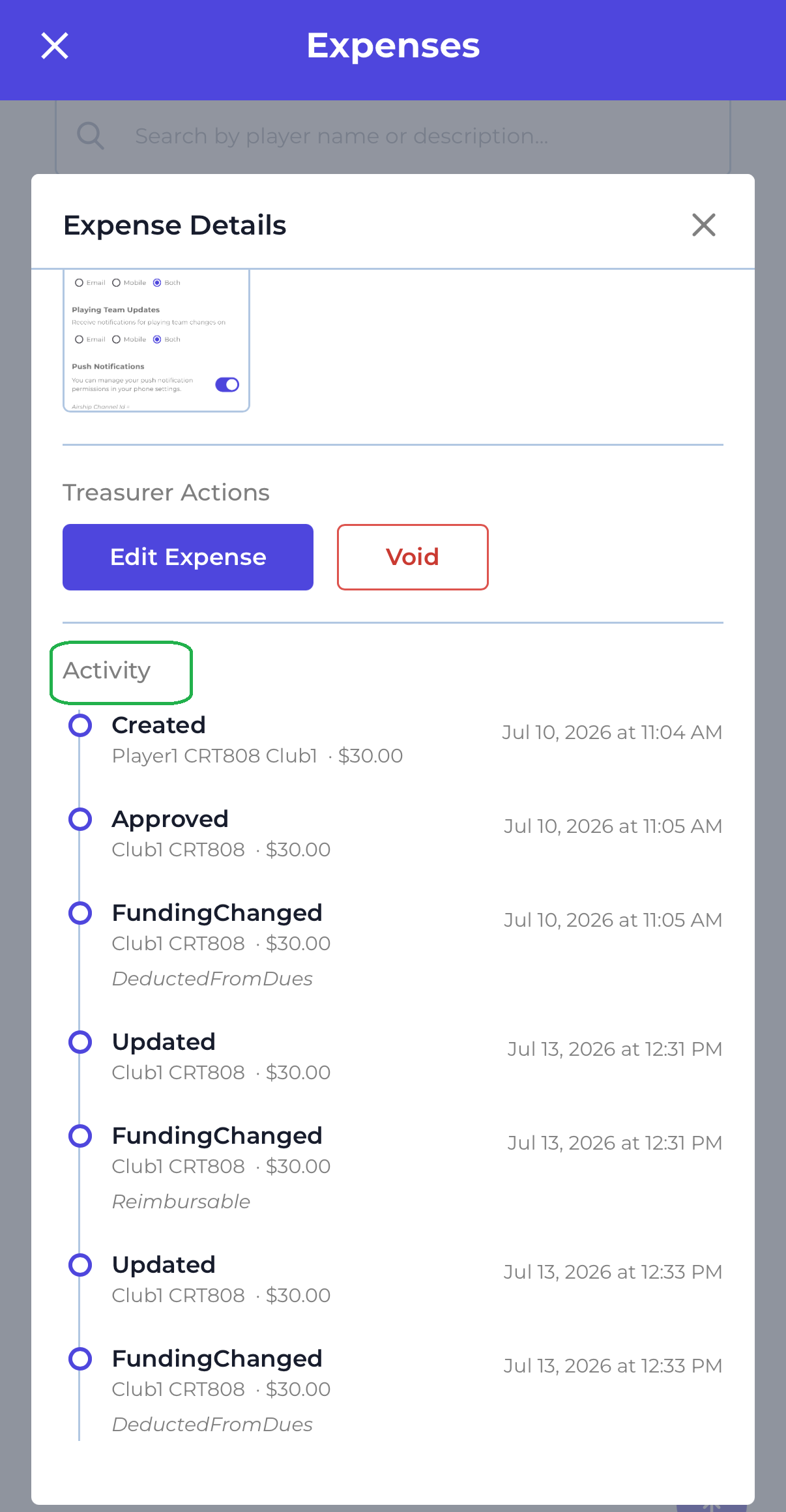
Every expense keeps a complete history at the bottom of its detail page — who created it, who approved it, every change of settlement, and whether it was voided. Nothing is silently changed.
Creating an Expense
Both managers and players can create expenses. The form and approval process differ depending on whether the expense is personal or non-personal.
Step 1 — Open the New Expense form
- Go to Expenses from the left navigation menu
- Click the + ADD EXPENSE button in the top right corner
- The New Expense form opens
Step 2 — Fill in expense details
- Select an Expense Type from the dropdown — Equipment, Travel, Meals, Umpiring Fee, Event/Location Fee or Miscellaneous
- Select an Expense Scope — Club, Tournament, Match, Practice or Personal
- Enter a Description of the expense — maximum 500 characters
- Enter the Amount — at least $0.01 and no more than $5,000.00 per expense
- Upload a receipt or supporting document if required
- Click Create Expense to submit
Receipts and Attachments
Whether a receipt is required depends on both the scope and the type:
- Mandatory for Club, Match and Practice expenses — you cannot submit without one.
- Optional for Personal and Tournament expenses, and for any Umpiring Fee expense regardless of its scope — you can submit without one.
- Accepted file types: JPEG, PNG, PDF
- Maximum file size: 10MB per file
- You can upload up to 3 attachments per expense
Expense Statuses
Each expense has a status badge that shows where it is in the approval process.
| Status | Badge Colour | What It Means |
|---|---|---|
| Auto Approved | Green | The expense was personal scope, or was raised by the treasurer, and was approved automatically the moment it was submitted — no further action needed |
| Pending | Yellow | The expense is non-personal and is waiting for a manager or the treasurer to review and approve or reject it |
| Approved | Green | A manager or the treasurer has reviewed and approved the non-personal expense |
| Rejected | Red | The expense was rejected — it is sent back to the creator who can review and resubmit |
| Voided | Grey | The treasurer cancelled an approved expense. It is kept on record with its full history and appears on the Voided tab — any credit it applied is reversed |


Editing an Expense
An expense can be edited after it is submitted, but who can edit it — and what the edit does to its approval status — depends on your role and the expense’s current status. Editing is done from the expense detail view using the Edit Expense option.
Who can edit an expense
| Your role | What you can edit |
|---|---|
| Creator (the member who submitted it) | Your own expense, while it is Personal, Pending or Rejected. Once a non-personal expense is Approved you can no longer edit it — ask the treasurer. |
| Treasurer | Any Approved non-personal expense. This is how the treasurer sets or changes the settlement — Count as dues, Pay from club balance, or leave it reimbursable — after approval. |
| Manager (not treasurer) | A manager who is not the treasurer cannot edit an approved expense. They can approve or reject from the Pending queue, but editing an approved expense is a treasurer action. |
Editing that changes the scope
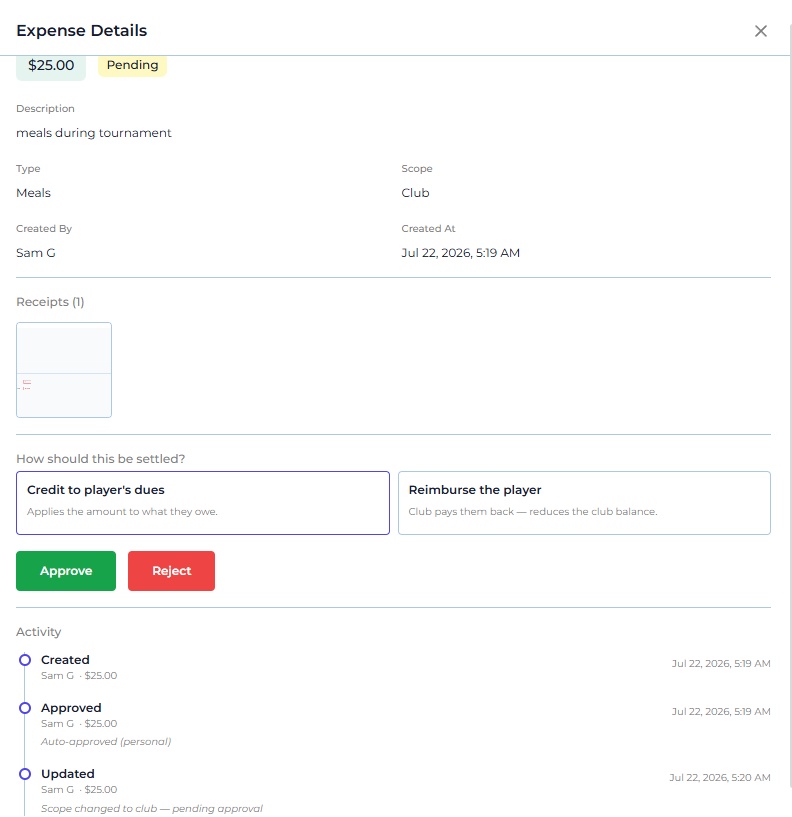
Changing an expense’s scope can move it between the personal and non-personal worlds, and those two worlds have different approval rules. So when you change the scope and save, the status is recalculated — the expense is re-evaluated as if it had just been submitted with the new scope.
Changing the scope to Personal — the expense becomes Auto Approved again. Personal expenses are always auto-approved, are private to the submitter, never count toward dues and are never reimbursable.
Changing the scope from Personal to a non-personal scope (Club, Tournament, Match or Practice) — the expense now involves club money, so it re-enters approval. What happens next depends on who makes the edit:
| Who makes the edit | New status |
|---|---|
| Treasurer (editing their own expense) | Approved automatically — the treasurer’s expenses are always auto-approved, so it does not sit in the queue |
| Player, or a manager who is not the treasurer | Pending Approval — it appears in the Pending queue for the treasurer and every manager to review and approve |
Editing a Rejected expense — making any change resubmits it as Pending Approval for review again.
Manager and Treasurer View — Approving Expenses
Managers and the treasurer see additional tabs on the Expenses page that allow them to review and manage expenses submitted by all club members.
Who gets auto-approved — treasurer only
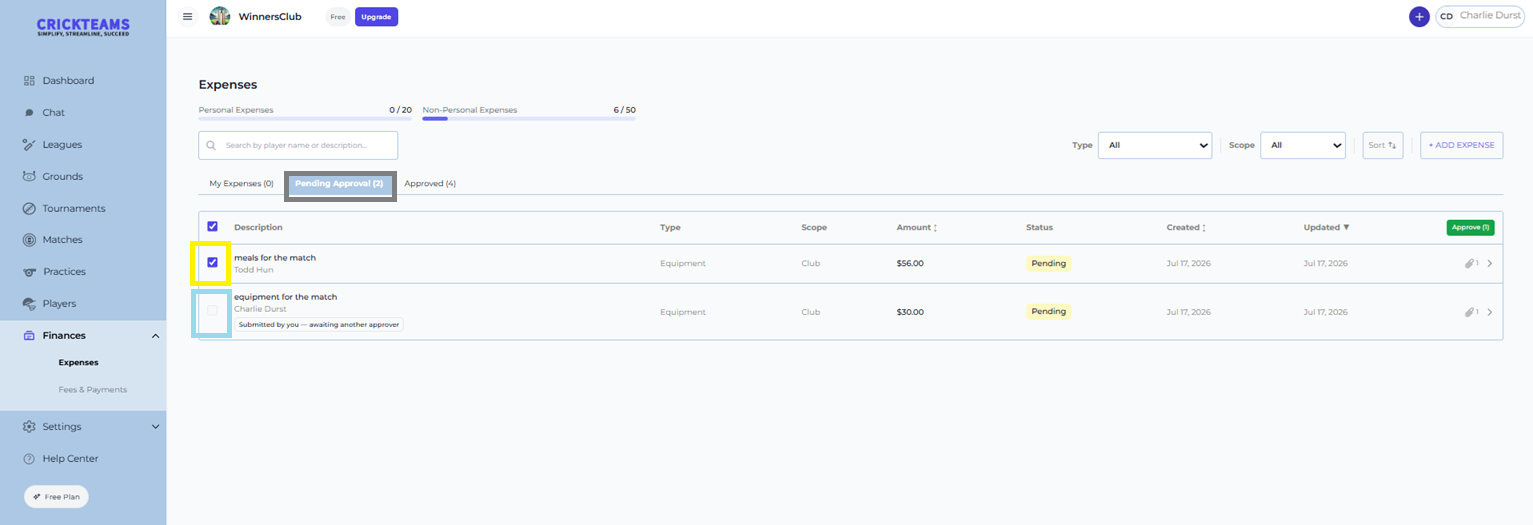
Only the treasurer’s own non-personal expenses are approved automatically. When a manager who is not the treasurer submits a non-personal expense, it goes to Pending Approval like anyone else’s — and they cannot approve their own.
| Who submits a non-personal expense | What happens |
|---|---|
| Treasurer | Approved automatically — no one else needs to act |
| Manager (not treasurer) | Goes to Pending Approval — another manager or the treasurer must approve it |
| Player | Goes to Pending Approval |
On the Pending Approval tab, a manager’s own expense is marked “Submitted by you — awaiting another approver” and cannot be selected for approval. If you tick several expenses and click Approve, your own is left out of the count — so approving 2 rows where 1 is yours will show Approve (1).
Expense Tabs
- My Expenses: expenses submitted by you
- Pending Approval: non-personal expenses from all club members waiting to be approved
- Approved: non-personal expenses that have been approved
- Voided: approved expenses the treasurer has since cancelled — kept on record with their full history


How to Approve or Reject an Expense
- Go to Expenses and click the Pending Approval tab
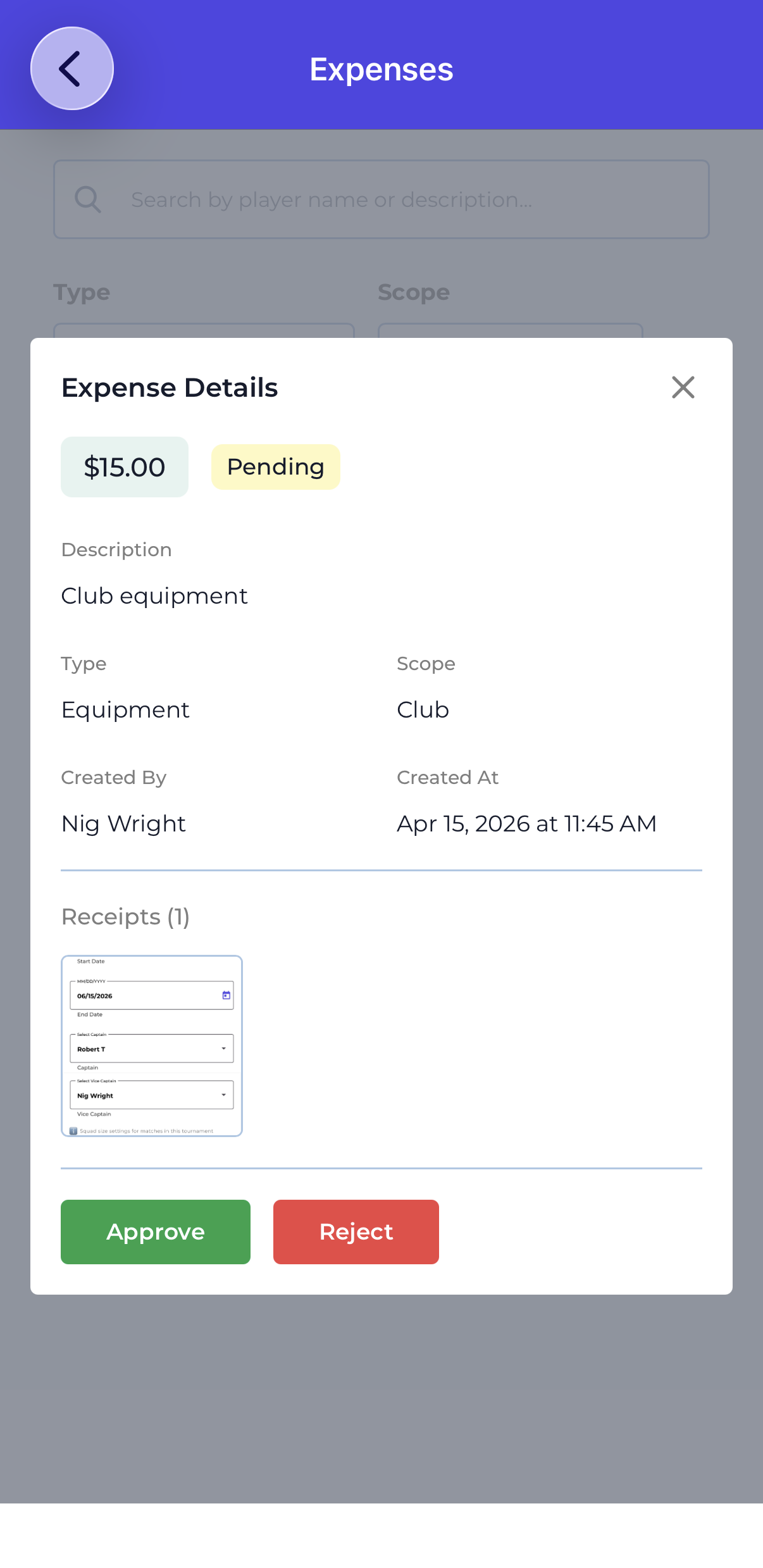
- Review the expense details — description, type, scope, amount and attached receipt
- Click on the expense row to open the full expense detail and review the attachment
- To approve: check the checkbox next to the expense and click Approve — or click the Approve button inside the detail view
- If you are the treasurer, choose how the expense should be settled — Count as dues, Pay from club balance, or Leave as reimbursable (see How an Approved Expense Is Settled)
- To reject: click Reject — the expense is sent back to the creator with a rejected status
- The creator is notified of the decision
Expense Usage Limits
Your CrickTeams subscription includes limits on how many expenses can be submitted. There are two separate limits — one for Personal expenses and one for Non-Personal expenses.
Understanding the Two Counters
- Personal Expenses counter: tracks the number of personal-scope expenses submitted by you (the logged-in user) against your plan’s personal expense limit
- Non-Personal Expenses counter: tracks all non-personal expenses (Club, Tournament, Match, Practice scope) submitted this year
- Both counters reset at the start of each calendar year
- If either limit is reached the + ADD EXPENSE button will be disabled for that category
Cross-Club Limit — Important Rule
If a player or manager is a member of multiple clubs and any one of those clubs is on a Pro or Premium plan, the higher plan’s expense limit applies across ALL clubs that person belongs to — not just the Pro/Premium club.
| Scenario | Expense Limit Applied |
|---|---|
| Player is in Club A (Free) only | Free plan limit applies — lower limit |
| Player is in Club A (Free) and Club B (Pro) | Pro plan limit applies to all clubs — higher limit applies across both clubs |
| Player is in Club A (Pro) and Club B (Premium) | Premium plan limit applies to all clubs — highest limit applies |
| Player is in Club A (Free) and Club B (Free) | Free plan limit applies — lower limit |
Searching and Filtering Expenses
The Expenses page has several tools to help you find and organise expense records quickly.
Search
- Click the Search by player name or description bar
- Type a player name or expense description
- The list filters in real time to show matching results
Filter by Type
- Click the Type dropdown
- Select a specific expense type — Equipment, Travel, Meals, Umpiring Fee, Event/Location Fee or Miscellaneous
- Select All to show all types
Filter by Scope
- Click the Scope dropdown
- Select a scope — Club, Tournament, Match, Practice or Personal
- Select All to show all scopes
Sort Expenses
- Click the Sort button to sort the expense list
- Sort by Amount, Created date or Updated date in ascending or descending order
Validations
CrickTeams enforces the following rules when creating or managing expenses.
Creating an Expense
Errors
- Leaving Expense Type, Expense Scope or Description empty
- Entering an amount below $0.01 or above the $5,000.00 single-expense limit — you will see “Expense amount cannot exceed $5,000.00”
- Submitting a Club, Match or Practice expense without a receipt or attachment — attachments are mandatory for those scopes (Tournament expenses and any Umpiring Fee are exempt)
- Uploading an attachment that is not JPEG, PNG or PDF format
- Uploading an attachment larger than 10MB
- Uploading more than 3 attachments on a single expense
Expense Limits
Errors
- Trying to create a personal expense when the Personal Expenses limit for the year has been reached
- Trying to create a non-personal expense when the Non-Personal Expenses limit for the year has been reached
Approval
Errors
- Only managers and the treasurer can approve or reject non-personal expenses — players cannot approve expenses
- Only the treasurer can choose how an approved expense is settled, void an expense, record a payment, reimburse a player or waive dues — a manager who is not the treasurer will not see these options
- A manager or treasurer cannot approve or reject their own pending expense
- A personal expense cannot be rejected — it is always auto-approved at the point of submission
- An expense that has any amount reimbursed cannot be voided — the Void button is hidden until the reimbursement is deleted
- Dues cannot be waived against a deactivated fee, or on a fee that is already fully paid or waived
Frequently Asked Questions
What is the difference between a Personal and a Non-Personal expense?
Personal expenses are for the individual submitter — such as a meal or travel cost — and are automatically approved the moment they are submitted. Non-personal expenses are for the club, a tournament, match or practice — such as equipment or venue fees — and require a manager to review and approve them before they are finalised.
Do I need to attach a receipt for every expense?
It depends on the scope and the type. A receipt is mandatory for Club, Match and Practice expenses — you cannot submit without one. It is optional for Personal and Tournament expenses, and for any Umpiring Fee expense (any scope) — you can still attach one if you have it.
Why is my expense showing as Pending?
Your expense has a non-personal scope (Club, Tournament, Match or Practice) and is waiting for a club manager to review and approve it. Personal expenses are approved automatically and never show as Pending.
What happens when my expense is rejected?
If a manager rejects your expense it is sent back to you with a Rejected status. You can review the expense, make any necessary changes and resubmit it. The rejected expense will appear in your My Expenses tab.
I am in multiple clubs — which expense limit applies to me?
If any of your clubs is on a Pro or Premium plan the higher plan’s expense limit applies across all your clubs. For example if you are in Club A (Free) and Club B (Pro) the Pro plan limit applies to your expenses in both clubs — not just Club B.
I am a manager — why is my own expense sitting in Pending?
Because only the treasurer’s own non-personal expenses are auto-approved. A manager who is not the treasurer is treated like anyone else: their expense goes to Pending Approval and someone else — another manager or the treasurer — has to approve it.
You will see it on the Pending Approval tab marked “Submitted by you — awaiting another approver”, and you will not be able to tick it for approval. Nobody approves their own spending.
Can players approve expenses?
No. Only club managers and the club treasurer can approve or reject non-personal expenses. Players can only submit expenses and view their own expense status.
Who is the Club Treasurer and what can they do?
The treasurer is the one person in the club who handles the money. They are the only one who can decide how an approved expense is settled, void an approved expense, record payments, reimburse players and waive dues. The treasurer must be an active club manager, and only the club owner can assign or change them (Settings → Permission). A club has one treasurer at a time.
My expense was approved — where did the money go?
That depends on how the treasurer settled it. There are only three possibilities:
- Count as my dues — the amount was credited against what you owe the club, so your dues went down. It shows as a Credit on your fee.
- Pay from club balance — the club paid for it out of its own cash. Your dues are unchanged and nothing is owed back to you.
- Leave as reimbursable — the club owes you the money. It shows as “Club owes you” on your Fees & Payments page until the treasurer reimburses you.
Open the expense and look at the Reconciliation panel — it shows exactly how much was applied to your fees, how much was reimbursed, and how much is still owed to you.
What is the difference between “Count as my dues” and “Leave as reimbursable”?
Count as my dues cancels the expense out against money you already owe the club — no cash changes hands, your dues simply go down. Leave as reimbursable means the club genuinely owes you money back, and the treasurer will pay you at some point. Use count-as-dues when you owe the club; use reimbursable when you want your money back.
What is the Club Balance?
It is the club’s cash on hand, worked out automatically as: cash collected, minus expenses paid from the club balance, minus reimbursements paid out. Waivers and expense credits are not cash, so they are not counted. If the treasurer spends from the balance before cash comes in, it can go negative — meaning the club owes that money back to the treasurer. It corrects itself as cash arrives.
What does waiving a fee do?
Waiving forgives part or all of what a member owes on a fee — for example a hardship case or a scholarship. No cash changes hands. The member’s dues go down by the amount waived, and that amount is added to Total Paid (shown as incl. $X waived on the Total Paid tile). Only the treasurer can waive dues, and it is done from the Fees & Payments page. You can waive the full outstanding amount or a smaller partial amount.
Does waiving a fee affect the Club Balance?
No. A waiver is dues forgiven, not cash received, so it is deliberately excluded from the Club Balance. It does show up in Total Paid, which counts non-cash settlements too — that is why Total Paid and Club Balance can differ.
What is the difference between waiving dues and “Count as my dues”?
Count as my dues credits an approved expense against what a member owes — it is triggered by an expense the member submitted. Waiving simply forgives the dues outright: there is no expense behind it and no cash involved. Both reduce what the member owes, but waiving is a straight write-off while count-as-dues is settling an expense.
Can I undo a waiver?
Yes. The treasurer can undo a waiver if it was applied by mistake. Undoing reverses it — the waived amount comes back off Total Paid and the member owes the dues again.
Why don’t I see the Waive option on a fee?
The Waive action only appears for the treasurer, on an active fee, when there are outstanding dues to waive. You will not see it if you are not the treasurer, if the fee has been deactivated, or if the fee is already fully paid or fully waived.
My count-as-dues expense was bigger than what I owed. Is the extra lost?
No. The leftover is held as credit and applied automatically the next time a fee is added, a fee amount is increased, or a fee is reactivated. Any part that is never used stays as money the club owes you, and the treasurer can reimburse it.
Can the treasurer change how an expense was settled after approving it?
Usually, yes. The treasurer can open an approved club expense, click Edit Expense, and switch between Count as dues and Leave as reimbursable. The figures update immediately and every change is recorded in the expense’s activity trail.
The one exception is an expense that was paid from the club balance — see the next question.
I clicked Edit Expense but there is no settlement option. Why?
The “How should this be settled?” control only appears when you are the treasurer, the expense is Approved, it is a club expense, and it was not paid from the club balance.
The most common reason it is missing is that the expense was paid from the club balance. That is a one-way choice — the money has already left the club’s cash, so it cannot be converted into a dues credit or a reimbursement afterwards. If it was a mistake, Void the expense (which restores the club balance) and raise it again with the correct settlement.
Note this depends on how the expense is funded, not on who submitted it — a treasurer’s own expense will show the control too, as long as it was not paid from the club balance.
What happens when an expense is voided?
Voiding cancels an approved expense — but it is not deleted. It keeps its full history, is marked Voided, and moves to the Voided tab. Any credit it had applied to dues is reversed. Only the treasurer can void an expense, and only while nothing has been reimbursed on it.
Why is there no Void button on this expense?
The most likely reason is that some amount has already been reimbursed on it. Once the club has paid real cash back to someone, Void disappears — voiding would unwind a payment that has already left the club. Open the expense and check the Reconciliation panel: if Reimbursed is anything other than $0.00, Void will not be offered.
Void also requires you to be the treasurer and the expense to be Approved — a manager who is not the treasurer never sees it.
If you need to void it anyway, delete the reimbursement record first (the bin icon under Reimbursements). Once Reimbursed is back to $0.00, Void reappears.
My expense was counted as dues and is fully settled — can I still void it?
Yes. The Void rule is about reimbursement, not dues. An expense that was counted as dues with Residue $0.00 and Reimbursed $0.00 can still be voided — no cash was ever paid back, so there is nothing to unwind. Voiding reverses the credit it applied to the member’s dues.
Is there a limit on how much a single expense can be?
Yes. A single expense must be at least $0.01 and cannot exceed $5,000.00. Going over shows “Expense amount cannot exceed $5,000.00” and the expense will not save. The limit is per expense, so a larger cost can be split across several expenses.
This cap applies to every expense regardless of how it is settled — count as dues, pay from club balance, or leave as reimbursable. It is a separate thing from the club balance: the balance itself has no ceiling and is allowed to go negative (see Spending more than the club has).
The limit is 5,000 in the club’s own currency — it is not converted, so a club set to another currency sees the same 5,000 figure formatted in that currency.
How many attachments can I upload per expense?
You can upload up to 3 attachments per expense. Accepted formats are JPEG, PNG and PDF with a maximum file size of 10MB per file.
Do expense limits reset each year?
Yes. Both the Personal Expenses and Non-Personal Expenses counters reset at the start of each calendar year. This means you get a fresh allocation of expenses every year based on your current subscription plan.
Can I edit an expense after submitting it?
If you are the creator: expenses in Pending status can be edited before they are reviewed, Rejected expenses can be edited and resubmitted, and personal (Auto Approved) expenses can be edited at any time. Once a club expense is Approved, the details are locked — but the treasurer can still open it with Edit Expense to change how it is settled, or void it entirely (see How an Approved Expense Is Settled).
Related articles
- Permissions — Assign the Club Treasurer
- Fees — Set up club, tournament and one-time fees
- Players — Manage club members and record player payments
- Subscription — Understand your plan features and limits
- Tournaments — Create and manage tournaments
- Matches — Create and manage matches