
Players
On this page
- Overview
- Player Usage Limit
- Player Statuses
- Adding Players
- Method 1 — Direct Email Invite
- Method 2 — Public Invite Link
- Managing Join Requests
- How to View and Respond to Join Requests
- Player Detail — Viewing Player Information
- What the Player Detail Modal Shows
- Recording Payments
- Removing Players
- Resending an Invite
- Searching and Filtering Players
- Search by Name
- Filter by Role
- Filter by Status
- Sort Players
- Validations
- Adding a Player
- Resending an Invite
- Player Limit
- Frequently Asked Questions
- Related articles
Overview
The Players section is where managers manage their club membership — inviting players, approving join requests, viewing player details and removing members. The club treasurer can also record payments against player dues from here. This guide covers everything a manager needs to know about the Players page.
To access the Players page:
- Log in to CrickTeams as a Manager
- Click Players from the left navigation menu
Player Usage Limit
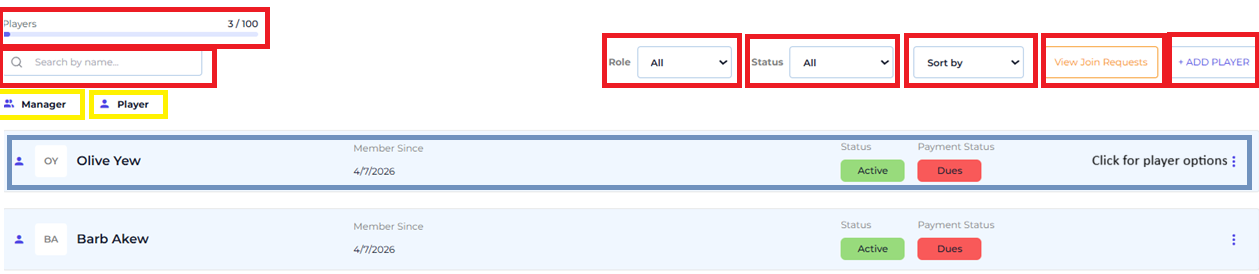
Your CrickTeams plan includes a limit on the total number of players your club can have. The usage counter at the top of the Players page shows how many are currently counted toward your limit.
- The counter shows Active + Pending players combined — both count toward your subscription limit
- Rejected players and removed players do not count toward the limit
- If you reach your player limit the + ADD PLAYER button will be disabled
- Upgrade your plan to increase the player limit for your club
Player Statuses
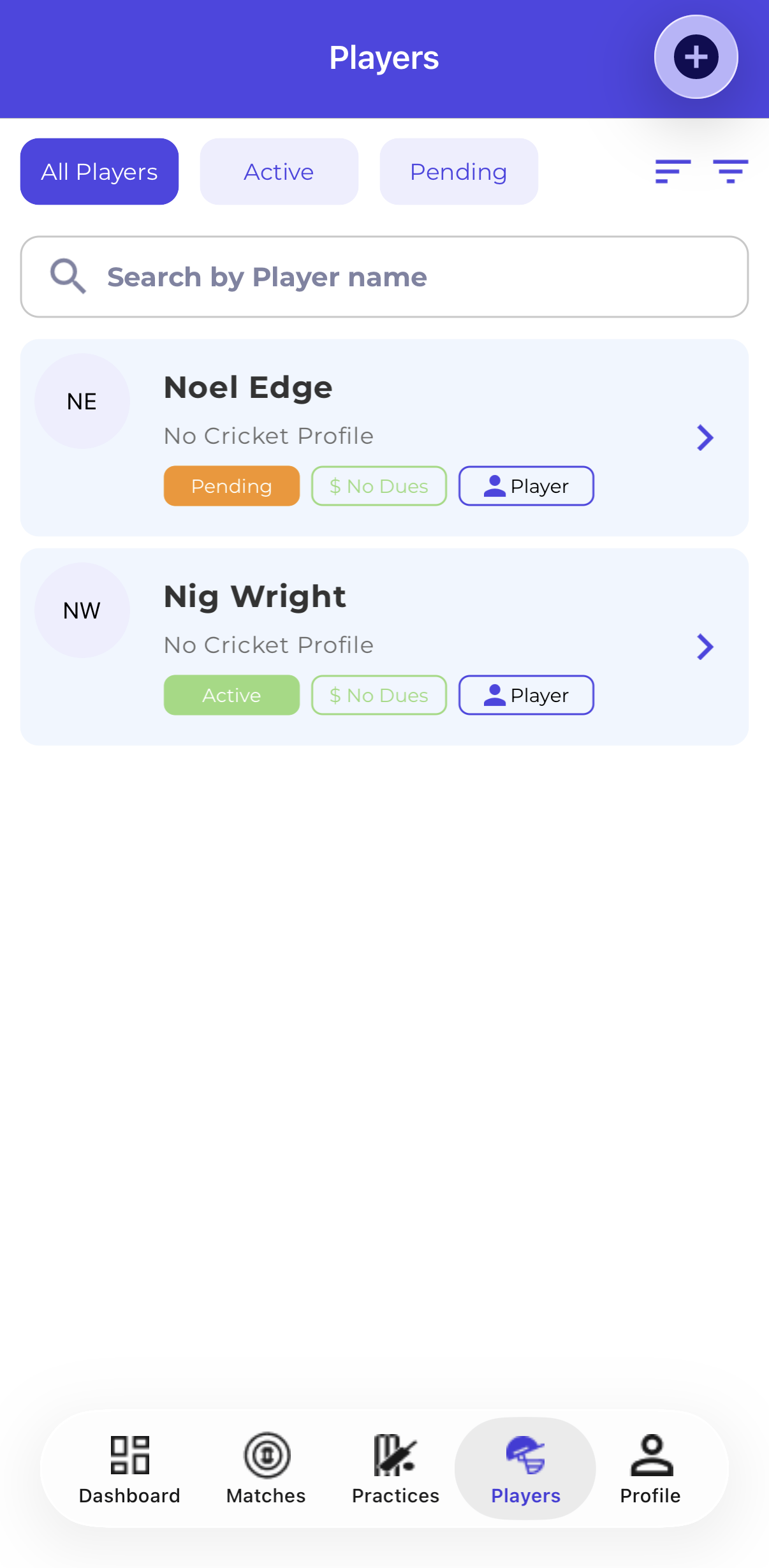
Each player on the Players page has a Status badge that shows their current membership state. Understanding these statuses helps you manage your club effectively.
| Status | Shown As | What It Means |
|---|---|---|
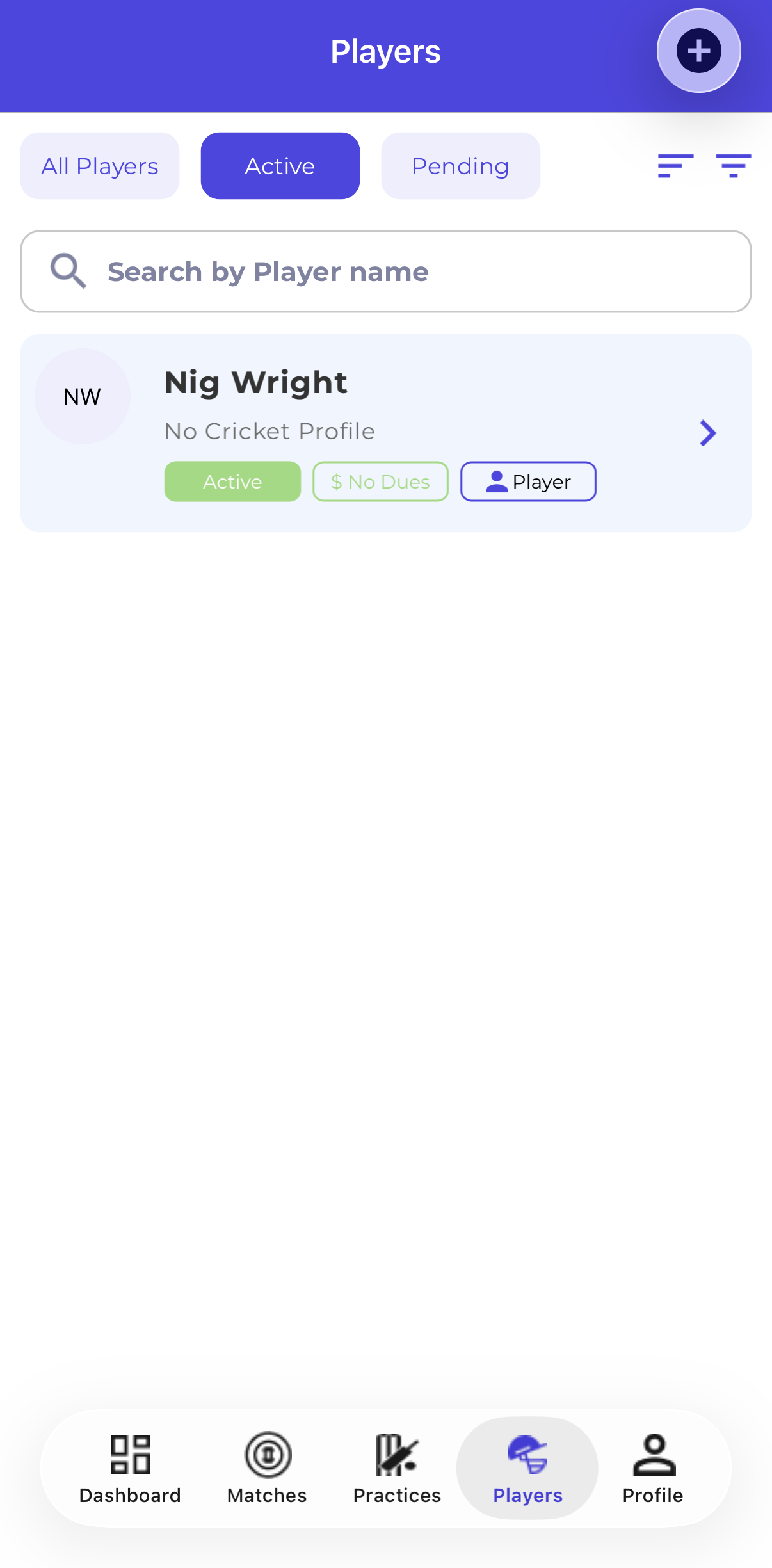
| Active | Green badge | The player has accepted their invite and is a full member of the club. They can see and respond to matches and practices. |
| Pending | Shown in list | An invite has been sent to the player but they have not yet accepted it. They count toward your player limit but cannot access the club yet. |
| Dues | Red payment badge | The player has outstanding fees that have not been paid. This is the Payment Status — separate from the membership Status. |
| Paid | Green payment badge | The player has no outstanding fees — all dues are settled. |
| Rejected | Not shown | A join request submitted via public invite was rejected by the manager. Rejected players do not appear on the Players page. |
Adding Players
Managers can add players to the club in two ways — by sending a direct email invite or by sharing a public invite link. Both methods are available from the Players page.
Method 1 — Direct Email Invite
Use this when you know the player’s email address and want to invite them directly.
- Go to Players from the left navigation menu
- Click the + ADD PLAYER button in the top right corner
- The Add Player form opens at the top of the page
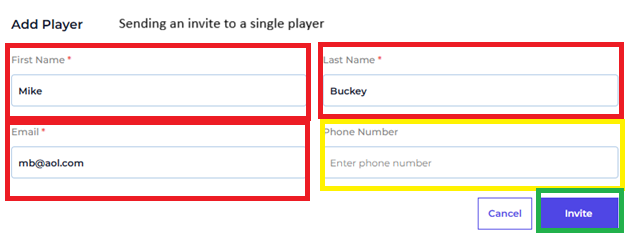
- Fill in the player’s details:
| Field | Required | Description |
|---|---|---|
| First Name | Required | Enter the player’s first name |
| Last Name | Required | Enter the player’s last name |
| Required | Enter the player’s email address — must be a valid unique email not already in the club | |
| Phone Number | Optional | Enter the player’s phone number |
- Click Invite to send the invitation email
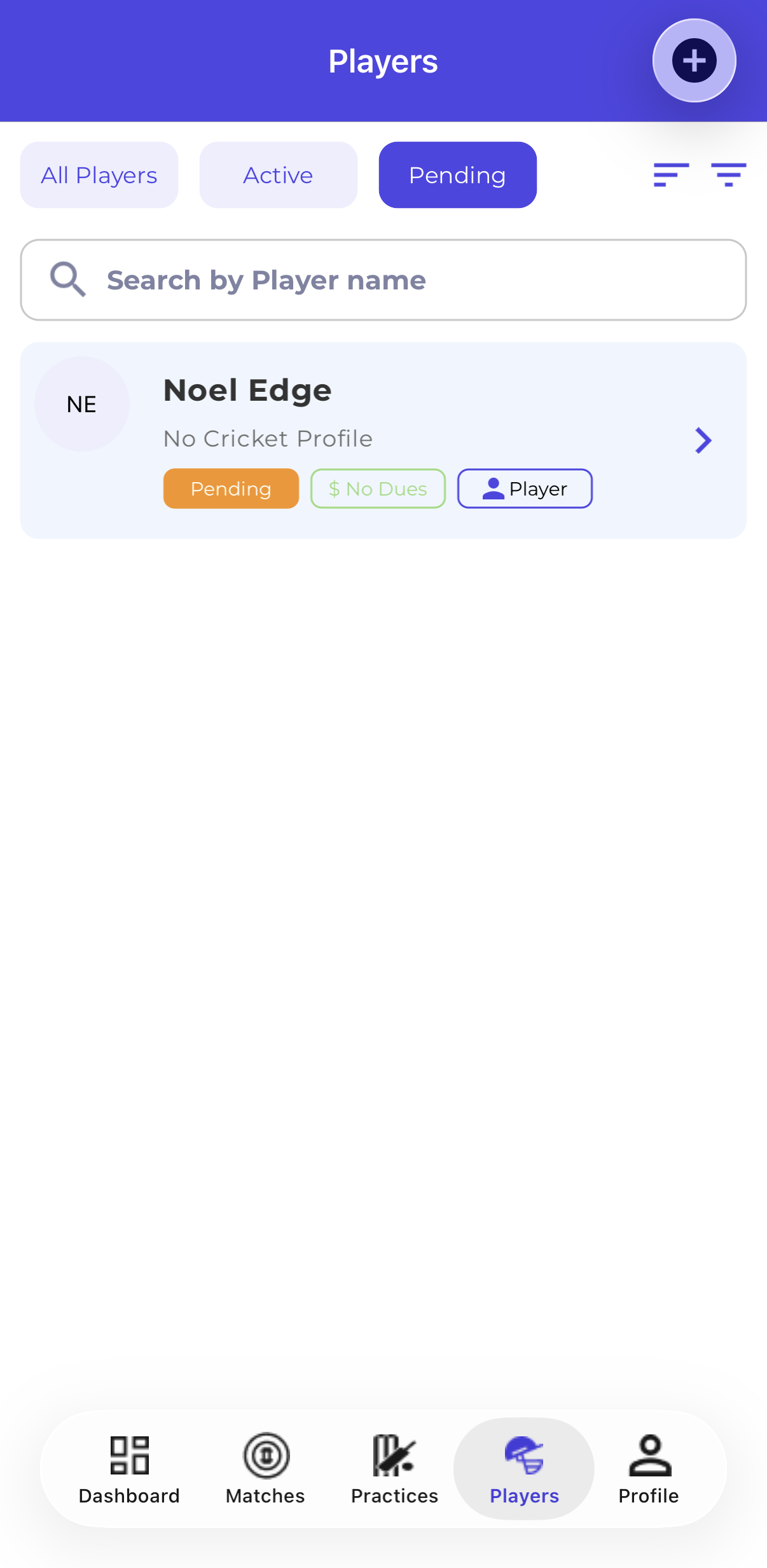
- The player appears on the Players page with a Pending status
- Once the player accepts the invite their status changes to Active


Method 2 — Public Invite Link
Use this when you want to share a single link with multiple people — via WhatsApp, email, social media or any other channel.
- Go to Players and click + ADD PLAYER
- Scroll down to the Invite Players section at the bottom of the page
- Copy the invite link by clicking the copy icon next to the URL
- Share the link with players via WhatsApp, email, social media or any other channel
- Players who use the link will submit a join request
- The manager receives a push notification for each new join request
- The manager must review and approve or reject the request from the View Join Requests button
Managing Join Requests
When a player uses the public invite link to request to join the club, the manager receives a push notification and can review the request from the Players page.
How to View and Respond to Join Requests
- Go to Players from the left navigation menu
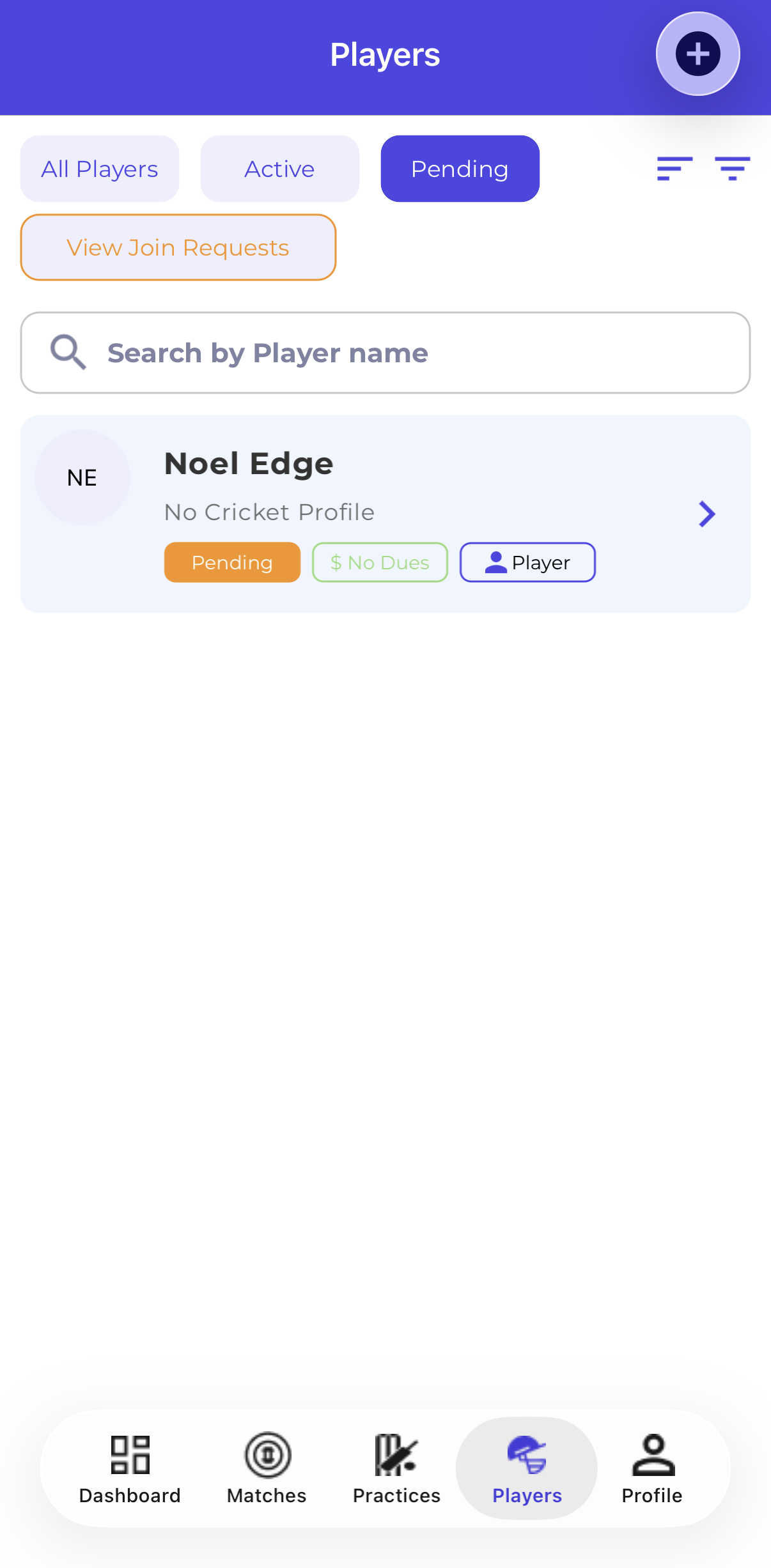
- Click the View Join Requests button at the top right of the page
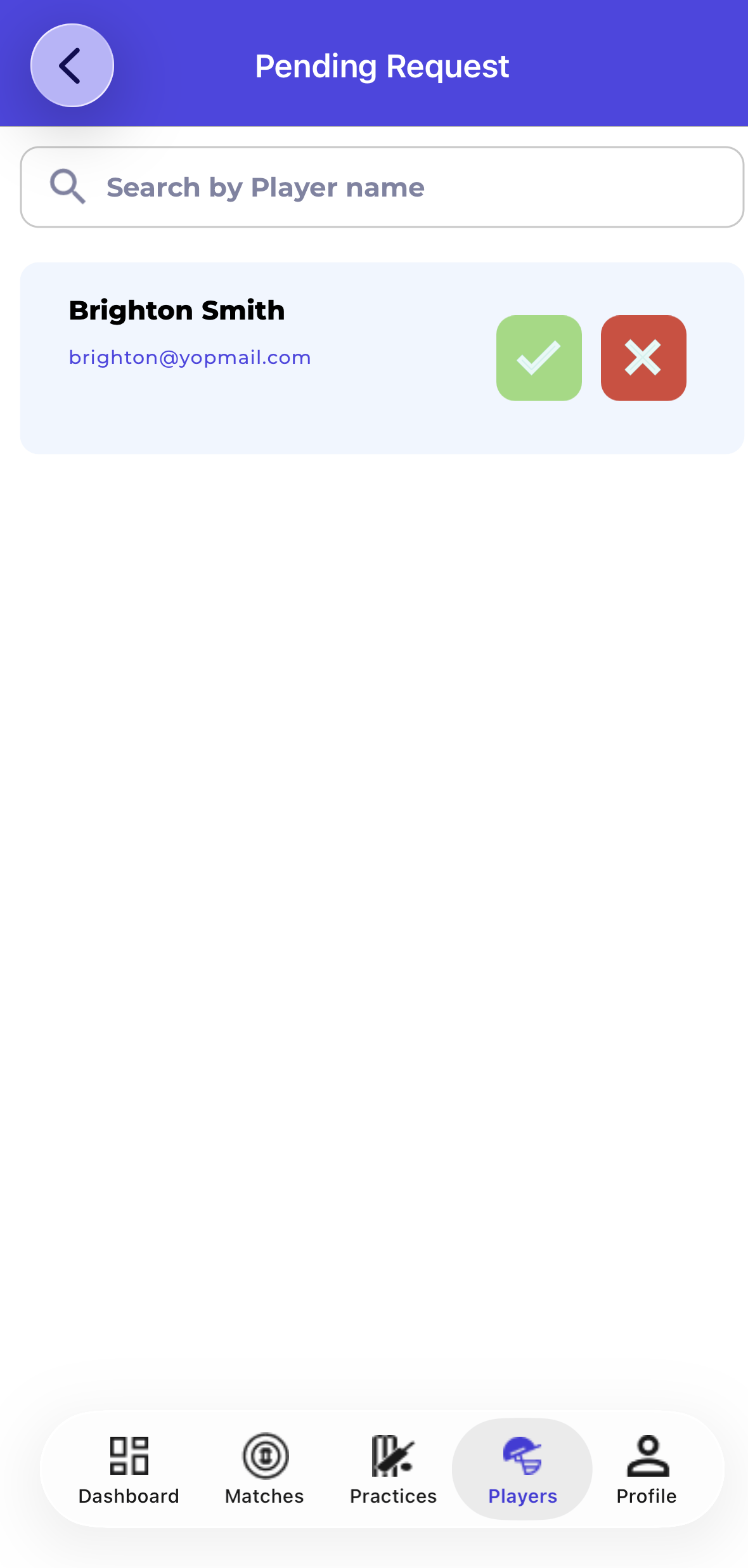
- The Respond to Join Request panel opens
- Review each pending request — you can see the player’s name and details
- Click Approve to add the player to the club — they appear on the Players page as Active
- Click Reject to decline the request — the player is not added and does not appear on the Players page


Player Detail — Viewing Player Information
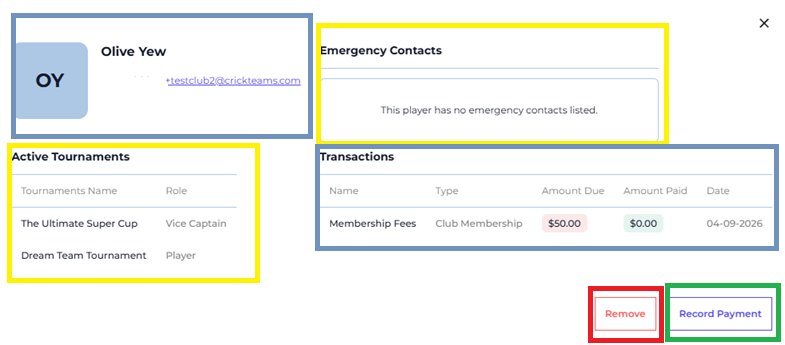
Clicking on any player row opens a detailed modal showing the player’s full profile, tournament assignments, emergency contacts and a link to their payment history.

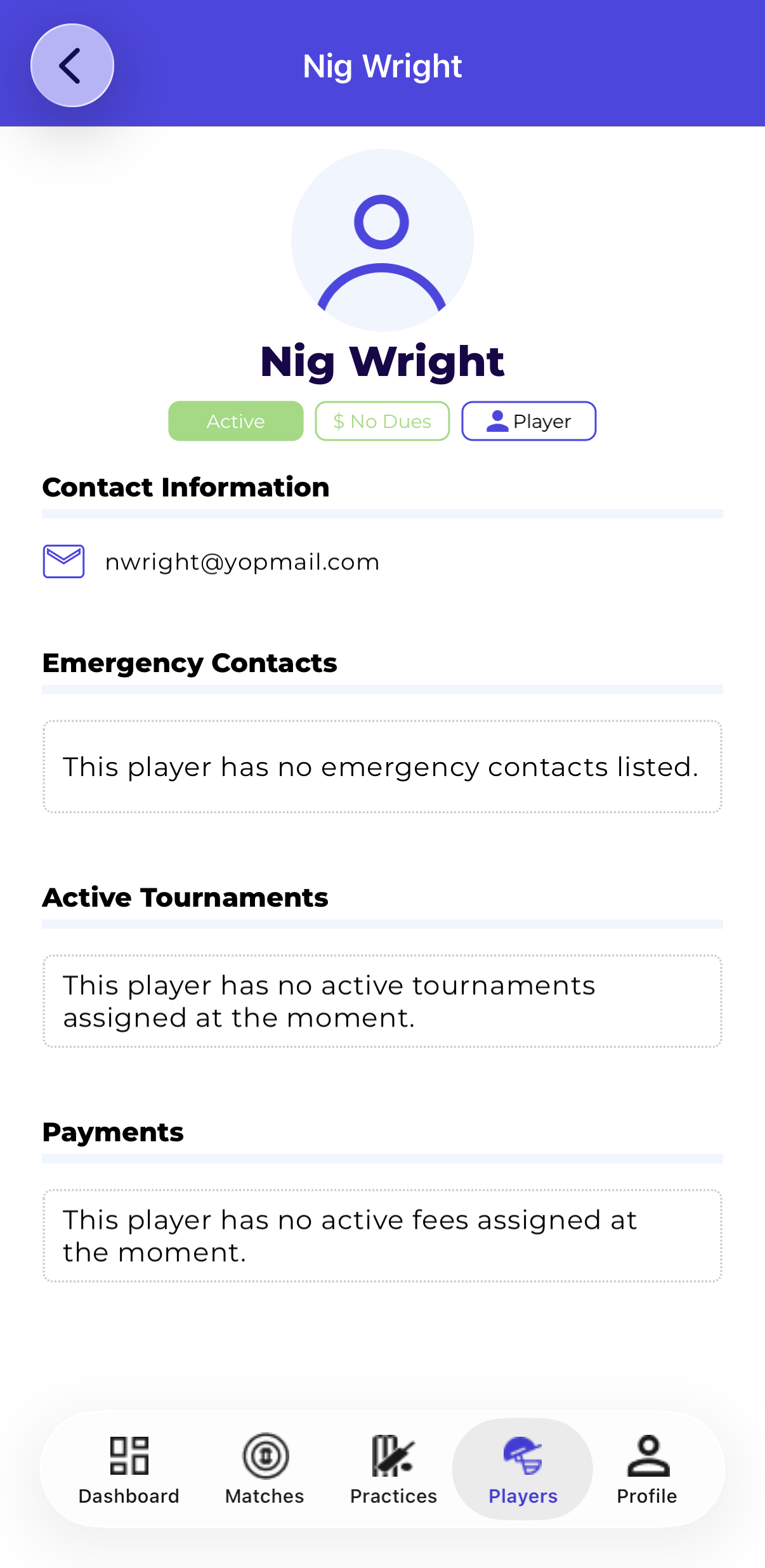
What the Player Detail Modal Shows
Player Profile:
- Player’s full name and email address
- Player’s avatar initials
Active Tournaments:
- Lists all tournaments the player is currently rostered in
- Shows the player’s role in each tournament — Player, Captain or Vice Captain
- A player can be rostered in multiple tournaments simultaneously
Emergency Contacts:
- Shows emergency contact details if the player has added them to their profile
- If no contacts are listed it shows: ‘This player has no emergency contacts listed’
Payments:
- Shows a View Payment History link for the player
- Clicking it opens the Finances → Fees & Payments page filtered to that player — showing all their fees (membership fees, tournament fees, etc.), amounts due, amounts paid and full payment history
Recording Payments
Recording a payment is a club treasurer action. If you are a club manager but not the treasurer, you can still see who owes what — but only the treasurer can record payments against a player’s outstanding dues. The club owner assigns the treasurer under Settings → Permission — see Permissions.
The treasurer can record a payment in two ways:
From the Players page:
- Go to Players and find a player with outstanding dues
- Click the three-dot menu (⋮) on the right side of the player row
- Click Record Payment from the dropdown menu
- Enter the payment amount and details, then click Save
- If all dues are settled the player’s Payment Status badge changes from Dues (red) to Paid (green)
From the Fees & Payments page:
For the full workflow — recording, editing and reviewing a player’s complete payment history — go to Finances → Fees & Payments. The View Payment History link on the Player Detail modal takes you to the same page filtered to that player.
Removing Players
Managers can remove a player from the club at any time using the three-dot menu on the player row.
- Go to Players and find the player you want to remove
- Click the three-dot menu (⋮) on the right side of the player row
- Click Remove Player from the dropdown menu
- Confirm the removal when prompted
- The player is immediately removed from the club and the Players page
- The player can no longer access the club, matches or practices
- Your Players usage count decreases by 1

Resending an Invite
If a player has not yet accepted their invite you can resend the invitation email to remind them.
- Go to Players and find the player with Pending status
- Click the three-dot menu (⋮) on the right side of the player row
- Click Resend Invite from the dropdown menu
- The invite email is sent again to the player’s email address
Searching and Filtering Players
The Players page has several tools to help you find and filter your club members quickly.
Search by Name
- Click the Search by name bar at the top left of the Players page
- Start typing the player’s name
- The list filters in real time to show matching results
Filter by Role
- Click the Role dropdown at the top right
- Select All, Manager or Player to filter by role
- The list updates to show only players with that role
Filter by Status
- Click the Status dropdown at the top right
- Select All, Active or Pending to filter by status
- Useful for finding players who have not yet accepted their invite
Sort Players
- Click the Sort by dropdown to sort players by different criteria
- Options may include name, member since date, payment status, etc.
Validations
CrickTeams enforces the following rules when adding or managing players.
Adding a Player
Errors
- Leaving First Name, Last Name or Email empty
- Entering an invalid email format
- Inviting a player with an email address that already belongs to a member of the club — duplicate emails are not allowed
- Trying to add a player when your plan’s player limit has been reached
Resending an Invite
Errors
- Trying to resend an invite before 24 hours have passed since the original invite was sent — the Resend Invite option will be greyed out or unavailable until the 24 hour period has elapsed
Player Limit
Errors
- Trying to add a new player when the Active + Pending player count has reached your plan’s limit
- Approving a join request when the player limit has already been reached
Frequently Asked Questions
What is the difference between inviting via email and sharing the public invite link?
When you invite via email the player receives a direct invite and appears as Pending on the Players page immediately. When a player uses the public link they submit a join request that requires manager approval. Public link joiners only appear on the Players page after being Approved — they do not show as Pending while waiting.
Do Pending players count toward my player limit?
Yes. Both Active and Pending players count toward your subscription’s player limit. Only rejected and removed players do not count.
Can I resend an invite immediately after sending it?
No. You must wait at least 24 hours after the original invite before the Resend Invite option becomes available. This is to prevent players from receiving duplicate emails too quickly.
Why is a player not showing in the playing team selection for a match?
Only players who are added to the tournament’s player roster appear in the playing team selection. Go to the tournament detail page, click the Players tab and make sure the player is checked in the roster.
Can a player be part of multiple tournaments?
Yes. A player can be rostered in multiple active tournaments simultaneously. Their Player Detail modal will show all tournaments they are part of along with their role in each one.
Can I undo removing a player?
No. Removing a player is permanent and cannot be undone. If you want the player back in the club you will need to invite them again and they will need to accept a new invite.
What happens to a player’s tournament and match data if they are removed?
Historical match and practice data such as attendance responses are preserved for reference. However the player loses access to the club and will no longer appear in future match or practice rosters.
Can I see which players have outstanding dues?
Yes. The Payment Status badge on the Players page shows Dues (red) for players with outstanding fees and Paid (green) for players with no outstanding fees. You can also use the Sort by option to sort by payment status.
Where can I see a player’s emergency contact information?
Emergency contact details are shown on the Player Detail modal — click on any player row to open it. If the player has not added emergency contacts their profile will show ‘This player has no emergency contacts listed’.
Related articles
- Tournaments — Manage tournament rosters and player assignments
- Matches — Select playing teams from your player roster
- Fees — Treasurer-only: create and manage club fees and record payments
- Permissions — How the club owner assigns the Club Treasurer
- Subscription — Understand your plan features and limits