
ChatBeta
On this page
- Overview
- Plan Availability
- Navigation
- Web app sidebar
- Mobile app bottom navigation
- Channel Types
- General channel
- BOD channel
- Tournament channel
- Messaging
- Sending a message
- Editing a message
- Deleting a message
- Message actions menu
- Quoting a message
- Thread replies
- Thread reply access rules
- Searching messages
- Attachments — Photos, GIFs and PDFs
- Where attachments are allowed
- Sending an attachment on the web
- Sending an attachment on mobile
- Viewing and saving attachments
- Deleting an attachment
- Attachment Storage and Privacy
- Media storage on your plan
- How attachments are kept private
- Real-time Delivery and Notifications
- Real-time delivery
- Push notifications (mobile)
- Multi-Club Chat
- Subscription Downgrade — Chat Behaviour
- What happens to tournament channels on downgrade
- General and BOD channels on downgrade
- Tournament Chat — All Flows
- Flow 1 — Tournament created
- Flow 2 — Player added to the tournament roster
- Flow 3 — Player removed from the tournament roster
- Flow 4 — Player re-added to the tournament roster
- Flow 5 — Tournament completed or cancelled
- Player View
- Channel Settings
- Accessing Channel Settings
- What can be edited, by channel
- General channel — Settings
- BOD channel — Settings
- Tournament channel — Settings
- Muting a channel
- Updating the club photo (General channel avatar)
- Blocking a Member
- How to block someone
- What blocking does
- Unblocking someone
- Polls
- Creating a poll
- Voting on a poll
- Ending a poll
- Validations
- Sending messages
- Channel access
- Global and club toggle
- Frequently Asked Questions
- Related articles
Overview
Chat in CrickTeams provides real-time messaging for club members and tournament participants. It supports club-level channels (General and BOD) as well as a channel for each tournament. Chat is controlled by a two-level toggle: a global admin switch and a per-club switch.
| Channel type | Who can access | Created when |
|---|---|---|
| General | All active club members (managers + players) | Automatically when the club is created |
| BOD | Club managers only | Automatically when the club is created |
| Tournament | Club managers + players rostered in the tournament | Automatically when a tournament is created |
Plan Availability
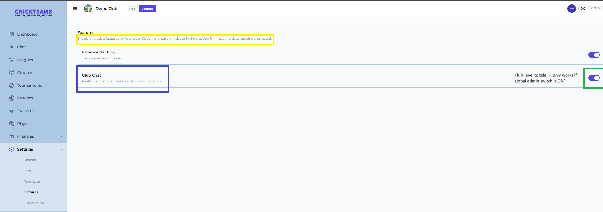
Chat is controlled by two independent switches — a global admin switch and a per-club switch. Both must be ON for chat to be visible and functional for a club.
| Global (Admin) | Club (Manager) | Result for club members |
|---|---|---|
| ON | ON | Chat fully available — all channels visible and functional |
| ON | OFF | Chat hidden for this club only — other clubs unaffected |
| OFF | Hidden | Chat hidden for ALL clubs — the Chat toggle does not appear in Settings → Features |
| OFF | ON (override) | Chat visible for this club only — requires an explicit admin override for that club |
Navigation
When Chat is enabled, it appears in the navigation for both managers and players.
Web app sidebar
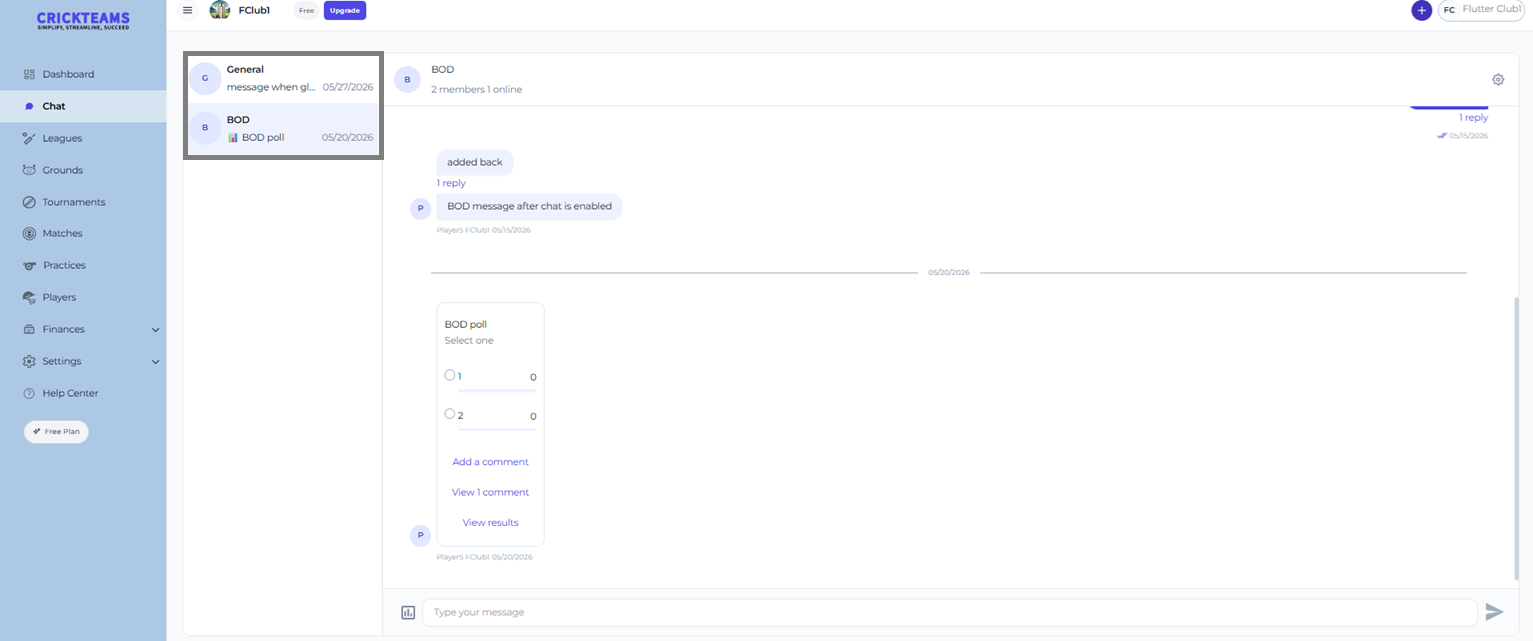
Chat sits in the left-hand sidebar between Dashboard and the club sections (Leagues, Grounds, Tournaments, Matches, Practices, Players), above Finances and Settings. Clicking Chat opens the Chat page with all available channels listed on the left.

Mobile app bottom navigation
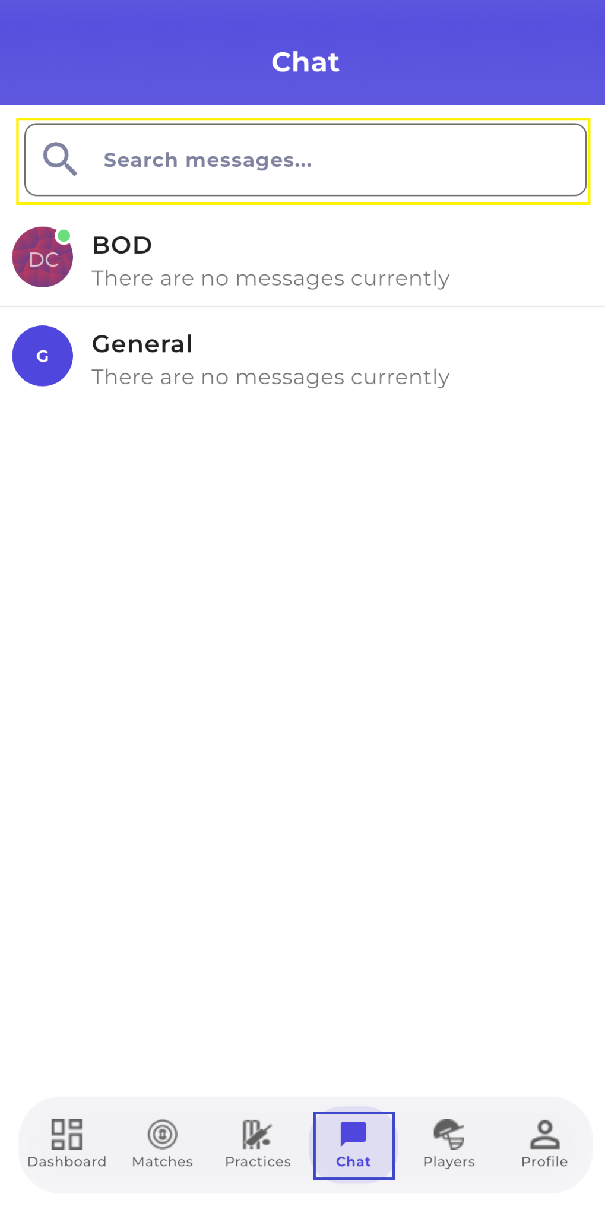
On mobile, Chat is the fourth icon in the bottom tab bar — after Dashboard, Matches and before Practices and Profile.
Channel Types
General channel
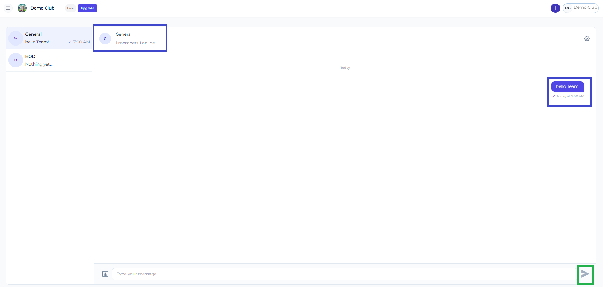
The General channel is the main club-wide chat room. Every active club member — managers and players — is a member of it. It is created automatically when the club is created and cannot be deleted.
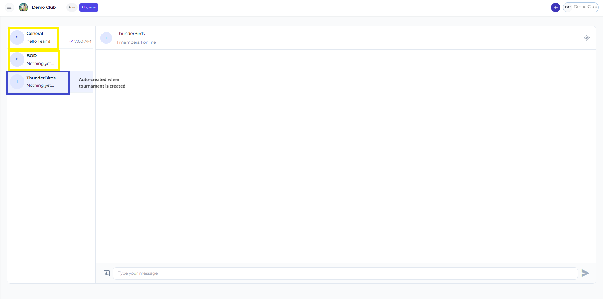
General is announcement-only for players. Only club managers can post in it.
| In the General channel | Manager | Player |
|---|---|---|
| Read messages | Yes | Yes |
| Send messages | Yes | No |
| Attach a photo, GIF or PDF | Yes | No — no attach button is shown |
| React to a message | Yes | No |
| Reply in a thread | Yes | No |
| Quote a message | Yes | No |
| Flag a message | Yes | No |
| Vote in a poll | Yes | Yes |
| Mute the channel | Yes | Yes |
- New members added to the club are automatically added to General
- Members removed from the club lose access to General
- Inactive or removed members cannot read or send messages
BOD channel
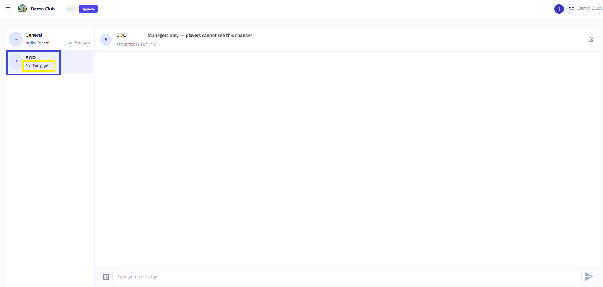
The BOD (Board of Directors) channel is a private channel for club managers only. Players cannot see or access the BOD channel under any circumstances.
- Only club managers can read and send messages in BOD
- BOD is created automatically when the club is created
- Players do not see the BOD channel in their channel list
- Players cannot reach the BOD channel even with a direct link
Tournament channel
Each tournament has its own dedicated chat channel, created automatically when the tournament is created. Club managers are added to every tournament channel by default. Players are added when they are rostered in the tournament.
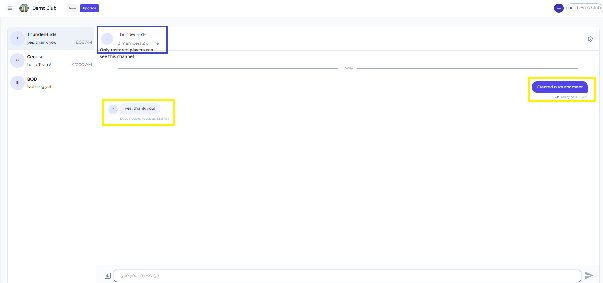
Unlike General, players can post in tournament channels — send messages, attach photos, GIFs and PDFs, react, quote, reply in threads and flag.
- Club managers are automatically added to all tournament channels
- Players are added to the tournament channel when they are added to the tournament roster
- Players are removed from the tournament channel when they are removed from the roster
- The tournament channel stays available while the tournament is running; once its end date has passed it is no longer listed for anyone — see Flow 5
- Players not on the tournament roster cannot see or access the tournament channel
Messaging
Sending a message
- Open Chat from the left sidebar (web) or the bottom tab bar (mobile)
- Select the channel to message in — General (managers only), BOD (managers only) or a tournament channel
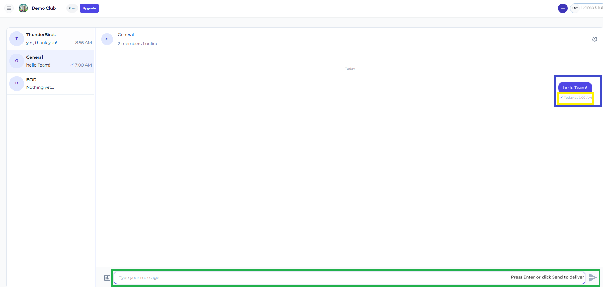
- Type your message in the input field at the bottom
- Press Enter or click Send
- The message appears immediately for all channel members in real time
Editing a message
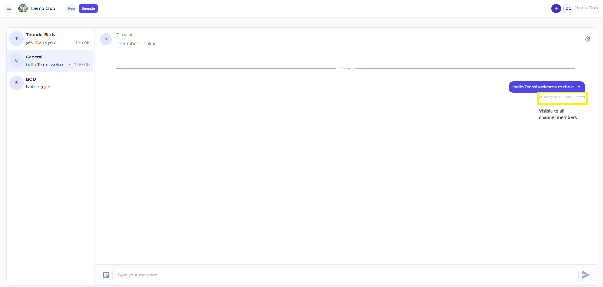
Sent messages can be edited after sending. An Edited label appears below the message to show it was changed.
- Hover over the message (web) or long-press it (mobile)
- Select Edit from the message options menu
- Modify the message text
- Press Enter or click Save
- The message updates with an Edited label visible to all members
Deleting a message
Managers can delete any message in any channel, including messages sent by other members. Players can only delete their own messages.
- Hover over the message (web) or long-press it (mobile)
- Select Delete from the message options menu
- Confirm the deletion
- The message is removed from the channel for all members
| Role | Can delete own messages | Can delete others’ messages |
|---|---|---|
| Player | Yes | No |
| Manager | Yes | Yes — any message in any channel |
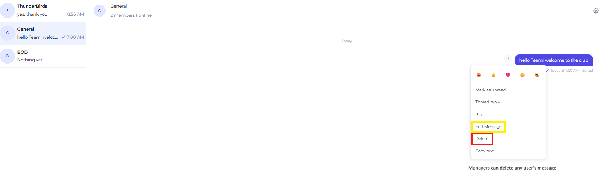
Message actions menu
Hovering over a message (web) or long-pressing it (mobile) opens the message actions menu.
On the web the menu offers: emoji reactions, Mark as unread, Quote, Thread reply, Pin, Flag, Delete, Copy text, and Block user (or Unblock user).
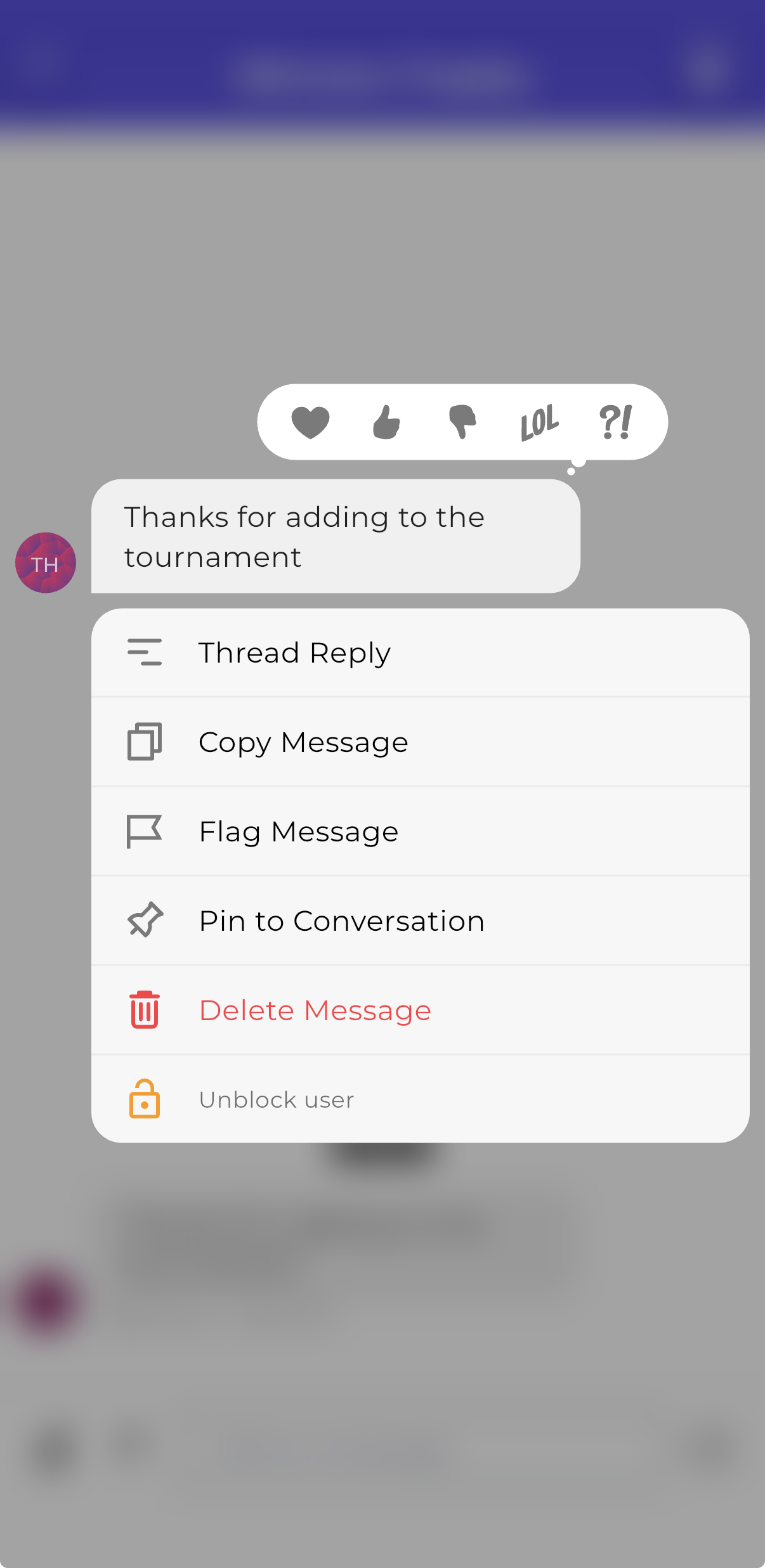
On mobile the long-press menu offers: reactions, Reply, Thread Reply, Copy Message, Flag Message, Pin to Conversation, Delete Message, and Block user / Unblock user.
| Action | Who can use it | What it does |
|---|---|---|
| Reactions | Managers everywhere; players in tournament channels | React to a message with an emoji — the reaction appears below the message for everyone |
| Mark as unread | All members | Marks the message as unread so you can come back to it later |
| Quote (web) / Reply (mobile) | Managers everywhere; players in tournament channels only | Answers a specific message with that message shown above your reply, in the main conversation — see Quoting a message |
| Thread reply | Managers everywhere; players in tournament channels only | Opens a thread to reply to that specific message |
| Pin | Managers only, in BOD and tournament channels only | Marks the message as pinned in that channel |
| Flag | Managers everywhere; players in tournament channels | Reports the message to the chat provider’s moderation service |
| Delete | The sender, on their own messages; managers, on any message | Removes the message from the channel for everyone |
| Copy text | All members | Copies the message text to the clipboard |
| Block / Unblock user | All members, on other people’s messages | Hides that person’s future messages from you only — see Blocking a Member |
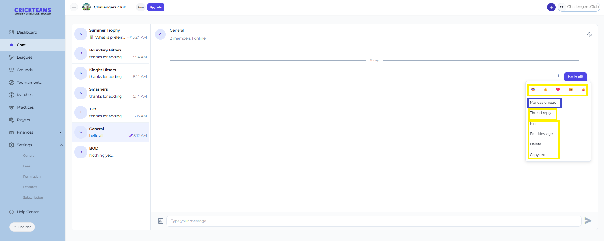
About Pin
Pinning is available to managers only, and only in BOD and tournament channels — there is no pinning in the General channel for anyone.
On the web, a pinned message shows an inline Pinned by You or Pinned by <Name> indicator on the message itself. There is no separate pinned-messages panel and no way to jump to pinned messages on web. Mobile shows its own pin indicator on the message.
About Flag
Flagging a message sends a report to the chat provider’s moderation service.
Quoting a message
A quoted reply answers one specific message with that message shown directly above your own, so everyone can see what you are responding to. Unlike a thread reply, a quoted reply stays in the main conversation where the whole channel sees it.
On the web:
- Hover over the message you want to answer
- Choose Quote from the message actions menu
- The quoted message appears above the input — type your reply and press Enter
On mobile:
- Swipe right on the message — the quickest way — or long-press it and choose Reply
- The quoted message appears above the input — type your reply and tap Send
Thread replies
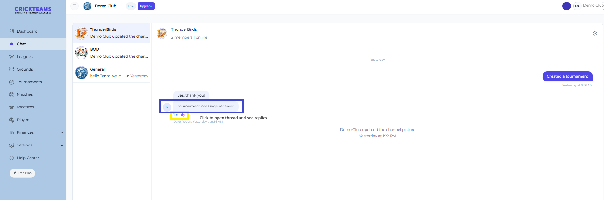
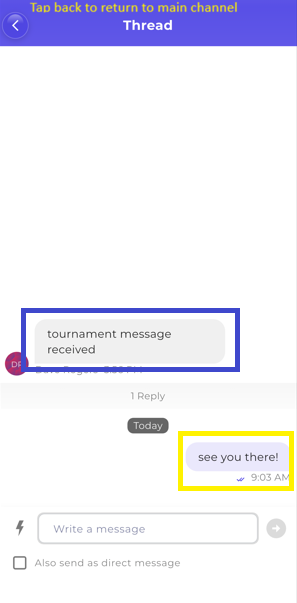
Thread replies let members respond to a specific message without cluttering the main channel. A “N replies” badge appears below the original message when a thread exists.
Thread reply access rules
| Channel | Manager can thread reply | Player can thread reply |
|---|---|---|
| General | Yes | No — General is announcement-only for players |
| BOD | Yes | No — players cannot access BOD |
| Tournament | Yes | Yes — players can thread reply in tournament channels |
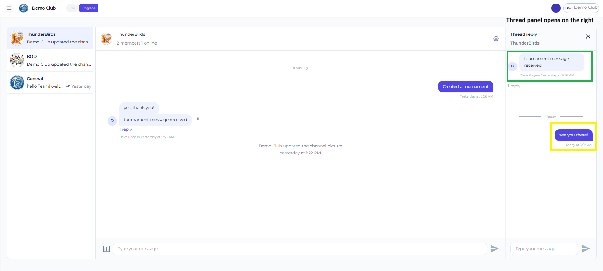
Steps to create a thread reply:
- Hover over the message you want to reply to (web) or long-press it (mobile)
- Click or tap Thread reply from the message actions menu
- A thread panel opens on the right side (web) or a new screen opens (mobile)
- Type your reply in the thread input and press Enter or Send
- A “1 reply” (or “N replies”) badge appears below the original message in the main channel
Searching messages
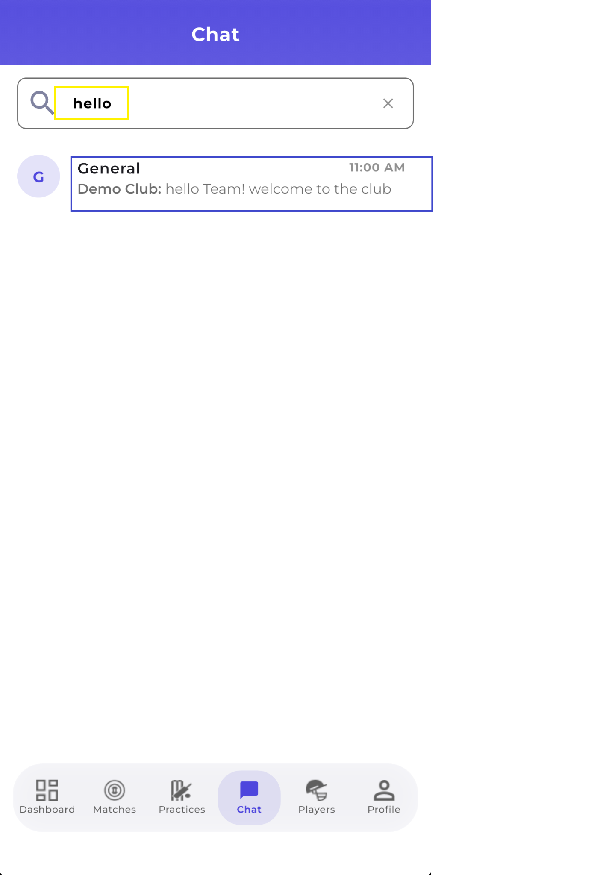
On mobile, the Search messages bar at the top of the Chat page searches across the channels you are a member of.
- Results show the message text, the sender and the channel it is in
- Search only returns results from channels you belong to
- BOD channel messages never appear in a player’s search results
Attachments — Photos, GIFs and PDFs
Messages can carry photos, animated GIFs and PDF documents, on both the web app and the mobile app. Attachments work in the main channel conversation and inside thread replies.
| What you can attach | Detail |
|---|---|
| Photos | JPEG and PNG. iPhone HEIC photos work too — they are converted for you, so just pick them as normal |
| GIFs | Animated GIFs play inline in the conversation on web, iOS and Android |
| PDFs | Shown as a document card with the file name and size |
| How many per message | Up to 10 attachments |
| How big each file can be | Up to 10 MB |
Where attachments are allowed
Attaching follows the same posting rules as sending a message — which makes the General channel the one that surprises people.
| Channel | Manager | Player |
|---|---|---|
| General | Yes | No — no attach button is shown |
| BOD | Yes | Not applicable — players cannot access BOD at all |
| Tournament | Yes | Yes — in tournaments they are rostered in |
Sending an attachment on the web
- Open Chat and select the channel
- Click the paperclip icon beside the message input, or drag files straight onto the conversation
- Pick up to 10 photos, GIFs or PDFs
- Each file appears as a preview above the input, with an ✕ to remove it before you send
- Add a message if you want, then press Enter or click Send
Sending an attachment on mobile
- Open Chat and select the channel
- Tap the attach icon beside the message input
- Choose one of:
- Camera — take a photo there and then. It is attached with a name like
Photo_20260831_143012.jpg, so photos from chat are easy to recognise later - Photos — pick from your photo library, iPhone HEIC photos included
- Files — pick a PDF or a GIF
- Camera — take a photo there and then. It is attached with a name like
- Check the previews, remove any you did not mean to add, then tap Send
Viewing and saving attachments
- Photos — tap or click a photo to open it full screen. If the message carries several photos, swipe between them without going back to the conversation. From the full-screen view you can save the photo to your device.
- GIFs — play in the conversation itself on web, iOS and Android. No need to open them.
- PDFs — arrive as a document card showing the file name and size. On mobile, tapping the card opens the PDF in your device’s document viewer. On the web, clicking it downloads the file, which then opens in whatever you normally use for PDFs.
Deleting an attachment
A single attachment cannot be pulled out of a message once it is sent. Deleting the message deletes its attachments — the photos or files go with it and stop loading for everyone in the channel.
Deleting a message follows the usual rules: you can delete your own messages, and managers can delete anyone’s.
Attachment Storage and Privacy
Media storage on your plan
Everything your club attaches counts toward the club’s media storage. Managers can see the running total at Settings → Subscription → Usage, shown as a Media Storage bar reading how much the club has used against its plan’s allowance.
| Plan | Media storage shown |
|---|---|
| Free | 2 GB |
| Pro | 25 GB |
| Premium | Unlimited |
The bar turns amber once the club passes 80% of the allowance, and red at 100%.
How attachments are kept private
- They are stored by CrickTeams, not on a public link. Attachments live in CrickTeams’ own storage. There is no public web address for them that someone could stumble across or guess.
- Links expire. When you open a photo or file, the app fetches a temporary link to it. If that link is copied and passed around outside CrickTeams, it stops working within a day.
- Only channel members can load an attachment. Every view is checked against your membership of that club and that channel, so a photo posted in a tournament channel cannot be opened by someone who is not on that roster.
- Location data is removed from photos. Phone photos often record the GPS coordinates of where they were taken. CrickTeams strips that out before the photo is stored, so sharing a photo in chat does not share where you were.
- Deleting really deletes. Deleting a message removes its attachments from storage, not just from the conversation.
Real-time Delivery and Notifications
Real-time delivery
Messages are delivered in real time. There is no need to refresh the page to see new messages.
- Messages appear instantly for all online channel members
- The online member count is shown in the channel header
- An unread message count badge appears on the channel in the list
- Opening a channel marks all its messages as read
Push notifications (mobile)
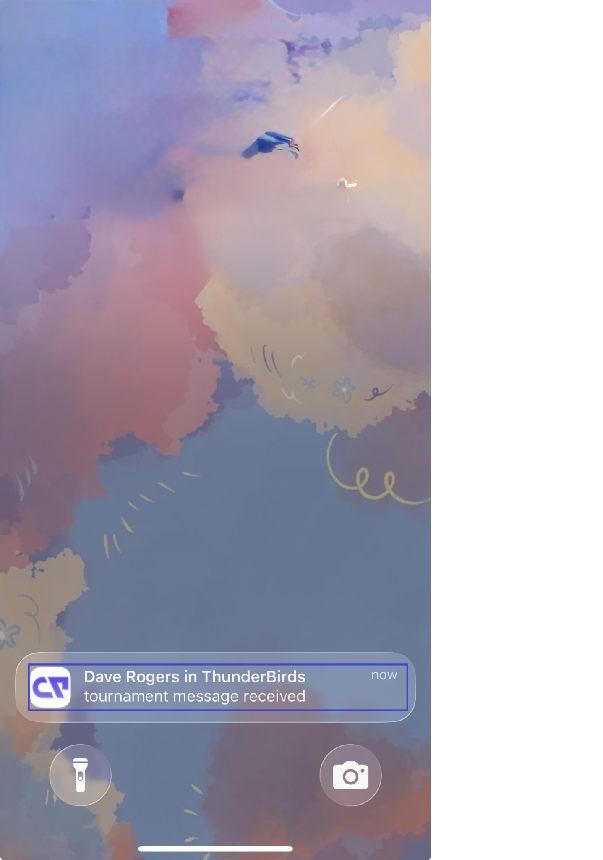
When a new message is sent in a channel, a push notification goes to the mobile devices of all channel members except the sender.
| What you see | Content |
|---|---|
| Notification title | Sender in Channel — for example, “Dave Rogers in Summer Trophy” |
| Title for a thread reply | Sender replied in Channel — for example, “Dave Rogers replied in Summer Trophy” |
| Notification body | The message text, shortened to the first 100 characters |
Tapping the notification opens the CrickTeams app directly at the relevant channel.
Multi-Club Chat
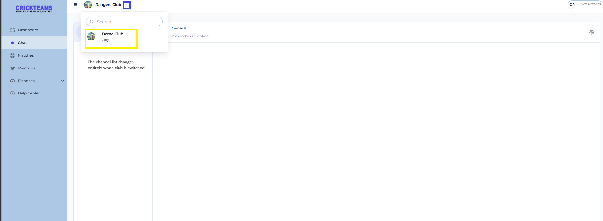
When you belong to multiple clubs, each club has its own independent set of channels (General, BOD, and any tournament channels). Switching clubs in the top navigation changes the chat context entirely.
| Rule | Detail |
|---|---|
| Data isolation | Messages in Club A are not visible in Club B |
| Channel list | Only shows channels for the currently selected club |
| Club switching | Click the club name/chevron in the top left to switch clubs |
| Manager access | A manager in multiple clubs sees BOD and all tournament channels for the active club only |
| Tournament channels | Tournament channels belong to the club that owns the tournament |
| Unread counts | Unread badges reflect the currently selected club only |
Subscription Downgrade — Chat Behaviour
When a club’s subscription is downgraded (for example from Pro to Free), chat access changes immediately. The behaviour differs between older and newer tournament channels, based on the tournament limit of the new plan.
What happens to tournament channels on downgrade
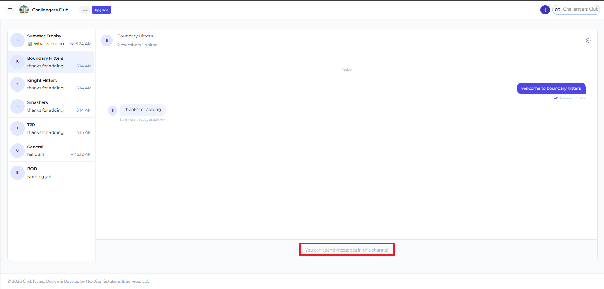
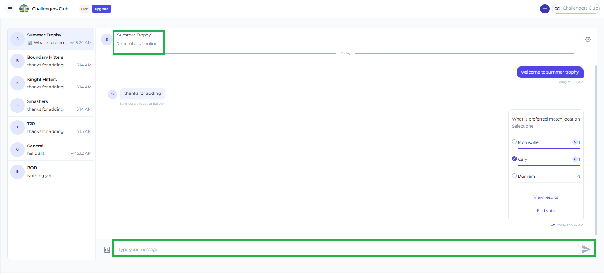
Your plan determines how many active tournaments the club can have. On downgrade, the newest tournaments that exceed the new plan’s limit have their channels locked. Older tournaments that fall within the limit remain open.
| Tournament after downgrade | Chat access | Can send new messages |
|---|---|---|
| Older tournaments (within the plan limit) | Open — chat fully functional | Yes — managers and players |
| Newer tournaments (over the plan limit) | Locked — read the history, but the input is disabled | No — “You can’t send messages in this channel” is shown |
General and BOD channels on downgrade
The General and BOD channels are not affected by a subscription downgrade. They remain accessible to managers and members regardless of plan changes.
- General channel — remains open for all club members
- BOD channel — remains open for managers
- Tournament channels over the new plan limit — you can’t send new messages in them
Tournament Chat — All Flows
Flow 1 — Tournament created
- A manager creates a new tournament
- The tournament channel is created automatically
- Club managers are automatically added as members of the channel
- The channel appears in the manager’s Chat channel list immediately
- No players are in the channel yet — they join when they are added to the roster

Flow 2 — Player added to the tournament roster
- A manager adds a player to the tournament roster
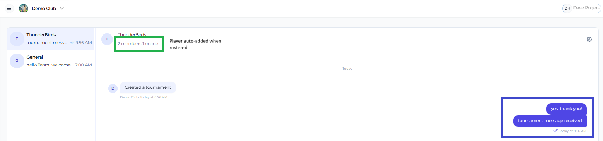
- The player is automatically added to the tournament channel
- The tournament channel appears in the player’s Chat channel list
- The player can now send and receive messages in the tournament channel
- The player can see all previous messages in the channel — the full history
Flow 3 — Player removed from the tournament roster
- A manager removes a player from the tournament roster
- The player is automatically removed from the tournament channel
- The channel disappears from the player’s Chat channel list
- The player can no longer read or send messages in the tournament channel
- The player’s previous messages remain visible to the remaining channel members
Flow 4 — Player re-added to the tournament roster
- A manager re-adds the player to the tournament roster
- The player is re-added to the tournament channel
- The channel reappears in the player’s Chat channel list
- The player regains full access, including the complete message history
Flow 5 — Tournament completed or cancelled
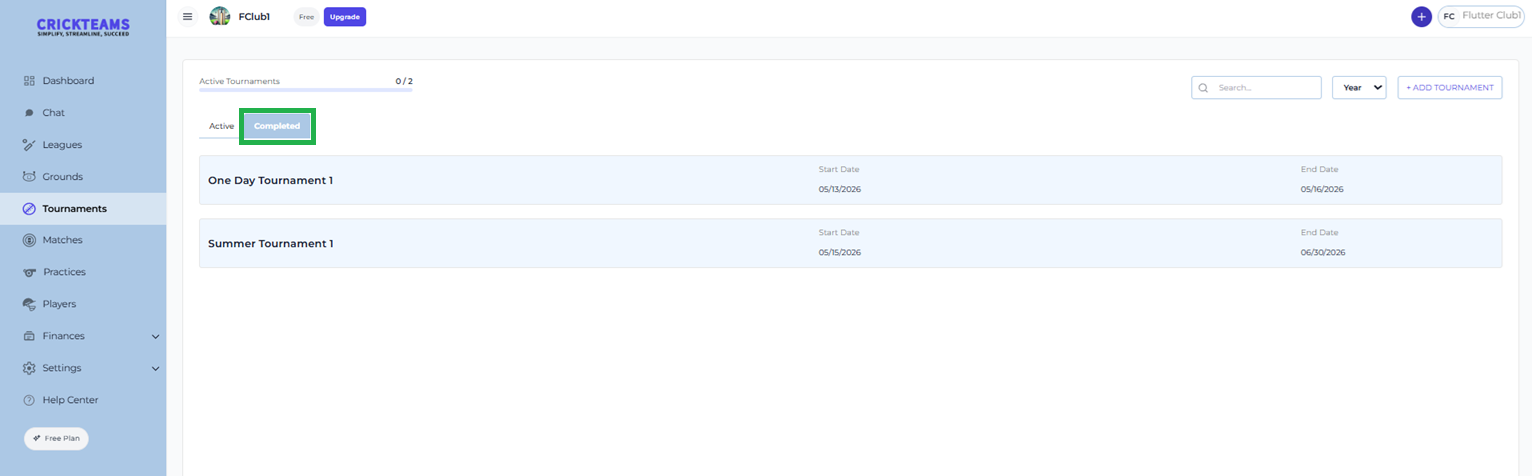
A tournament channel is hidden once the tournament’s end date has passed — the same moment it moves to the Completed tab under Tournaments. From then on the channel disappears from the channel list for everyone — the club manager and the rostered players alike. Only General and BOD remain. A cancelled tournament’s channel likewise disappears once its end date passes.
Player View
Players have a more restricted chat experience than managers. They only see channels they are members of, they cannot access BOD, and they cannot post in General.
| Feature | Player | Manager |
|---|---|---|
| General channel — read | Yes | Yes |
| General channel — send messages | No — announcement-only | Yes |
| General channel — vote in polls | Yes | Yes |
| BOD channel — read & send | No | Yes |
| Tournament channel — read & send | Yes (if rostered) | Yes (all tournaments) |
| Edit own messages | Yes | Yes |
| Delete own messages | Yes | Yes |
| Delete other members’ messages | No | Yes |
| Create a poll | Only in tournament channels they are rostered in — never in General or BOD | Yes — in any channel |
| Pin a message (BOD and tournament channels) | No | Yes |
| Search messages (mobile only) | Yes — own channels only | Yes — own channels only |
| See the member count | Yes | Yes |
| Block a member | Yes | Yes |
| Attach photos, GIFs or PDFs | Yes — in tournament channels they are rostered in; not in General | Yes — in any channel they can post in |
| Quote a message | Yes — in tournament channels they are rostered in | Yes |
| 1-to-1 direct messages | No | No |
Channel Settings
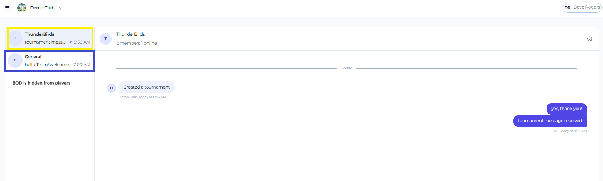
Each channel has a Channel Settings panel, opened from the settings icon in the top right of the channel header. It shows the channel avatar and name, the Mute Channel option, the members list, and your blocked users.
Accessing Channel Settings
- Open Chat and select a channel
- Click the settings icon in the top right corner of the channel header
- The Channel Settings panel opens
Club managers are shown with a Moderator badge in the members list, on both web and mobile.
What can be edited, by channel
Only club managers can edit a channel’s name or avatar — non-managers can change neither. What is editable depends on the channel:
| Channel | Name | Avatar |
|---|---|---|
| General | Editable by a manager | Not editable — it is the club logo. Change it in Settings → General |
| BOD | Editable by a manager | Editable by a manager — upload an image |
| Tournament | Not editable — change the tournament’s name in the tournament settings | Editable by a manager — upload an image |
General channel — Settings
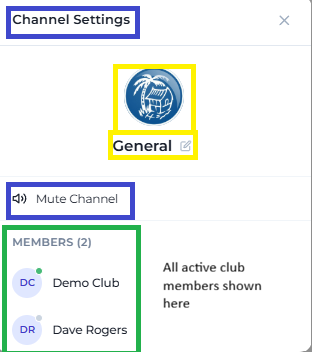
The General channel settings show the club logo as the avatar, the channel name, the Mute Channel option and a list of all club members. A manager can rename the channel here, but the avatar can only be changed by updating the club photo in Settings → General.
BOD channel — Settings
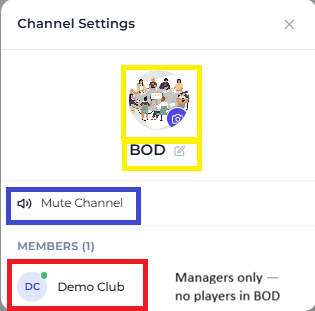
The BOD channel settings show the avatar (which a manager can upload), the channel name (which a manager can edit) and the members list. Only club managers appear as members.
Tournament channel — Settings
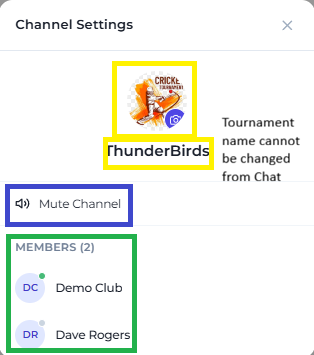
The tournament channel settings show the tournament avatar (which a manager can upload), the tournament name (read-only in Chat), the Mute Channel option and the members.
Muting a channel
Any member can mute a channel for their own account. Muting affects only you — other members are unaffected.
- Open the channel you want to mute
- Click the settings icon in the top right
- Click Mute Channel in the Channel Settings panel
- The channel is muted for your account only
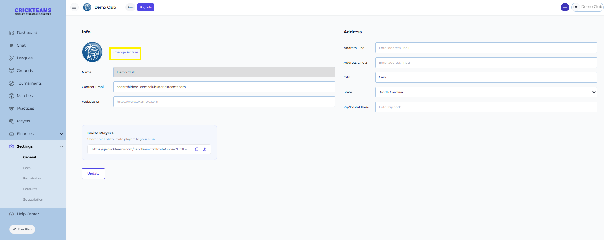
Updating the club photo (General channel avatar)
The General channel avatar is the club’s profile photo. To change it:
- Go to Settings → General
- Click Change Picture next to the club avatar
- Upload a new photo
- Click Update to save
- The General channel avatar updates automatically to the new club photo
Blocking a Member
If someone’s messages are bothering you, you can block them. Blocking is personal — it only changes what you see. It does not affect other members, and the person you block is never told.
Anyone can block anyone: managers can block players, players can block managers, and players can block each other. The one exception is that you cannot block yourself.
How to block someone
There are two ways.
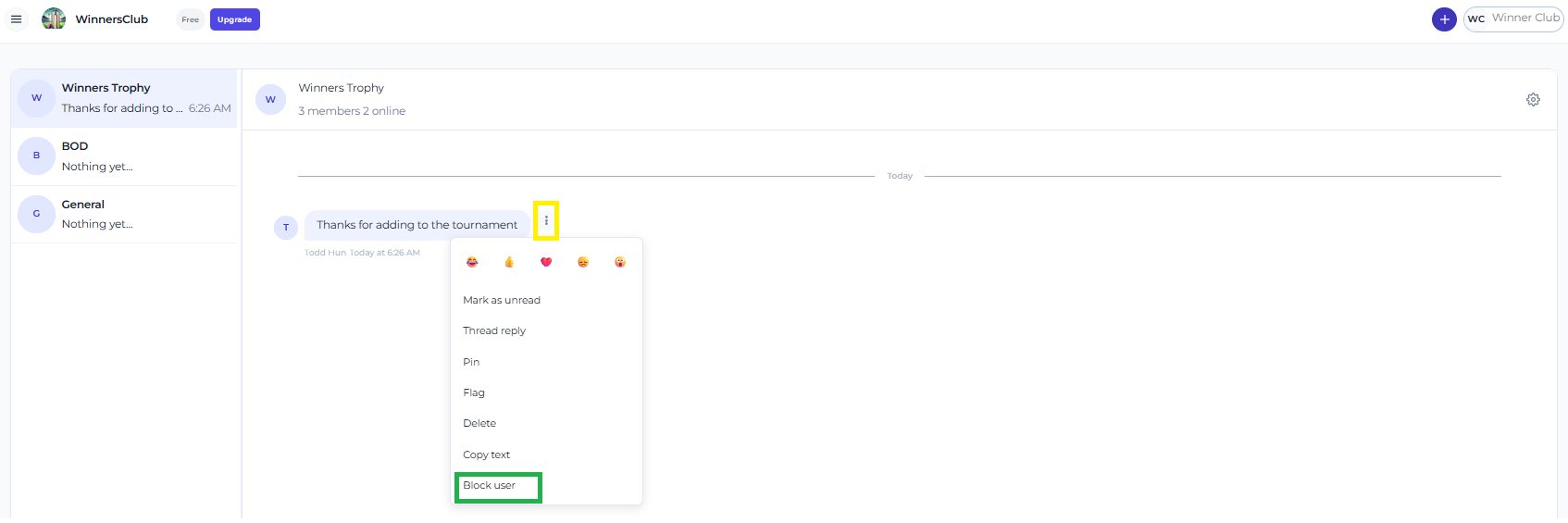
From one of their messages:
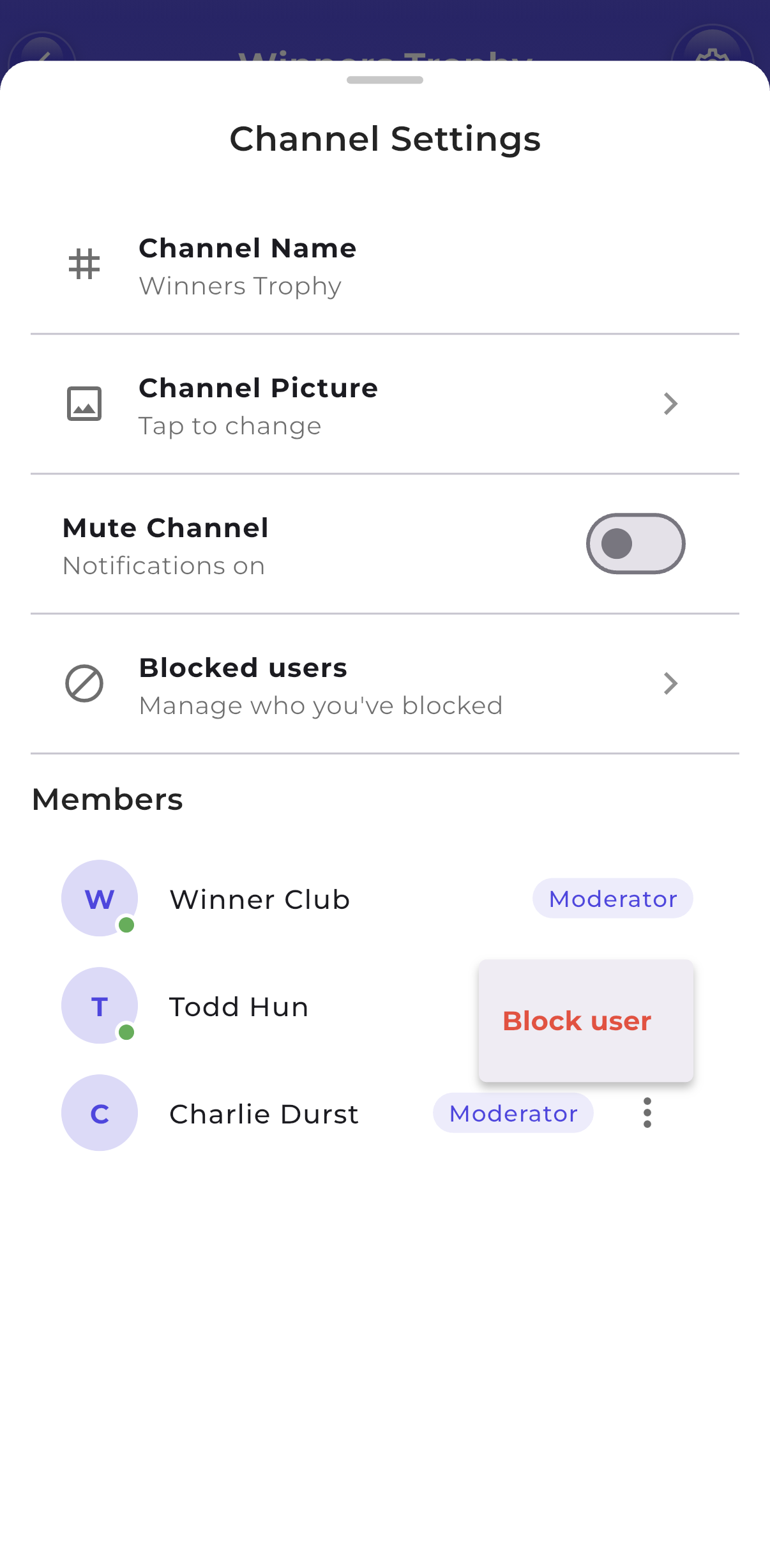
- Open the message’s actions menu — the ⋯ menu on web, or long-press the message on mobile
- Choose Block user
- Confirm
Block user only appears on other people’s messages, never on your own.
From Channel Settings:
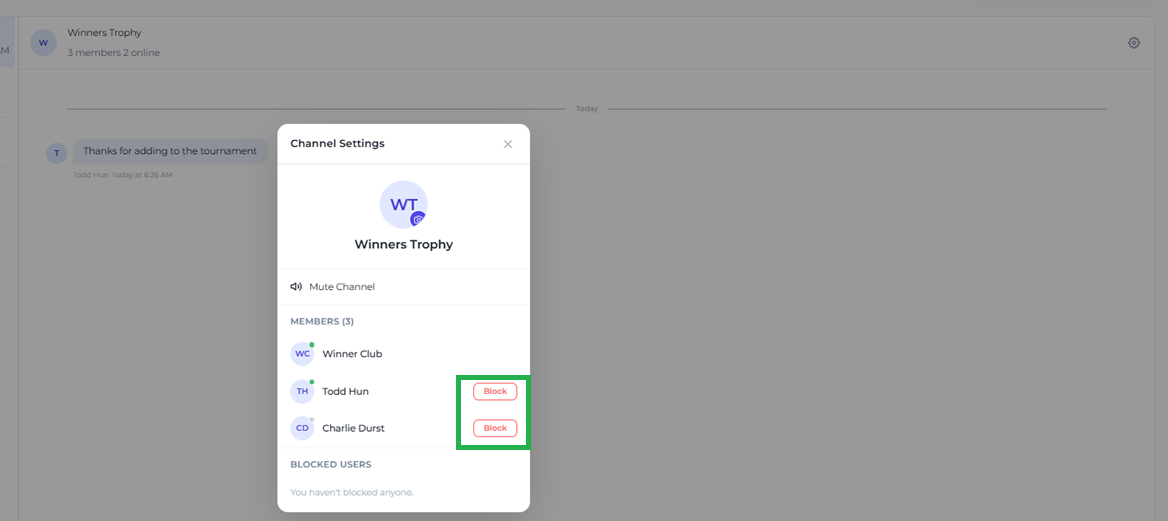
- Open Chat and select a channel
- Click the settings icon in the top right to open Channel Settings
- Find the member in the members list and click Block next to their name
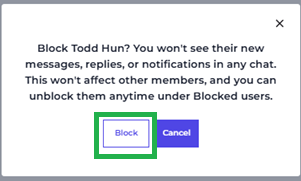
Either way, a confirmation appears first:
Block <Name>? You won’t see their new messages, replies, or notifications in any chat. This won’t affect other members, and you can unblock them anytime under Blocked users.
What blocking does
Once you block someone:
- Their new messages are hidden from you in every channel you share
- You stop getting push notifications from them
- They disappear from @mention autocomplete when you type
- Their messages stop showing as the channel’s last-message preview in your channel list
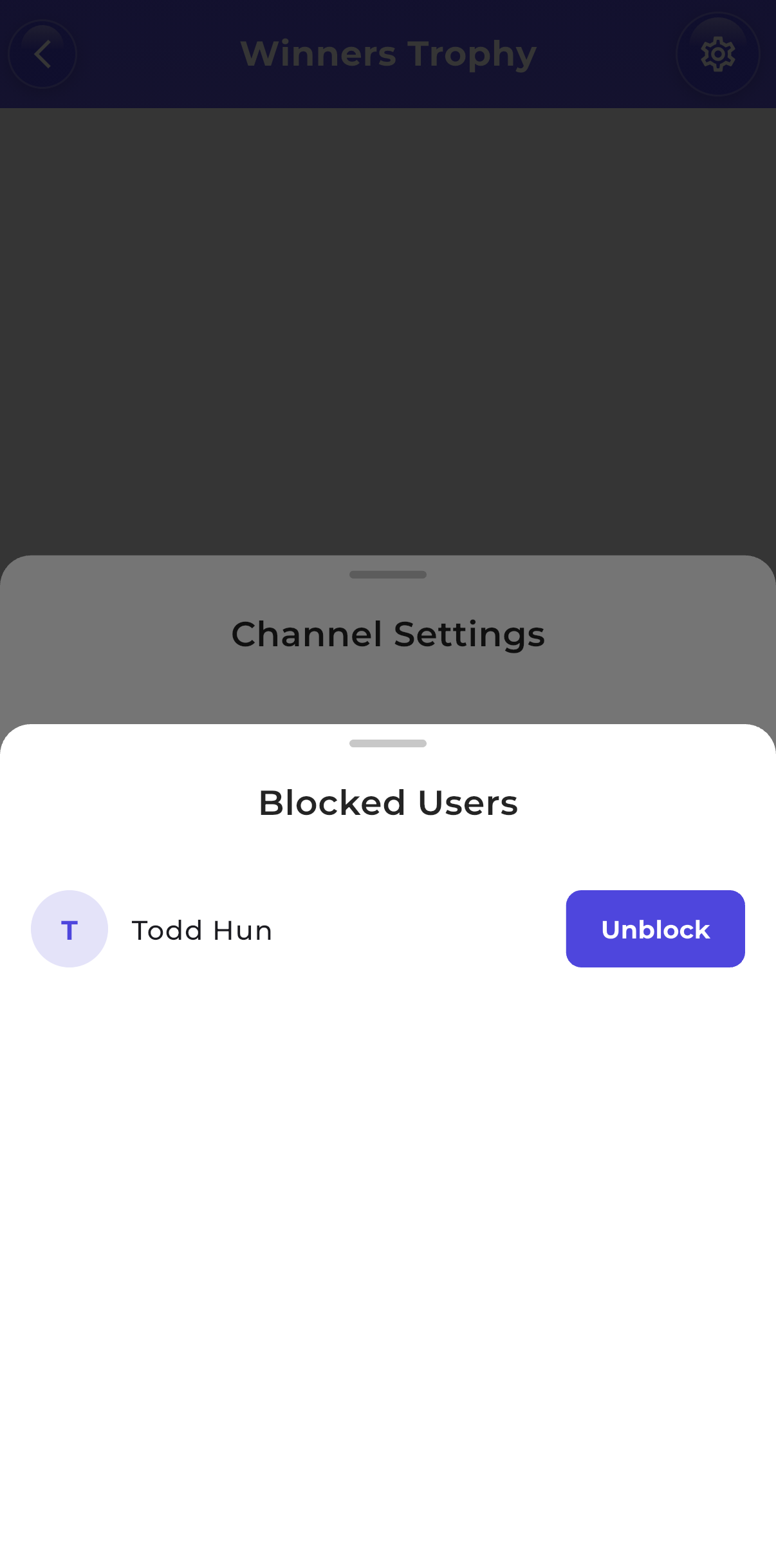
Unblocking someone
There are two ways to unblock, mirroring the two ways to block.
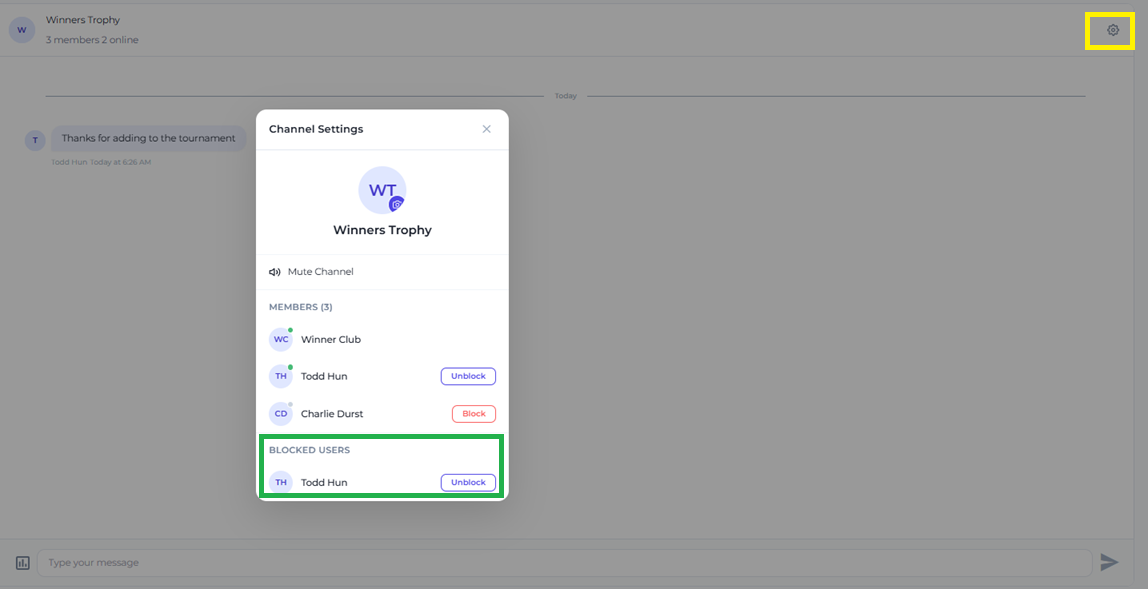
From Channel Settings:
- Open Channel Settings
- Go to Blocked users
- Click Unblock next to the person’s name
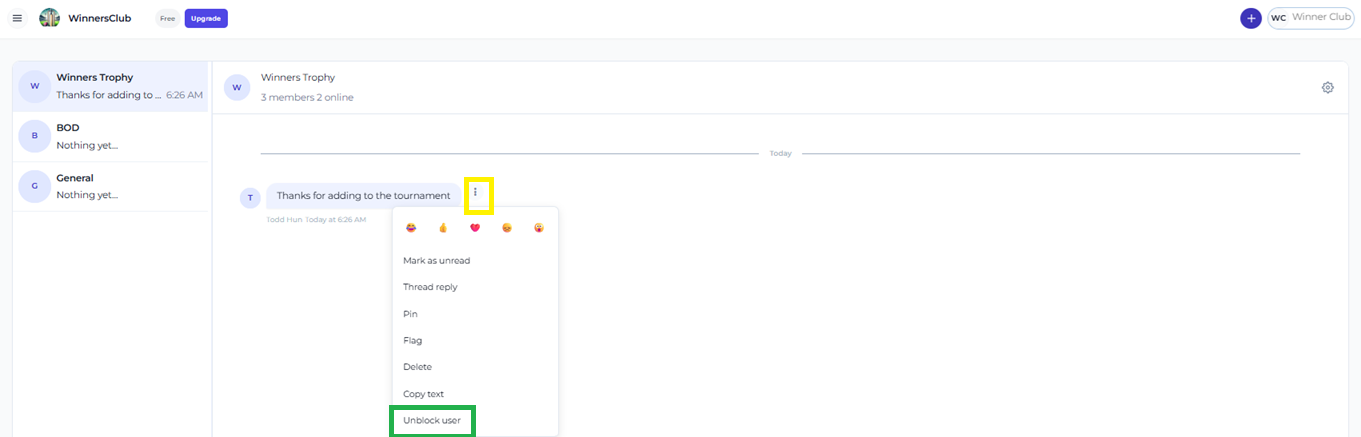
From one of their older messages:
- Open the actions menu on a message they sent before you blocked them
- Choose Unblock user
Polls
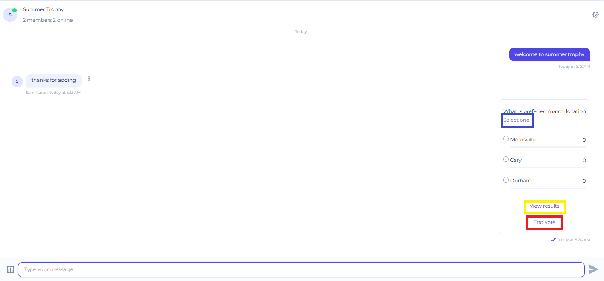
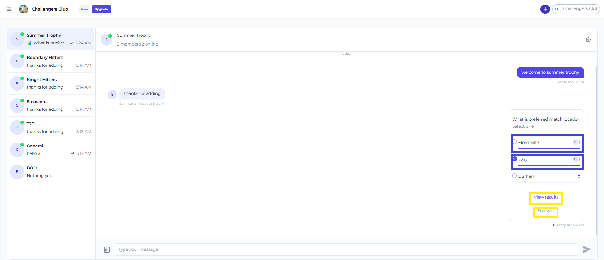
Polls collect structured feedback or votes from members. They appear as interactive cards in the channel, and members vote directly from the chat.
Creating a poll
Poll creation follows your channel permissions — the same on web and mobile. Club managers can create polls in any channel. Players can create polls only in the tournament channels they are rostered in; the poll icon simply doesn’t appear for them in General or BOD, where they cannot post.
- Open the channel where you want to create the poll
- Click the poll icon in the message input bar at the bottom left
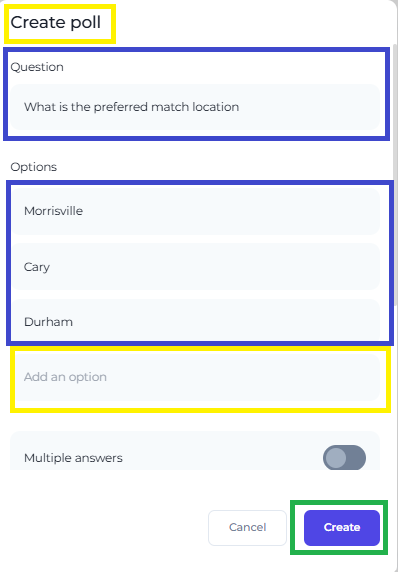
- The Create poll modal opens
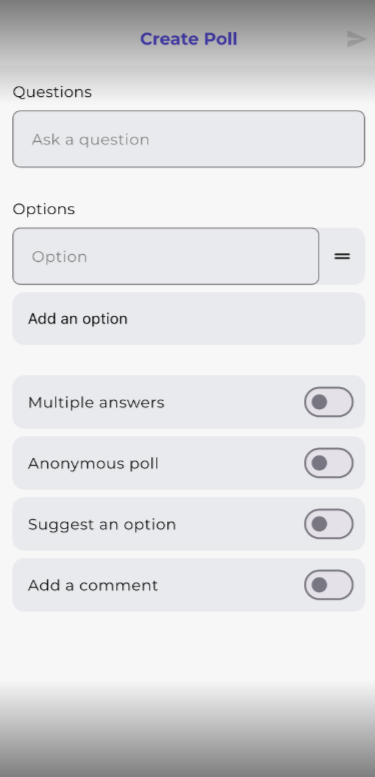
- Enter the poll Question
- Add poll Options — type each option and press Enter, or click Add an option to add more
- Configure the poll settings (see the table below)
- Click Create to publish the poll to the channel
| Poll setting | What it does | Default | Available on |
|---|---|---|---|
| Multiple answers | Lets members select more than one option | OFF — single choice | Web and mobile |
| Anonymous poll | Hides which member voted for which option | OFF | Web and mobile |
| Allow option suggestions | Lets members add their own options after the poll is published | OFF | Web and mobile |
Voting on a poll
Everyone in the channel can vote — managers and players alike. This includes players in the General channel: even though they cannot post messages there, they can still vote in polls.
- Select one or more options, depending on whether Multiple answers is enabled
- Your vote is recorded immediately and the count updates in real time
- View results shows the current vote counts for each option
- You can change your vote until the poll is ended
- You cannot vote once a manager has ended the poll
Ending a poll
Only club managers can end a poll, on both web and mobile. Once ended, no further votes can be cast and the final results are locked.
- Open the channel containing the poll
- Click End vote on the poll card
- The poll closes and the final results are locked
- Members can still view the final results but cannot change their vote
| Poll action | Manager | Player |
|---|---|---|
| Create poll | Yes | Mobile only, in tournament channels |
| Vote | Yes | Yes — including in General |
| View results | Yes | Yes |
| End vote (web and mobile) | Yes | No |
| Delete poll | Yes | No |
| Suggest options (if enabled on the poll) | Yes | Yes |
Validations
Sending messages
- Empty messages cannot be sent — the Send button is disabled when there is nothing to send
- Messages containing only spaces cannot be sent
- Photos, GIFs and PDFs can be attached — up to 10 per message, each up to 10 MB
- Any other file type is refused with Photos, GIFs and PDFs only; an oversized file is refused with Files up to 10 MB are allowed, and nothing is uploaded in either case
- Players cannot attach anything in the General channel — the attach button is not shown to them there
- 1-to-1 direct messages are not supported
- Players cannot send messages in the General channel — it is announcement-only
- Players cannot send messages in the BOD channel — they cannot access it at all
- Players not on a tournament roster cannot send or view that tournament channel’s messages
- Special characters, emojis and numbers are all supported in message text
- Messages are delivered in real time
Channel access
- BOD access is enforced on the server — a player cannot reach it by any route
- Tournament channel access follows the roster — removing a player from the roster removes their channel access immediately
- Managers are added to all tournament channels automatically when a tournament is created
- New club members are added to the General channel automatically
Global and club toggle
- If the global admin switch is OFF, club managers cannot enable Chat regardless of their club setting
- If the club toggle is OFF, Chat is hidden for all members of that club
- If the global switch is OFF but an override is granted to a specific club, that club can control its own toggle
- Turning Chat OFF does not delete message history — it is preserved and comes back when Chat is turned on again
Frequently Asked Questions
Why can’t I see Chat in my sidebar?
Chat is rolling out in beta, so the most common reason is that it has not been switched on for your club yet — use the Raise a ticket button on this page to request the Chat beta for your club. Beyond that, Chat is controlled by two switches: your club manager may have turned Chat off under Settings → Features, or the global CrickTeams switch may be off (in which case the Chat toggle does not appear in Settings → Features at all). It is also worth checking Settings → Subscription to see what your club’s plan includes.
Why can’t I send messages in the General channel?
The General channel is announcement-only — only club managers can post there. As a player you can read every message, vote in polls and mute the channel, but the message input is not available to you. To chat with your team, use a tournament channel you are rostered in.
Why can’t I see the BOD channel?
The BOD channel is for club managers only. Players do not have access under any circumstances — it is restricted on the server, not just hidden in the app.
Why can’t I see the tournament channel?
Tournament channels are only available to players on the tournament roster. If you cannot see one, ask your club manager to confirm you have been added to the roster.
Can players create thread replies in General chat?
No. General is announcement-only for players, so thread replies there are for club managers only. Players can use thread replies in tournament channels they are rostered in.
Can players create polls?
No. Only club managers can create polls or end them. Players can vote on polls and see the results — including polls in the General channel, even though they cannot post there.
Where do I find pinned messages?
Pinning is for managers only, and only in BOD and tournament channels — you cannot pin anything in General. On the web, a pinned message shows a Pinned by You or Pinned by <Name> label on the message itself; there is no separate pinned-messages list and no jump-to-pinned. Mobile shows its own indicator on the pinned message.
I flagged a message — what happens next?
Flagging reports the message to the chat provider’s moderation service. It does not notify your club managers, and there is no flagged-messages screen inside CrickTeams for anyone to review. If you want your club to act on a message, tell a manager directly. If you simply do not want to see that person’s messages, block them instead.
Why does my tournament channel say “You can’t send messages in this channel”?
Your club’s subscription was downgraded and this tournament channel is now over the new plan’s tournament limit. Older tournaments that fall within the limit stay open. Upgrade your plan to restore messaging, or reduce the number of active tournaments.
Are messages in locked tournament channels deleted?
No. The message history in a locked channel is preserved and stays readable. Locking stops new messages from being sent in that channel — it does not remove anything.
I blocked someone but can still see their old messages — why?
That is expected. Blocking is not retroactive. It hides messages from the moment you block onward — anything the person sent before that stays in the conversation. Blocking is working correctly; you simply won’t see anything new from them.
Does blocking someone tell them?
No. Blocking is completely private. The person you block is not notified, sees no change, and other members are not affected either — blocking only changes what you see.
Does blocking stop their notifications?
Yes. Once you block someone you stop receiving push notifications for their messages. Their messages also stop appearing as the channel’s last-message preview in your channel list, and they no longer come up in @mention autocomplete.
Do I leave the channel when I block a member?
No. You stay in General, BOD and your tournament channels exactly as before. Blocking only hides that one person’s new messages from you — the channel and everyone else in it carry on as normal.
How do I unblock someone?
Open Channel Settings → Blocked users and click Unblock next to their name. You can also open the actions menu on one of their older messages — the ones sent before you blocked them — and choose Unblock user. On mobile, Channel Settings has a Blocked users row that opens the full list.
Can I block a club manager?
Yes. Anyone can block anyone — managers and players alike. The only person you cannot block is yourself. Blocking a manager hides their new messages from you, but it does not change their role or their ability to post.
What is the difference between an anonymous poll and a regular poll?
In a regular poll, vote counts are shown alongside member avatars, so everyone can see who voted for which option. In an anonymous poll only the counts are shown and individual choices are hidden. Anonymous voting is chosen when the poll is created — the setting is available on both web and mobile.
Can a player suggest additional poll options?
Only if Allow option suggestions was turned on when the poll was created. If it is on, members can add their own options after the poll is published.
Can I search my messages?
On mobile, yes — use the Search messages bar at the top of the Chat page. There is no message search in the web app, so use the mobile app to find an old message. Search only covers channels you are a member of, so BOD messages never appear in a player’s results.
Can I send photos or files in Chat?
Yes. You can attach photos, animated GIFs and PDFs to a message on both web and mobile — up to 10 attachments per message, each up to 10 MB. iPhone HEIC photos are converted for you automatically. Video, Word and Excel files are not supported. See Attachments.
Why is there no attach button in the General channel?
Because General is announcement-only — only club managers can post there, so only club managers can attach there. Players see no attach button in General at all. Attach normally in the tournament channels you are rostered in.
How many photos can I send at once, and how big can they be?
Up to 10 attachments per message, each up to 10 MB. If you pick something bigger you will see Files up to 10 MB are allowed, and if you pick an unsupported file type you will see Photos, GIFs and PDFs only — in both cases nothing is uploaded and your message is left as it was.
How do I save a photo someone sent?
Tap or click the photo to open it full screen, then save it to your device from there. If the message has several photos you can swipe between them without going back to the conversation.
How much media storage does my club have?
Club managers can see it at Settings → Subscription → Usage, as a Media Storage bar showing how much the club has used against its plan — 2 GB on Free, 25 GB on Pro, unlimited on Premium. Today that bar is a meter only: going past the figure shown does not stop anyone attaching photos or files, and nothing already sent is removed or archived.
If I delete a message, does the photo go too?
Yes. Deleting a message deletes its attachments — they are removed from storage and stop loading for everyone in the channel. There is no way to remove just one attachment from a message you have already sent; delete the message and send it again.
Can someone outside my club open a photo we shared in chat?
No. Attachments are stored by CrickTeams and are not on a public link, and every view is checked against your membership of that club and that channel. If someone copies the link the app uses and shares it outside CrickTeams, it stops working within a day. Location (GPS) data is also stripped from photos before they are stored.
How do I reply to one specific message?
On the web, hover over it and choose Quote. On mobile, swipe right on the message, or long-press it and choose Reply. Your reply appears in the main conversation with the original shown above it — that is different from a thread reply, which lives in its own thread.
Can I have a private 1-to-1 conversation with another member?
No. Direct (1-to-1) messaging is not supported. All conversations happen in the shared club channels — General, BOD (managers only) or tournament channels.
Can a manager delete another player’s message?
Yes. Club managers can delete any message in any channel, including messages sent by other members. Players can only delete their own. Editing is different — only the original sender can edit their own text.
What happens to chat messages when a player is removed from the club?
They lose access to all club channels immediately. Their previous messages are not deleted — they stay visible to the remaining channel members.
What happens to the tournament channel when a tournament ends?
The channel is no longer shown once the tournament is completed or cancelled, and no new messages are sent in it. The history is preserved.
I’m in two clubs — can I see both clubs’ chat at the same time?
No. Chat is scoped to the club you currently have selected. To see another club’s chat, switch clubs using the club selector in the top left navigation — the channel list, messages and unread counts all update to the new club.
Why am I not receiving push notifications for new chat messages?
Check three things: the CrickTeams mobile app is installed, notifications are enabled for it at the device level (iOS Settings or Android Settings), and you have not muted the channel. Also check My Account → Notification. If they still do not arrive, log out of the mobile app and back in.
I muted a channel but it still shows an unread count — is that a bug?
No. Muting stops push notifications for that channel; it does not clear the unread badge. The channel keeps counting unread messages so you can still see there is something new. Opening the channel marks everything read as usual.
Related articles
- Tournaments — Create and manage club tournaments
- Features — Enable or disable Chat for your club
- My Account — Manage your notification preferences
- Subscription — View your club plan, and the Media Storage bar for chat attachments
- General — Change the club photo used as the General channel avatar